Appliquer des ensembles de champs configurables aux projets
Arrière-plan
Un ensemble de champs configurables est un groupe de champs dans certains outils Procore qui peuvent être définis comme facultatifs, obligatoires ou masqués selon les besoins de votre entreprise. Cela permet un meilleur contrôle de l’entrée de données lorsque les utilisateurs créent et modifient des éléments dans les projets Procore.
Voir Que sont les ensembles de champs configurables et quels outils Procore les prennent en charge ?
Éléments à prendre en compte
Les ensembles de champs s’appliquent par défaut aux nouveaux projets, mais vous pouvez également choisir de mettre à jour les projets existants.
L’application d’un ensemble de champs configurables à un projet existant peut avoir un impact sur tous les éléments nouveaux ou existants créés ou mis à jour à l’aide de l’ensemble de champs, y compris les modifications apportées aux exigences de champ ou aux champs personnalisés.
Si vous souhaitez configurer des ensembles de champs pour des outils spécifiques, voir Que sont les ensembles de champs configurables et quels outils Procore les prennent en charge ?
Conditions préalables
Voir Créer de nouveaux ensembles de champs configurables OU Cliquez ici pour voir les étapes.
Accédez à l’outil Admin au niveau entreprise.
Sous « Paramètres de l’outil », cliquez sur l’outil pour lequel vous souhaitez créer des ensembles de champs configurables.
Cliquez sur l’onglet Ensembles de champs.
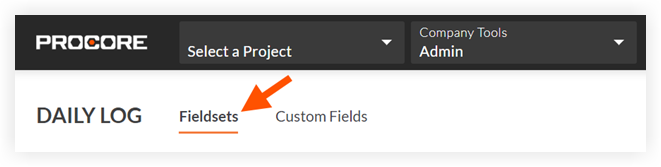
Remarque : les outils sans autres paramètres dans l’outil Niveau entreprise Admin s’ouvriront automatiquement dans cette page.Cliquez sur Créer un ensemble de champs et, si nécessaire, sélectionnez le type d’ensemble de champs.
Saisissez un nom pour l’ensemble de champs, puis cliquez sur Créer.
Sur la page « Modifier l’ensemble de champs », chaque nom de champ a les options suivantes :
Effectuez l’une des opérations suivantes :
Commutez le bouton en position ON
 pour rendre le champ visible dans la section.
 Commutez le bouton en position OFF
 pour masquer le champ dans la section.
Remarque : une icône de bascule estompée indique que le champ est visible et ne peut pas être masqué.
Effectuez l’une des opérations suivantes :
Cochez la case à cocher « Obligatoire » pour indiquer que le champ est obligatoire.
Décochez la case à cocher « Obligatoire » pour désigner le champ comme facultatif. Remarques :
Facultatif : Si disponible, cliquez sur Créer une section pour créer une nouvelle section. Voir Créer des sections personnalisées.
Cliquez sur Enregistrer.
Dans la fenêtre « Appliquer les modifications à [#] projet(s) ? », cliquez sur Assigner des projets pour ajouter l’ensemble de champs aux projets.
Dans la fenêtre « Assigner des projets », cochez la case à cocher à côté de chaque projet auquel vous souhaitez appliquer l’ensemble de champs et cliquez sur Mettre à jour.
Dans la fenêtre « Appliquer les modifications au(x) [#] projet(s) ? », cliquez sur Confirmer.
Facultatif : Pour définir un ensemble de champs par défaut pour les nouveaux projets, cliquez sur l’icône
 à la fin de sa ligne dans l’onglet « Ensembles de champs » et sélectionnez Définir comme nouveau projet par défaut. Note
Les projets créés à partir d’un modèle de projet comprenant des ensembles de champs hériteront des ensembles de champs du modèle de projet au lieu des ensembles de champs par défaut de votre entreprise. Voir Configurer un modèle de projet.