Ce site Web n'est pas encore complètement disponible dans votre langue
La seule page du site de support V2 disponible dans vos paramètres régionaux est celle de la bibliothèque vidéo. Le lancement complet du site Web arrivera prochainement.
Vous recherchez d'autres contenus ? Retournez sur le site de support V1.
Manuels de produits populaires
Les manuels de produits les plus utilisés sur le chantier
Pour revenir à l’ancien Accueil de projet, les administrateurs Procore peuvent accéder à l’outil Accueil entreprise Portefeuille / ProcoreAccueil, cliquer sur Gérer les paramètres et désactiver Aperçu du projetbascule.
Cependant, plus tard cette année, il sera au coucher du soleil et ne sera plus disponible. Si votre entreprise est revenue à l’ancienne expérience projet Accueil, les administrateurs Procore peuvent réactiver l’Aperçu du projet en activant Aperçu du projet bascule ACTIVÉ.
Fond
Dans un projet Procore, l’adresse du projet figure dans le coin supérieur droit de la page d’accueil. Cette adresse est ajoutée au départ et peut être mise à jour dans l’outil Admin au niveau projet.
Accédez à l’Accueil du projet pour être redirigé vers l’Aperçu du projet.
Cliquez sur Menu et sélectionnez Aperçu du projet.
Dans la section « Informations sur le projet », cliquez sur les points de suspension verticaux et sélectionnez Modifier le projet.
Mettez à jour les détails du projet.
Afficher/Masquer les champs
Nom du projet. Le nom du projet.
Numéro de projet. Le numéro du projet.
Étape du projet. L’étape de construction du projet.
Type de projet. Le type de projet de construction tel que le commerce, le résidentiel ou l’infrastructure.
Région. La région du projet
Pieds carrés. La superficie en pieds carrés du projet.
Cliquez sur Mettre à jour.
Facultatif : Pour modifier des informations supplémentaires sur le projet, cliquez sur les points de suspension verticaux et sélectionnez Accéder à l’Admin du projet.
Legacy Project Home Steps
Accueil du projet (Héritage)
Accédez à l’outil Admin du projet.
Dans la zone Adresse , remplacez l’entrée existante.
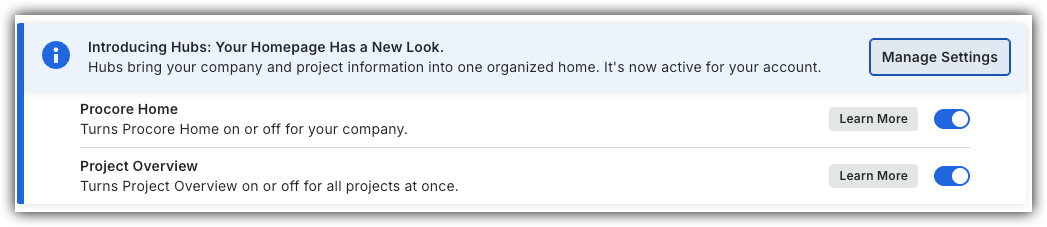
 bascule.
 ACTIVÉ.
 verticaux et sélectionnez Modifier le projet.