Charger un logo de projet
Arrière-plan
Si votre projet de construction a un logo de projet qu’il souhaite afficher dans Procore, vous pouvez ajouter une copie de l’image du logo dans Procore lorsque celle-ci répond aux exigences de logo détaillées dans Éléments à prendre en compte ci-dessous. Le logo de votre projet apparaît dans le coin supérieur gauche de l’application Web Procore, ainsi que sur tous les formulaires, rapports, pages au niveau projet et la plupart des e-mails liés à votre entreprise. Il est important de noter qu’une fois que vous avez chargé un logo de projet dans Procore, la seule façon de le supprimer est de le remplacer par un autre logo.
Éléments à prendre en compte
Autorisations utilisateur requises :
Autorisations de niveau Admin dans l’outil Niveau projet Admin et autorisations de niveau « Standard » ou supérieur dans l’outil Niveau projet Documents.
Exigences relatives au logo :
Formats de fichiers pris en charge : GIF, JPG et PNG (Remarque : les fichiers BMP et TIFF ne sont PAS pris en charge).
Redimensionnez toujours votre logo pour qu’il fasse 200 x 70 pixels (largeur x hauteur) avant de le charger. La plupart des programmes de retouche d’images offrent aux utilisateurs les moyens de redimensionner et/ou de redimensionner votre logo. Pour plus d’informations, consultez le système d’aide de votre programme de retouche d’images.
Important! Procore redimensionnera proportionnellement toute image qui ne répond PAS aux exigences de taille indiquées. Selon les dimensions de votre logo d’origine, le fait de ne pas redimensionner votre logo pour répondre aux exigences de l’image peut entraîner une distorsion légère ou extrême de l’image après le chargement.
Informations complémentaires :
Un projet ne peut avoir qu’un (1) logo de projet à la fois.
Si vous ne chargez pas de logo de projet, Procore affichera le logo actuel de l’entreprise tout au long du projet.
Après avoir chargé un logo de projet, le système exigera toujours que le projet conserve son propre logo. Par exemple, si vous souhaitez que le logo de votre entreprise apparaisse sur le projet, vous devez charger une copie du logo de votre entreprise en suivant les étapes ci-dessous. Le projet ne peut pas revenir en arrière pour afficher le logo entreprise actuel dans l’outil Niveau entreprise Admin (voir Charger un logo Entreprise).
Limitations:
Lorsque vous téléchargez un logo de projet, veillez à toujours télécharger le bon et assurez-vous qu’il répond aux exigences de taille indiquées. Les logos de projet peuvent uniquement être remplacés (voir Remplacer un logo de projet).
Escalier
Charger un logo de projet
Accédez à l’outil Admin au niveau projet.
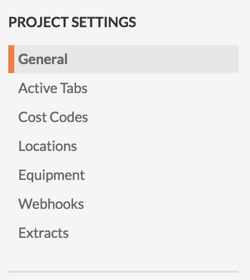
Sous « Paramètres du projet », assurez-vous que Général est sélectionné.
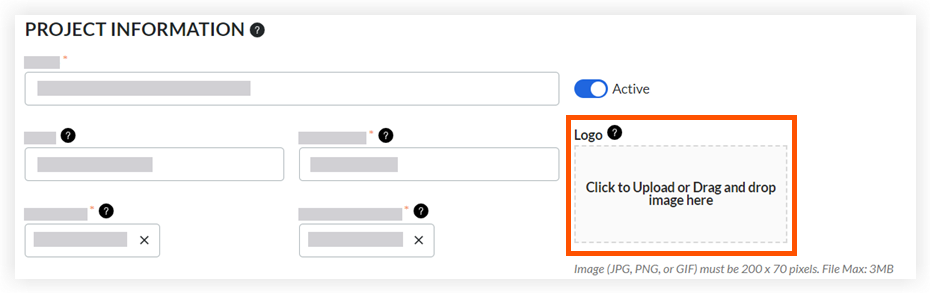
Dans la section « Informations sur le projet », chargez le fichier du logo en cliquant sur l’espace situé sous Logo ou en faisant glisser-déposer le fichier de votre ordinateur dans l’espace.
Notes:
Pour de meilleurs résultats, redimensionnez toujours l’image du logo pour qu’elle fasse 200 x 70 pixels (largeur x hauteur) et enregistrez-la au format GIF, JPG ou PNG avant de la charger.
Pour redimensionner l’image de votre logo, ouvrez le fichier du logo dans un éditeur d’images matricielles (par ex. Peinture, Paint.NET, Photoshop, etc.). Ensuite, enregistrez une copie du logo sous forme de fichier image sur votre ordinateur. Ajustez ensuite la taille de l’image à 200 x 70 pixels.
Faites défiler vers le bas de la page et cliquez sur Mettre à jour.
Le système met à jour le logo pour qu’il apparaisse dans la barre de navigation du projet.
Remplacer un logo de projet
Si vous souhaitez remplacer le logo d’un projet, suivez les étapes décrites dans Charger un logo de projet ci-dessus. Cela supprime définitivement le logo précédent du système. Il est important de noter que le fichier supprimé n’est pas récupérable.
Voir aussi
Chargement des articles connexes...