Envoyer les événements de changement par e-mail
Fond
Si vous devez envoyer un événement de changement par e-mail à une autre personne, vous pouvez le faire lors de l’affichage de cet événement de changement.
Éléments à prendre en compte
Autorisations utilisateur requises :
Pour envoyer tout événement de changement par e-mail, Autorisations de niveau « Admin » dans l’outil Événements de changement du projet.
Pour envoyer par e-mail un événement de changement que vous avez créé, Autorisations de niveau « Standard » dans l’outil Événements de changement du projet.
Étapes
Accédez à l’outil Événements de changement au niveau projet.
Cliquez sur l’événement de changement que vous souhaitez envoyer par e-mail.
Dans l’événement de changement, cliquez sur l’onglet E-mails.
Remarque : tous les e-mails existants sont affichés.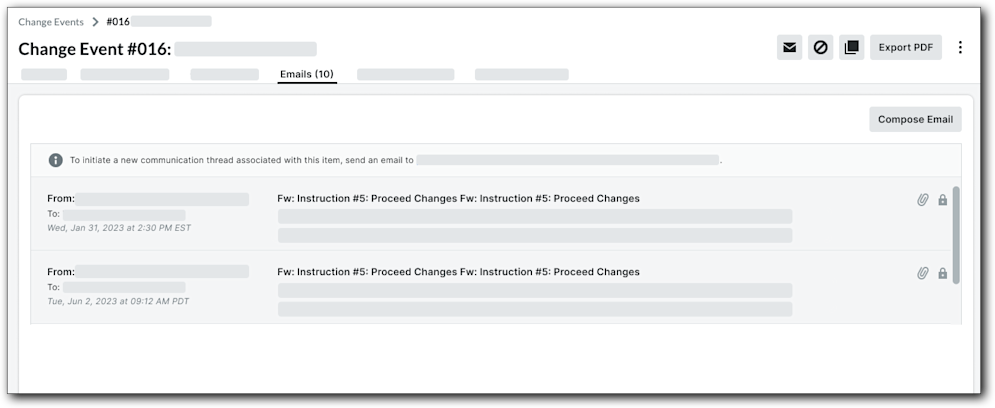
Cliquez sur Composer un e-mail.
Renseignez les champs suivants :
À. Sélectionnez les utilisateurs de l’annuaire de votre projet auxquels transférer l’e-mail.
Cc. Sélectionnez les utilisateurs de votre annuaire vers lesquels copier l’e-mail.
Cci. Sélectionnez les utilisateurs de votre annuaire vers lesquels copier l’e-mail.
Privé. Cochez cette case pour que seuls les utilisateurs disposant des autorisations Admin et ceux inclus dans l’e-mail puissent afficher l’e-mail dans l’onglet E-mail.
Sujet. Saisissez l’objet de l’e-mail.
Message. Saisissez un message pour le e-mail destinataire avec des directives ou des informations supplémentaires.
Joindre des fichiers. Joignez tout document ou matériel pertinent.
Cliquez sur Envoyer.
Une bannière VERTE indique que Procore a créé la communication.
Voir aussi
Voir aussi
Chargement des articles connexes...