Copy Cost Catalog Items
Background
In addition to adding new materials in the Cost Catalog, you can also copy existing material items, categories, and catalogs. When you copy an item, a new item is created using the the same details and information as the original item. If you copy a cost catalog or category, all items within that catalog or category are also copied.
Éléments à prendre en compte
Steps
Navigate to the Cost Catalog tool in Procore.
See the steps below for the type of item that you want to copy:
Copy a Catalog
Copy a Category
Copy an Item
To Copy a Catalog
Locate the catalog that you want to copy.
Click the vertical ellipsis
 for the catalog.
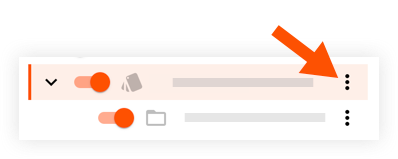
Click Copy.
Enter a name for the new catalog.
Click Copy.
The new catalog is automatically added.
To Copy a Category
Locate the category that you want to copy.
Click the vertical ellipsis
for the category.
Click Copy.
Enter a name for the new category.
Click Copy.
The new category is automatically added.
To Copy an Item
Locate the item you want to copy.
Tip! You can enter a search term to the Search bar or use the Filters panel on the left pane.Click the vertical ellipsis
for the item.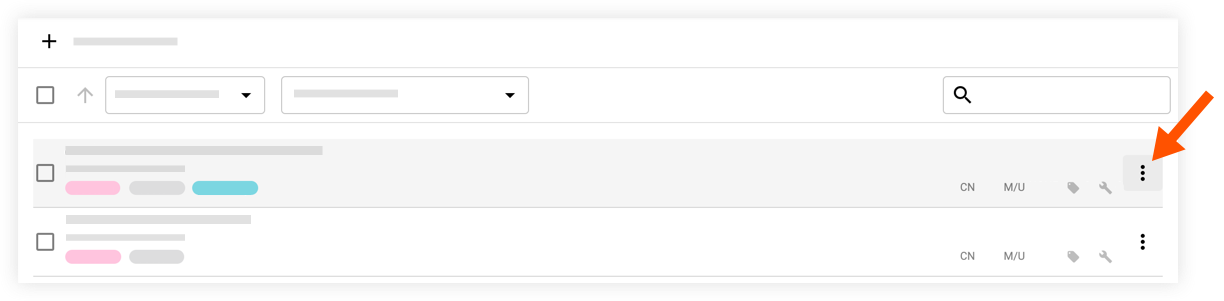
Click Copy.
Click Copy to Another Catalog.
Select a catalog from the drop-down menu.
Click Copy Selected.
The item is automatically added to the selected catalog.
See Also
Loading related articles...