Définir les informations Candidat d’un Entreprise dans le Entreprise Annuaire
Éléments à prendre en compte
Informations complémentaires :
Les informations sur les candidats sont liées entre les outils Annuaire au niveau projet et au niveau entreprise.
Les informations du candidat pour un
sont également définies par l’entreprise connectée. Voir Actualiser les contacts d’appel d’offres pour les entreprises connectées dans l’annuaire de l’entrepriseUne entreprise connectée est une entreprise ou une organisation qui est répertoriée sur le Réseau de construction de Procore et ajoutée en tant qu'entreprise dans votre outil Annuaire au niveau Entreprise. Bien que vous puissiez modifier et gérer certaines informations de l'entreprise dans votre outil Annuaire au niveau Entreprise, l'entreprise dispose également d'un profil public avec les informations qu'elle gère.
Les codes de coût sélectionnés dans l’onglet Candidats apparaîtront automatiquement sur les fiches d’appel d’offres s’ils existent dans le projet.
Vous pouvez mettre à jour en masse les codes de coût et les métiers associés aux entreprises en mettant à jour le modèle « Mettre à jour les fournisseurs existants ». Voir Mettre à jour les contacts dans votre outil Entreprise Annuaire ( Procore Imports ) pour plus d’informations.
La section « Laisser un commentaire » est conçue pour vous aider dans votre prise de décision lors de la recherche de candidats. Voir Inviter des candidats.
Escalier
Accédez à l’outil Annuaire au niveau entreprise.
Cliquez sur l’onglet Entreprises .
Cliquez sur Modifier à côté de l’entreprise.
Cliquez sur l’onglet Informations sur le candidat .
Candidat autorisé: Cochez cette case à cocher pour désigner un candidat autorisé. Ceci est uniquement à des fins de rapport et n’affecte pas les e-mails Procore.
Choisissez parmi ces options :
Emplois dans le gouvernement des États-Unis : Si vous mettez à jour un dossier d’entreprise pour un projet du gouvernement américain, cochez toutes les cases à cocher applicables pour divulguer les informations requises sur l’entreprise.
Restrictions juridictionnelles : Si la collecte de données n’est pas requise ou est légalement interdite dans votre juridiction, ignorez les cases à cocher et passez à l’étape suivante.
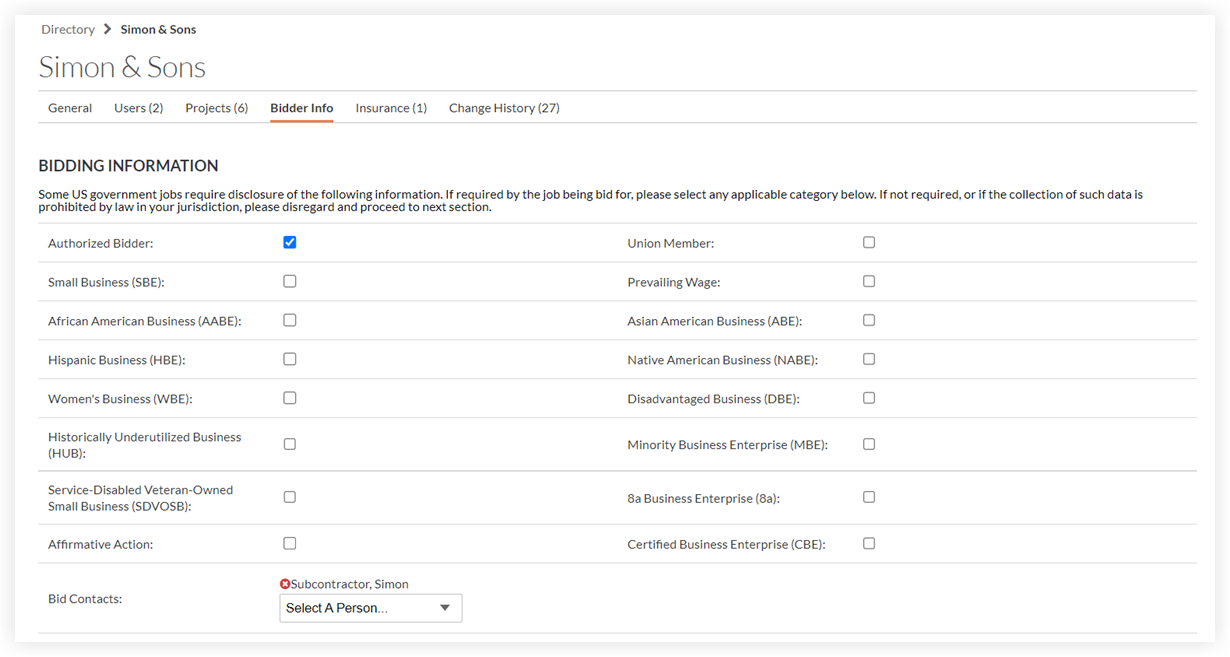
Ajoutez des utilisateurs au champ Contacts de réponse à un appel d'offres pour vous assurer qu’ils reçoivent les invitations à répondre à un appel d’offres. Une fois ajoutés, ils rempliront automatiquement le champ Destinataire de l’appel d’offres sur les nouveaux appels d’offres.
Préqualifications: Si l’outil Préqualifications est activé, les données de qualification de l’entreprise seront répertoriées. Consultez l’outil Préqualifications pour plus d’informations.
Définissez les métiers et les codes de coût afin que l’entreprise apparaisse dans les recherches par métier ou par code de coût dans l’outil répondre à un appel d'offres.

Métier: Classification selon le type de travail de l’entreprise (p. ex., électrique, mécanique, CVC). Si vos métiers ne sont pas configurés, voir Ajouter un métier personnalisé.
Code de coût: sélectionnez les codes de coût qui s’appliquent à cette entreprise.
Cliquez sur Enregistrer
Les offres récentes sont répertoriées au bas de la page sous « Offres les plus récentes ». En cliquant sur un lien, vous êtes redirigé vers le projet ou le dossier d’appel d’offres concerné.
Remarque : Vous devez disposer des autorisations nécessaires pour afficher ces projets/appels d’offres ici.Dans la section « Laisser un commentaire », procédez comme suit :
Saisissez un commentaire.
Joignez tous les fichiers pertinents pour vos dossiers.
Évaluez leur travail avec un système d’évaluation d'1 à 5 étoiles.
Cliquez sur Publier un commentaire.
Les commentaires, fichiers et évaluations existants s’affichent dans la section « Commentaires ».


Voir aussi
Chargement des articles connexes...