Afficher les plans (Android)
Éléments à prendre en compte
Autorisations utilisateur requises :
Autorisations « Lecture seule » ou supérieures dans l’outil Plans du projet.
Informations complémentaires :
Les plans peuvent être affichés en mode hors ligne s’ils ont été précédemment consultés et mis en cache sur l’appareil mobile.
Les plans connectés ont une icône connectée
 .
.
Escalier
Accédez à l’outil Plans du projet à l’aide de l’application Procore sur un appareil Android.
Si nécessaire, appuyez sur l’icône télécharger
 pour le jeu ou les plans que vous souhaitez afficher. Voir Synchroniser et télécharger des plans (Android).
Remarque : Vous pouvez basculer de l’quadrillage à la vue en liste pour les plans en appuyant sur l’icône quadrillage ou liste
  en haut de l’écran.
Appuyez sur le plan que vous souhaitez voir.
Les actions suivantes sont disponibles :
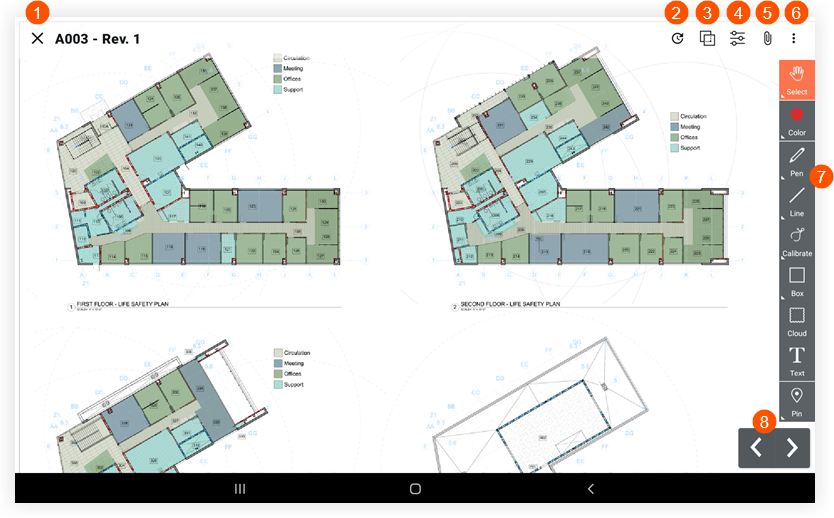
 Appuyez sur X si vous souhaitez revenir au registre des plans.
 Appuyez sur Récent pour afficher une liste des plans récemment consultés.
 Appuyez sur Comparer les plans pour comparer le plan actuel avec une autre révision ou un autre plan. Voir Comparer des plans (Android).
 Appuyez sur Filtres pour basculer entre les couches Publié et Personnel ou les annotations de plan. Voir Quelle est la différence entre les annotations de plans personnelles et publiées ?
 Appuyez sur Pièces jointes pour afficher toutes les pièces jointes qui ont été ajoutées en tant que pièces jointes ou annotations au plan.
 Appuyez sur
  pour accéder aux options suivantes :
Pièces jointes : Appuyez pour afficher les pièces jointes (le cas échéant) qui ont été ajoutées au plan.
Instantané : appuyez pour télécharger ou envoyer par e-mail un instantané du plan.
Imprimer : Appuyez pour imprimer le plan à l’aide d’une imprimante connectée.
Télécharger : Appuyez pour télécharger le plan sur votre appareil.
E-mail : appuyez pour envoyer le plan par e-mail aux utilisateurs du projet.
 Appuyez sur un outil dans la barre d’outils d’annotation pour annoter le plan. Voir Annoter un plan (Android). Remarque : Pour afficher un élément qui a été lié sur un plan, appuyez sur l’élément lié sur l’annotation.
 Appuyez sur les flèches gauche ou droite pour passer à différents plans.
Voir aussi
Chargement des articles connexes...