View Recently Changed Items on a Project
Background
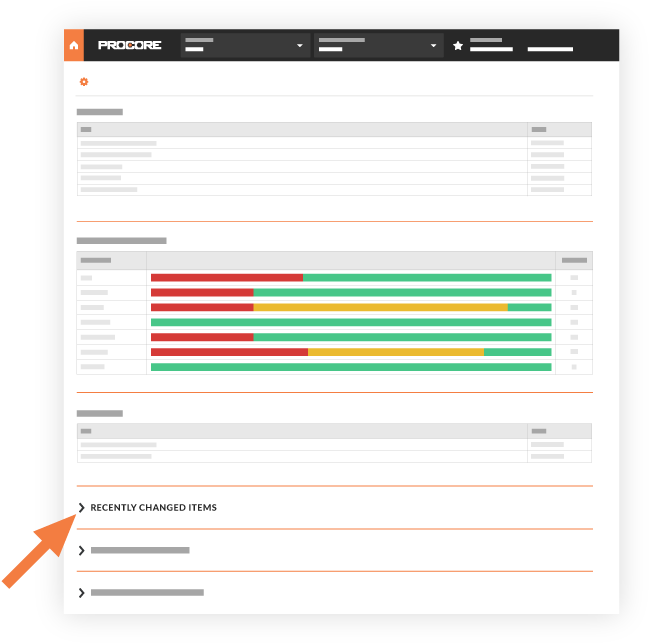
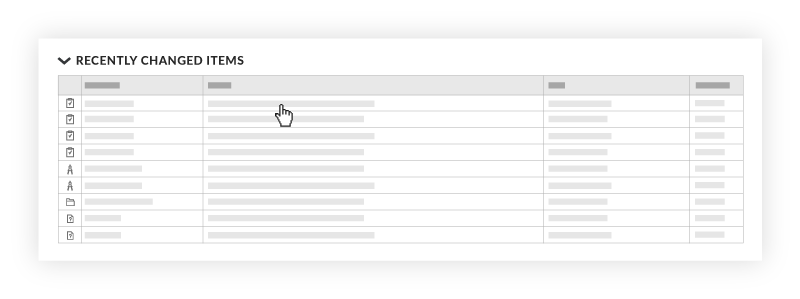
The Project Home page contains an expandable section when you can view list of recently changed items from Procore tools. If you have been granted permission to view an item created in one of Procore tools, each item in the list will also contain a link that you can click to view the item.
Things to Consider
Required User Permission:
'Read-Only' level permission or higher on the project's Home page
Steps
Navigate to the project's Home page.
Click the arrow next to Recently Changed to expand the list of items.
(Optional) If you have 'Read-Only' level permission to view a listed item, you can click a link in the Details column to open it in the corresponding tool.
Beta
A new version of the Project Home page is available. See Project Overview.
Company Administrators can enable the Project Overview beta in Procore Explore. (US 2 | UK)
Navigate to the Project Overview.
Navigate to the project's Home to be redirected to the Project Overview.
Click Menu and select Project Overview.
Navigate to recent activity.
Click the name of the project and click the Recent Activity tab.
Click the vertical ellipsis (⋮) and select Recent Activity.
View the recent activity.