Export a Subcontractor Invoice

Vous utilisez la terminologie du maître d’ouvrage ou de l’entrepreneur spécialisé ?

Procore peut être configuré pour utiliser une terminologie spécifique aux entreprises générales, aux maîtres d’ouvrage ou aux entreprises spécialisées. Découvrez comment appliquer les options du dictionnaire.
  • To learn the differences: Show/Hide

    • This table shows the differences in tool names (bold) and terms across the point-of-view dictionaries for Project Financials.

      Entrepreneurs généraux
      Anglais (États-Unis) - Par défaut

      Propriétaire
      Anglais (Terminologie du propriétaire V2)

      Entrepreneurs spécialisés
      Anglais (terminologie des entrepreneurs spécialisés)

      Facturation

      Facturation

      Facturations proportionnelles

      Propriétaire

      Financement

      Propriétaire

      Maître d’ouvrage/Client

      Maître d’ouvrage/Client

      CG/client

      Ordre de changement au contrat principal

      Ordre de changement de financement

      Ordre de changement du contrat client

      Contrats principaux

      Financement

      Contrats clients

      Revenu

      Financement

      Revenu

      Sous-traiter

      Contrat

      Sous-traiter

      Sous-traitant

      Entrepreneur

      Sous-traitant

      Ventilation des coûts du sous-traitant (VDCS)

      Ventilation des coûts de l’entrepreneur (VDCST)

      Ventilation des coûts du sous-traitant (VDCS)

      About These Dictionaries
      • Default Setting: The 'General Contractor' dictionary is enabled by default for all accounts.

      • Availability: These alternate dictionaries in italics are available in US English only.

      How to Switch Your Dictionary

      To change your company's terminology to the Owner or Specialty Contractor dictionary, contact your company's . They will work with your Procore Point of Contact to make the change.

Background

If you want to download a digital copy of a subcontractor invoice, you can choose to export the invoice in a Comma Separated Values (CSV) or Portable Document File (PDF) format. You can also download a PDF that includes any selected attachments in the ZIP file format or as a single PDF.

Things to Consider

Prerequisites

Steps

  • Export a PDF

  • Export a PDF with Attachments

  • Export a CSV

Export a PDF

  1. Navigate to the project's Invoicing tool.

  2. Click the Subcontractor tab.

  3. Find the invoice to work with.

  4. Click the Invoice # link to open it in the project's Commitments tool.

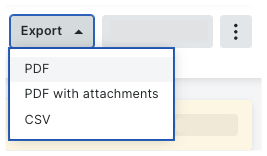
  5. Click Export > PDF.

    export-options.png

    Procore opens the PDF in a separate tab in your web browser. The controls to save or download the file to your computer depend the PDF viewer or reader installed on your web browser. For assistance with your web browser settings, contact your company's IT department.

Export a PDF with Attachments

  1. Navigate to the project's Invoicing tool.

  2. Click the Subcontractor tab.

  3. Find the invoice to work with.

  4. Click the Invoice # link to open it in the project's Commitments tool.

  5. Click Export > PDF with attachments.
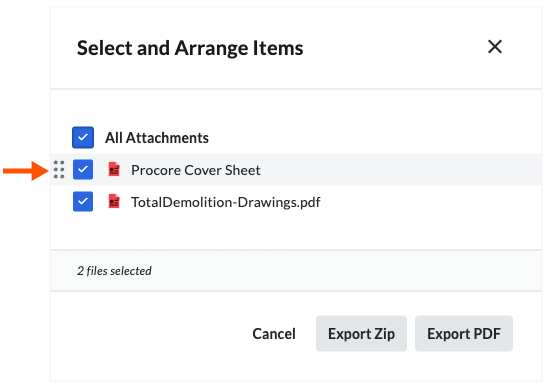
    Procore opens the Select and Arrange Items window.

  6. Choose the attachments to include by marking the attachment checkboxes:

  7. Optional. Arrange the order of the attachments in the PDF by hovering your mouse cursor over the left side of the item until the grab bar appears. Next, grab the component and move it to the desired position.

    select-and-arrange-items.png

  8. Click one of these buttons:

    • Cancel. Cancels the export.

    • Export ZIP. Exports the invoice and all file attachments as PDFs in a ZIP file and sends the ZIP file to you in an email.

    • Export PDF. Downloads the invoice and selected attachments to your computer as a single PDF.

Export a CSV

  1. Navigate to the project's Invoicing tool.

  2. Click the Subcontractor tab.

  3. Find the invoice to work with.

  4. Click the Invoice # link to open it in the project's Commitments tool.

  5. Click Export > CSV.
    Procore download a copy of the invoice CSV to your computers Download location.

Examples: CSV and PDF Files

Examples

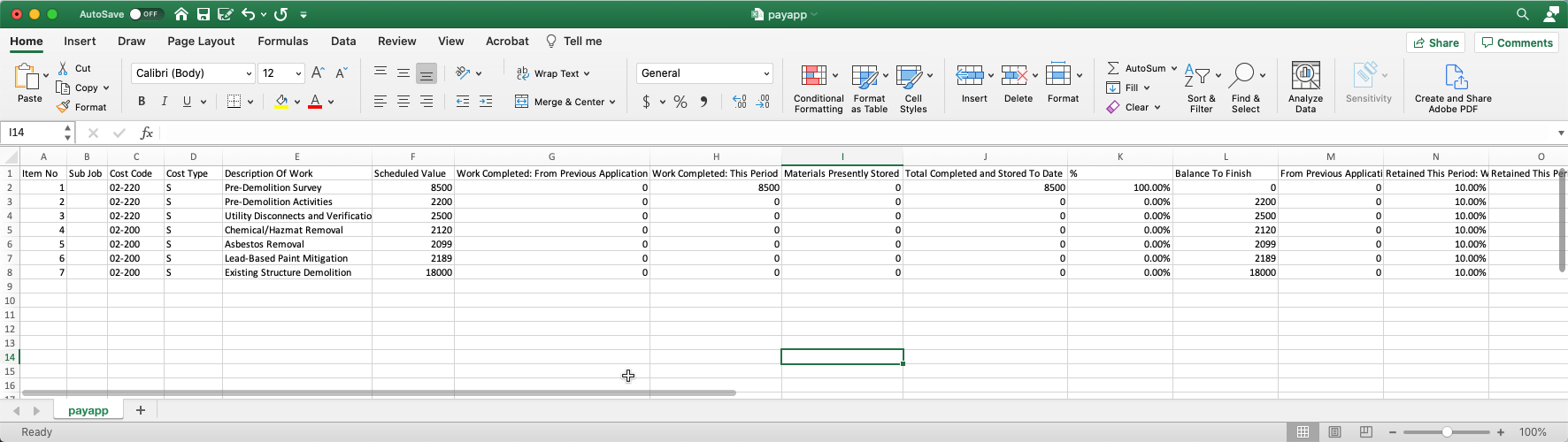
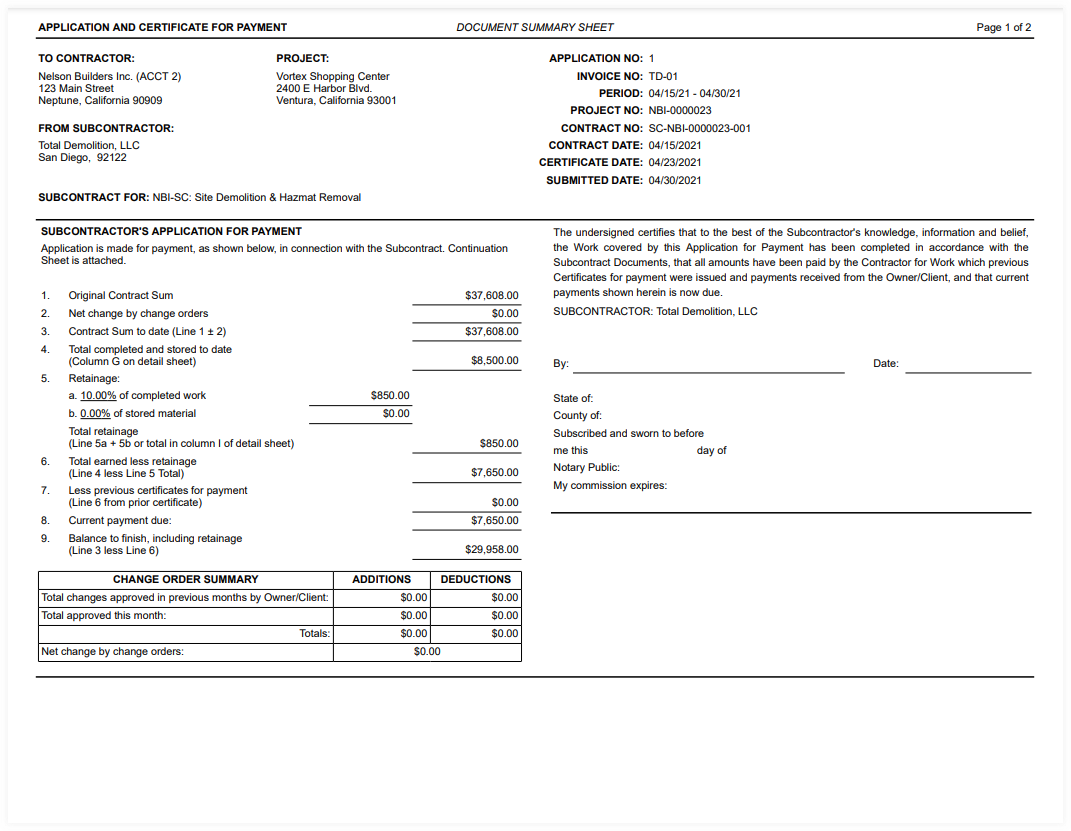
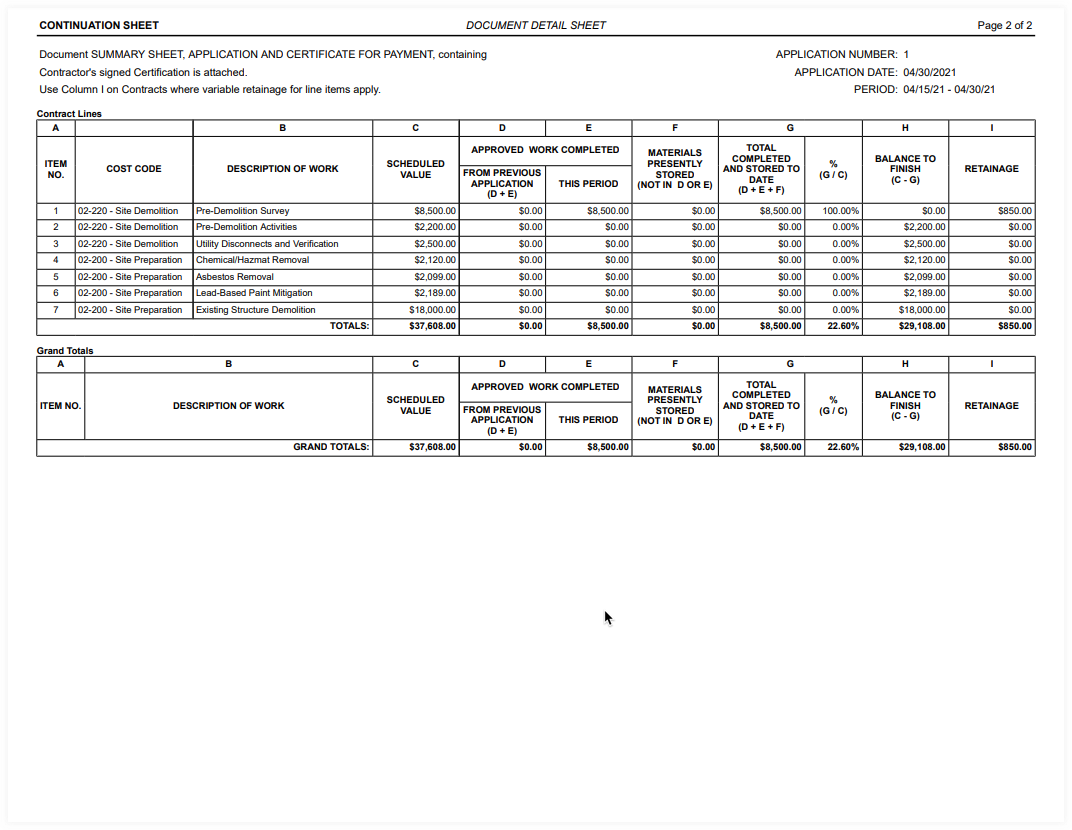
These examples show you the CSV and PDF versions of an invoice.

csv-payapp.png

A PDF invoice has multiple pages: A Document Summary Sheet and at least one (1) Document Detail Sheet.

Document Summary Sheet

pdf-document-summary-sheet.png

Document Detail Sheet

pdf-document-detail-sheet.png

See Also

Loading related articles...