Créer une réunion
Fond
Vous pouvez utiliser l’outil Réunions pour créer des ordres du jour détaillés pour vos réunions de projet. La première étape du processus consiste à créer la réunion. Ce processus vous permet de définir la date, l’heure, le lieu et les participants. Ce processus est décrit dans les étapes ci-dessous. Une fois la réunion créée, vous pouvez passer à la création de catégories, qui sont utilisées pour regrouper les éléments de l’ordre du jour en sujets. Ensuite, vous pouvez ajouter les différents éléments de l’ordre du jour à vos catégories.
Éléments à prendre en compte
La réunion doit être en mode ordre du jour. Il s’agit du paramètre par défaut lorsque vous créez une réunion.
Pour savoir comment convertir une réunion au mode procès-verbal, voir Convertir une réunion au mode procès-verbal.
Escalier
Accédez à l’outil Réunions du projet.
Cliquez sur + Créer une réunion.
Sélectionnez + Nouveau ou sélectionnez un modèle de réunion dans la liste.
Sous Informations sur la réunion, remplissez les champs appropriés pour la nouvelle réunion :
Numéro de réunion: Indique le numéro de la réunion. Lorsque vous créez une réunion, Procore attribue automatiquement le numéro un (1) à la première réunion d'une série. Ensuite, lorsque vous créez une réunion de suivi, Procore attribue à la réunion suivante de la série le numéro deux (2), et ainsi de suite. Remarque: Ce champ ne prend pas en charge la saisie de lettres, de symboles et de zéros non significatifs.
Nom de la réunion: Saisissez un nom, un titre ou un objet descriptif pour la réunion.
Lien de la réunion : Copiez et collez le lien de visioconférence pour que vos participants puissent y accéder.
Remarque : L'URL complète du lien de la réunion (commençant par https://) doit être incluse pour qu'elle s'affiche comme un lien hypertexte.Réunion privée: Cochez cette case pour que la réunion ne soit visible qu’aux participants inscrits et aux utilisateurs disposant des autorisations de niveau « Administrateur » pour l’outil Réunions.
Réunion provisoire: Cochez cette case pour enregistrer la nouvelle réunion en tant que « Brouillon ».
Date de la réunion: Utilisez le calendrier pour définir la date de la réunion.
Fuseau horaire: Sélectionnez un fuseau horaire pour la réunion.
Heure de début: Veuillez saisir une heure de début pour la réunion. Indiquez AM ou PM après l'heure de début.
Heure de fin : Sélectionnez une heure de fin pour la réunion. Indiquez AM ou PM après l'heure de fin.
Lieu de la réunion: L'endroit où se tiendra la réunion (par exemple, salle de conférence A, salle de conférence B, etc.).
Aperçu: Saisissez un résumé ou une description de la réunion. Vous pouvez utiliser les commandes de la barre d'outils de mise en forme pour formater votre aperçu.
Pièces jointes. Joignez tous les fichiers pertinents. Vous avez les options suivantes :
Cliquez sur Joindre un ou plusieurs fichiers, puis choisissez l’option appropriée dans le menu contextuel qui apparaît.
OUÀ l’aide d’un glisser-déposer, déplacez les fichiers de votre ordinateur dans la case grise Glisser et déposer le(s) fichier(s).
Ajouter des participants: Ajoutez des participants à la réunion en sélectionnant des personnes dans cette liste déroulante. Pour figurer dans cette liste, une personne doit posséder un profil utilisateur Procore dans le répertoire du projet. De plus, si un modèle d'autorisation est appliqué à la personne, les autorisations doivent inclure « Lecture seule » ou un niveau supérieur dans l'outil Réunions.
Remarque : si aucune heure de début ou de fin n’est sélectionnée, Procore les réglera automatiquement sur 12h00.
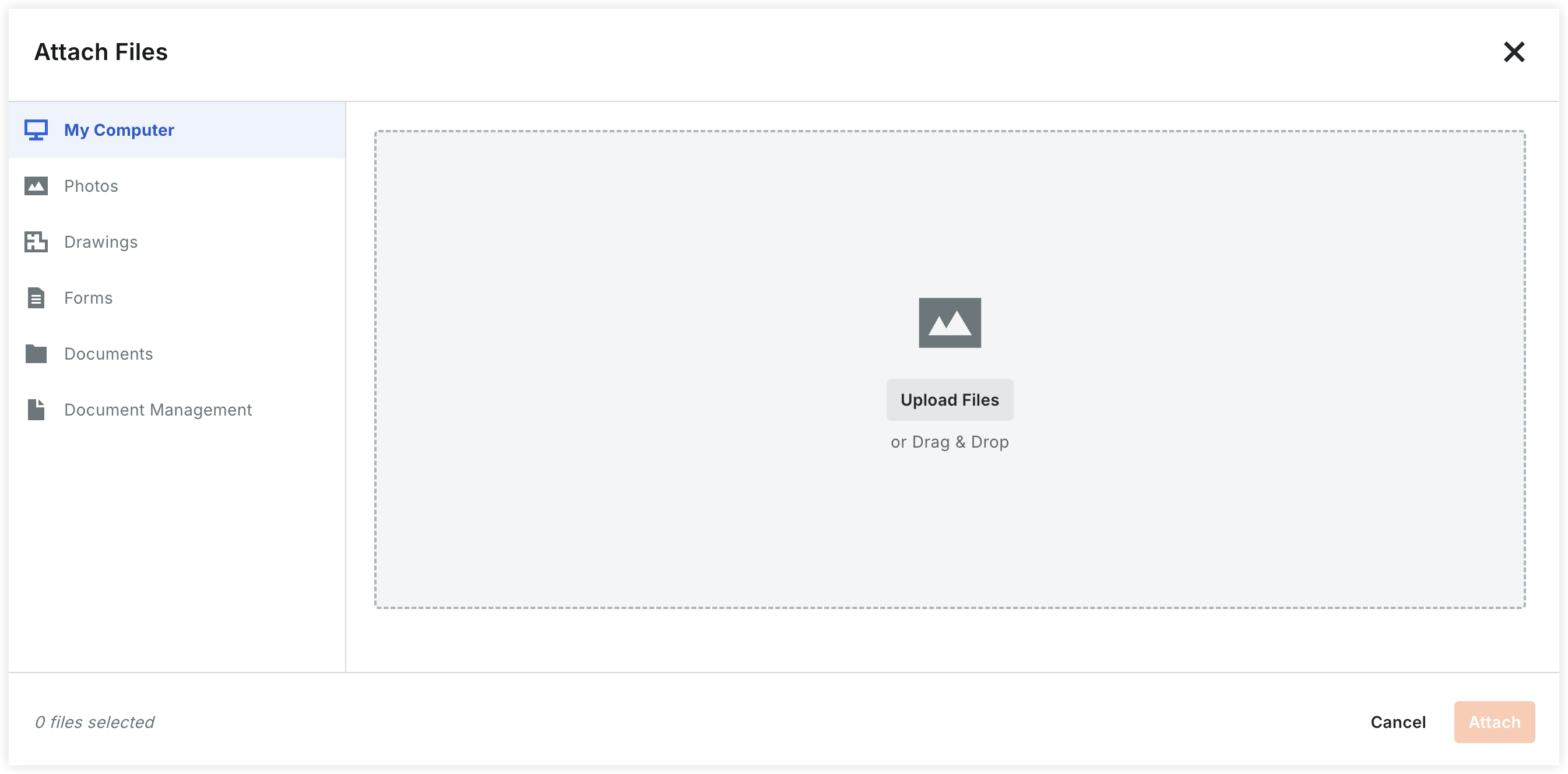
Ajouter des pièces jointes : Cliquez sur Joindre un ou plusieurs fichiers pour ouvrir le module de chargement. Vous pouvez sourcer des fichiers à partir des lieux suivants :
Mon ordinateur : Téléchargez des fichiers directement ou utilisez la superficie glisser-déposer.
Photos : joignez des images directement à partir de l’outil Photos du projet.
Plans : Liez des feuilles spécifiques à partir de l’outil Plans.
Formulaires : Joignez des formulaires remplis à partir de l’outil Formulaires .
Documents : sélectionnez les fichiers déjà stockés dans l’outil Documents du projet.
Gestion documentaire : joignez des fichiers à partir de l’outil Gestion documentaire.
Ajouter des participants:
Sélectionnez les utilisateurs dans la liste déroulante. (Les utilisateurs doivent disposer d’autorisations « Lecture seule » ou supérieures dans l’outil Réunions pour apparaître ici).
Remarque : La sélection de « Oui » dans le champ Procès-verbal Approbation demandée déclenche un flux de travail de réponse pour le participant.
Cliquez sur Créer et passer à l’ordre du jour.

Une bannière apparaît pour confirmer que la réunion a été créée et le titre de la page devient « Ordre du jour de la réunion pour »
Si vous souhaitez ajouter des catégories supplémentaires à votre réunion, voir Créer une catégorie de réunion.
Si vous souhaitez ajouter des éléments de réunion (c’est-à-dire des éléments à l’ordre du jour) à votre réunion, voir Ajouter un élément de réunion.
Procore ajoute automatiquement une (1) catégorie appelée « Éléments non classés » à la réunion. Vous pouvez renommer cette catégorie en tapant sur le nom.