Supprimer des photos (Android)
Éléments à prendre en compte
Autorisations utilisateur requises :
Autorisations de niveau « Admin » dans l’outil Photos du projet.
Informations complémentaires :
Tout ce que vous supprimez est automatiquement déplacé vers la corbeille que vous trouverez lorsque vous vous connectez à l’application Web Procore (la corbeille n’est actuellement pas disponible à partir d’un appareil Android). Si vous supprimez une photo par accident, vous pouvez accéder à la corbeille dans l’application Web.
Voir Récupérer une photo de la corbeille.Cet actif ou élément peut être affiché ou modifié en mode hors connexion s’il a été précédemment affiché et mis en cache sur votre appareil mobile. Les tâches effectuées en mode hors ligne sont synchronisées avec Procore une fois la connexion réseau rétablie.
Escalier
Accédez à l’outil Photos à l’aide de l’application Procore sur un appareil Android.
Appuyez sur la photo que vous souhaitez supprimer.
Appuyez sur l’icône d’ellipse
 verticale.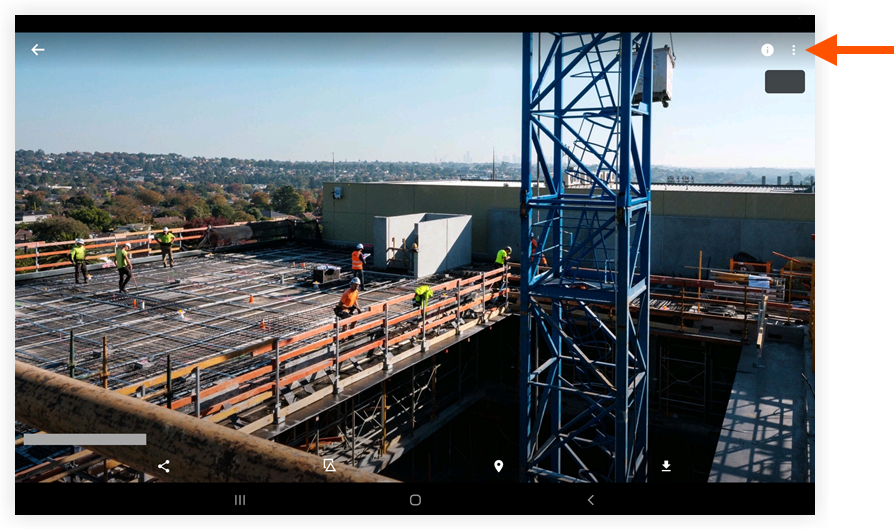
Appuyez sur Supprimer.
Appuyez sur Supprimer pour confirmer que vous souhaitez supprimer la photo.
Note: La photo est automatiquement supprimée et placée dans la corbeille.
See Also
Loading related articles...