Envoyer des photos par e-mail (sortant)
Éléments à prendre en compte
Autorisations utilisateur requises :
« Standard » ou « Admin » dans l’outil Photos du projet.
Informations complémentaires :
Vous ne pouvez envoyer par e-mail que les photos d’une page à la fois.
Escalier
Accédez à l’outil Photos de votre projet.
Cochez les cases à cocher pour sélectionner les photos à envoyer par e-mail.
Cliquez sur la liste déroulante Actions en masse.
Remarque : Vous ne pouvez cliquer sur ce menu déroulant que lorsque des photos sont sélectionnées.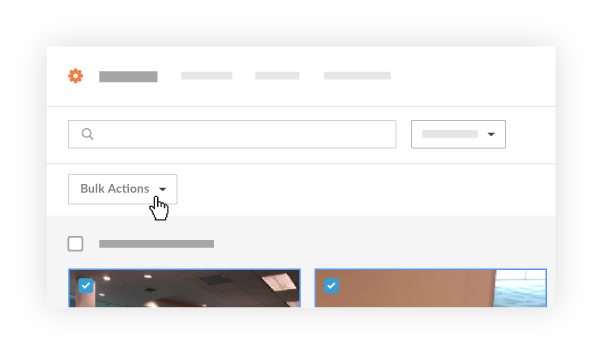
Click e-mail option.
Remplissez les champs suivants.
À : Sélectionnez les destinataires de l’e-mail dans votre annuaire. (Remarque : vous pouvez envoyer un e-mail à partir de l’outil Photos à n’importe qui dans le Niveau projet Annuaire.)
Cc : sélectionnez les personnes qui seront copiées sur l’e-mail. (Remarque : vous pouvez choisir parmi n’importe qui dans le Niveau projet Annuaire.)
Sujet : Renseignez l’objet de votre e-mail.
Message : Saisissez un message à lire pour les destinataires.
Remarque : Vous n’aurez pas besoin de joindre manuellement les photos que vous souhaitez envoyer. Ils seront déjà attachés. Les utilisateurs peuvent télécharger un fichier zip (pour plusieurs photos) ou un .jpg (pour une photo individuelle) à partir de l’e-mail en utilisant le lien de téléchargement.
Cliquez sur Envoyer pour envoyer votre e-mail.
Voir aussi
Chargement des articles connexes...