Bulk Create Projects
Background
The Bulk Create Projects feature allows you to set up multiple projects simultaneously by uploading a single structured Microsoft Excel file. This process accelerates project onboarding while ensuring data consistency through built-in file validation and error reporting.
Things to Consider
Required User Permissions on the company's Procore Home tool.
Additional Information:
Upload a maximum of 100 projects per single Excel import file.
If an import file contains more than 100 projects, Procore processes only the first 100 rows and ignores all subsequent entries.
The downloaded Bulk Create template reflects your company's fieldset settings. Required fields in the fieldset are also marked required in the template spreadsheet and must be completed.
Ensure the spreadsheet uses the .xls or .xlsx file extension and does not exceed 5 MB. The CSV file format is not supported.
Do not rename column headers, remove required columns, or add unrecognized custom field columns. Structural errors reject the entire file before project creation begins.
Project numbers are optional and do not need to be unique, so multiple projects can share the same number.
Dates must follow the MM/DD/YYYY format.
Values matching reference lists or drop-down menus (such as Stage) are case-sensitive.
Viewing results filtered by permissions hides projects that a user does not have permission to access.
A persistent progress widget tracks upload status, and system notifications email completion summaries to the uploader and designated distribution list.
The progress status widget is visible exclusively to the user who initiated the upload.
The progress widget lists failed projects and their failure causes so users can correct the issues and try again.
Run only one bulk creation operation at a time per user.
Steps
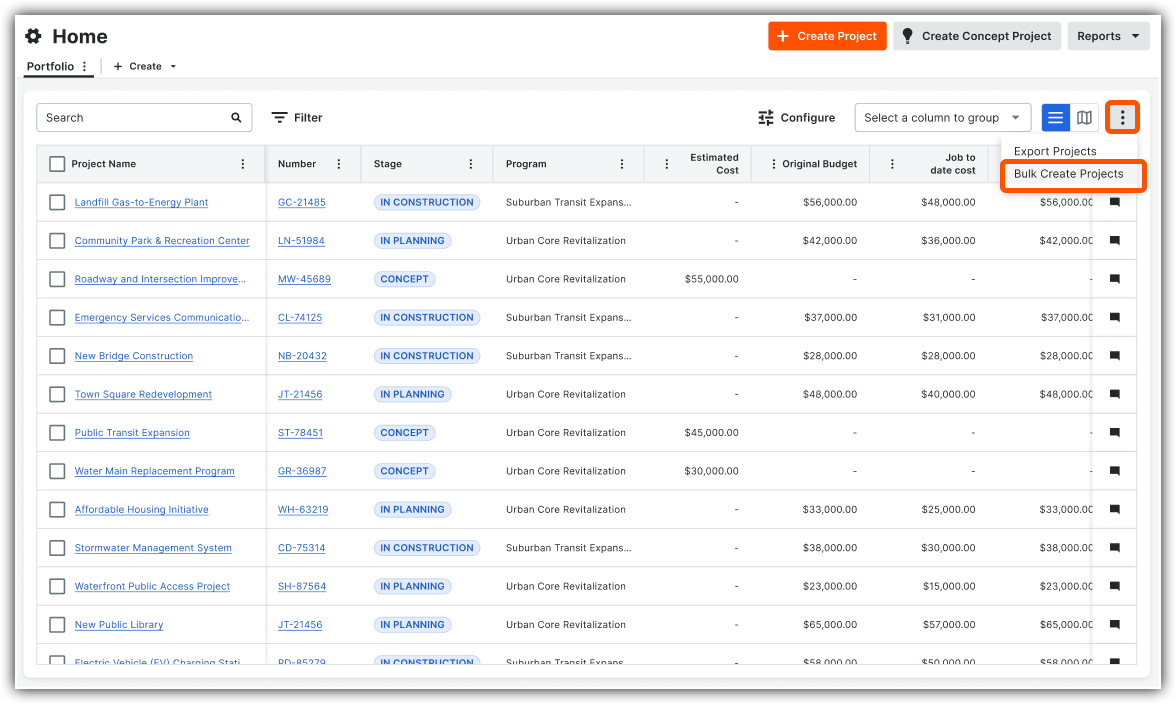
Navigate to the company's Procore Home tool.
Click the vertical ellipsis
 icon.
icon.Select Bulk Create Projects.
Click Download Excel Template.
Once downloaded, open the file in Microsoft Excel.
Save your changes in the Excel file.
Return to the side panel in Procore Home, click Attach File.
Select your template.
Click Open.
Click Bulk Create.
Click Yes to confirm.
Monitor upload progress using the Bulk Create Status widget in the bottom-right corner of the screen.
Review the upload results on the completed status widget:
Click View under the Successful section to review created projects.
Click View under the Unsuccessful section to review failed project rows and error tooltips.
Click the close [X] icon on each widget section to dismiss the status notifications.

Voir aussi
Chargement des articles connexes...