Afficher mes éléments ouverts dans l'outil Portfolio
Fond
L’outil Portefeuille comprend une liste Mes éléments ouverts qui affiche tous les éléments ouverts sur les projets de votre entreprise qui nécessitent que vous exécutiez une action.
Éléments à prendre en compte
Autorisation utilisateur requise:
Pour afficher « Mes éléments ouverts », autorisation de niveau Lecture seule ou supérieure dans l’outil Portefeuille de l’entreprise.
Escalier
Afficher mes éléments ouverts | Expérience héritée
Accédez à l’outil Portefeuille de votre entreprise.
La page Portefeuille s’affiche. Après avoir créé un projet, cette page répertorie tous les projets du compte Procore de votre entreprise.Cliquez sur Mes éléments ouverts.
Ceci affiche la page Mes éléments ouverts, qui répertorie vos éléments ouverts par nom de projet, type d’élément, détails et statut. Cette liste est également triée par date d’échéance.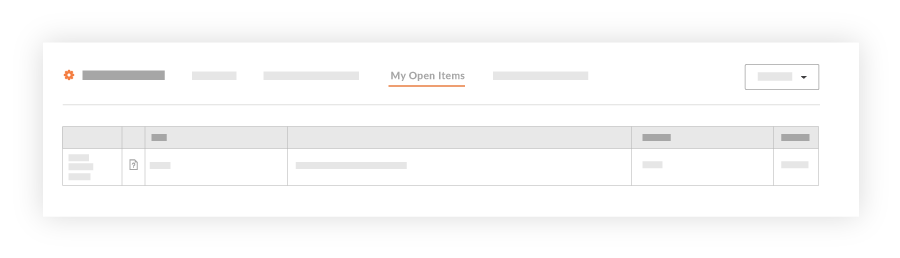
Choisissez parmi ces options :
Pour accéder à la page d’accueil du projet, cliquez sur le lien Nom du projet .
Pour ouvrir l’élément de projet, cliquez sur le lien Détails .
Afficher mes éléments ouverts | Expérience bêta
In Beta
Company Administrators can enable the Consolidated My Open Items Workspace beta feature in Procore Explore.
View My Open Items (Beta)
There are three ways to access the My Open Items (Beta) workspace at the Company level:
Review the My Open Items Table
The table provides a comprehensive view of all items assigned to you across all projects and companies.
Filter and Sort Options
Quickly filter and organize your open items to focus on what matters most.
Note
During the Consolidated My Open Items Workspace Beta phase, you will only see cross-company items that originate from companies within the same data zone as your company (e.g., if your company is in the USO1 zone, you will only see cross-company items from other USO1 companies).
General Availability (GA) Scope: The full release will expand to show cross-company items from both US data zones (USO1 and USO2).
Users who have a large number of open items across many projects may notice longer-than-expected loading times for the My Open Items page. We are working to improve the response time for this page before the general availability (GA) release.