Create a Change Event from an RFI (Android)
Fond
La création d’un événement de changement vous permet de vous préparer au coût d’un changement avant qu’il ne devienne un coût réel. Par exemple, si un chef de projet anticipe la nécessité de modifier les couleurs de peinture d’un projet, il peut commencer à se préparer à ce coût en créant un événement de changement, qui décrit le coût financier estimé du changement, ainsi que les codes de coût qui seront affectés. Après avoir créé un événement de changement, ils peuvent ensuite créer une DDD (Demande de devis), qui est envoyée aux sous-traitants appropriés pour tarification. Lorsque les DDD sont créées et que les sous-traitants assignés y répondent, les ordres de changement peuvent être créés en fonction du devis soumis.
Things to Consider
Required User Permissions:
'Standard' or 'Admin' level permissions on the project's Change Events AND RFIs tools.
Steps
Navigate to the RFIs tool using the Procore app on an Android mobile device.
Tap the RFI you want to create a change event from.
Tap the vertical ellipsis icon.
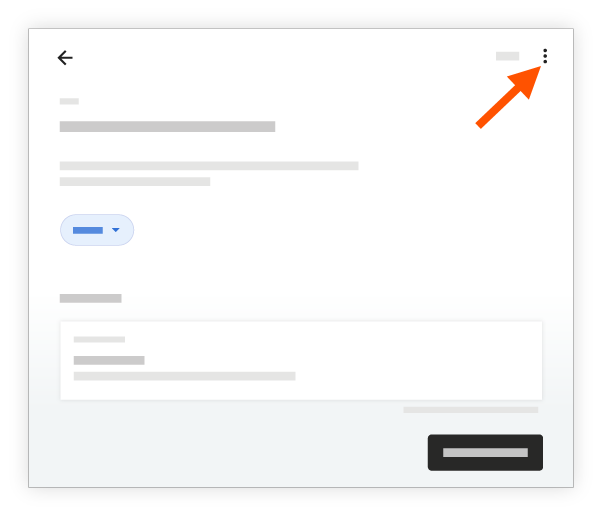
Tap Create Change Event from RFI.
Tap to fill out the following fields as appropriate:
Title: Provide a title for the change event.
Status: Select Open, Closed, Pending, or Void to indicate the status of the change event.
Type: Select TBD, Allowance, Contingency, Owner Change, or Transfer to indicate the type of cost you are preparing for.
Scope: Select TBD, In Scope, or Out of Scope to indicate whether the cost is covered in the original contract.
Description: Describe the event that may result in a change in costs.
Change Reason: Select a change reason from the drop-down menu.
Camera or Attachments: To add a photo or file, tap to select from one of the following options:* Camera: Tap to open your camera application so you can take a photo and directly add it to the item.* Attachments: Tap to attach files or photos from your device, or photos from Procore.
Tap Save.
See Also
Loading related articles...