Modifier une entrée de pointage dans l’outil Feuilles horaires au niveau entreprise
Éléments à prendre en compte
Lorsque vous modifiez une feuille horaire signée, l’employé doit la signer à nouveau.
Les saisies zéro heure sont prises en charge pour saisir les congés et les indemnités journalières.
Pour modifier une entrée de pointage « Approuvée », changez d’abord son statut en « En attente » ou « Révisé ».
Les entrées de pointage ne peuvent être marquées comme « Terminées » que dans l’outil niveau Entreprise Feuilles horaires.
Une fois qu’une entrée de pointage a été marquée comme terminée, les modifications ne sont plus autorisées.
Escalier
Modifier une seule entrée de pointage
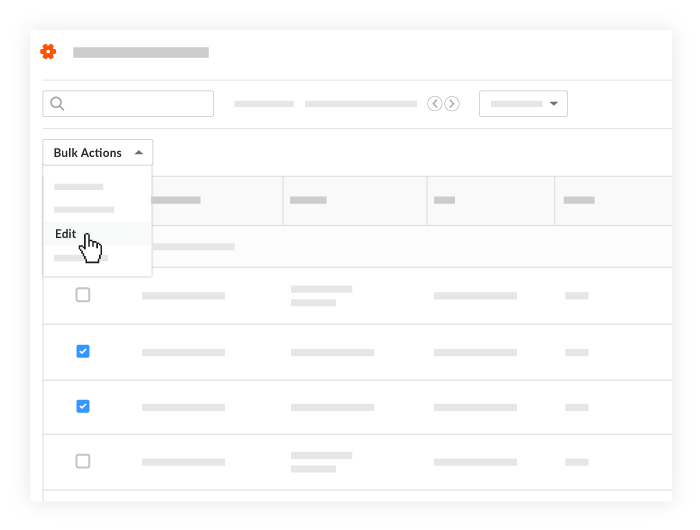
Modifier en masse les entrées de pointage
Modifier une seule entrée de pointage
Accédez à l’outil Feuilles horaires de l’entreprise.
Localisez l’entrée de pointage à modifier.
Code de coût : Le code budgétaire associé à la saisie des heures.
Sous-projet : Sélectionnez dans le menu déroulant le sous-projet associé à la saisie des heures.
Lieu : lieu où le travail a été effectué.
Heure
Temps total : Le temps total travaillé pour la journée.
Heure de début : Heure à laquelle la ressource a commencé à fonctionner.
Heure d’arrêt : Heure à laquelle la ressource a cessé de fonctionner.
Note: Vous ne verrez les champs Début et Arrêt que si vous avez configuré vos paramètres pour les afficher. Voir Configurer les paramètres avancés : feuilles horaires au niveau projet.L’heure du déjeuner : Le temps nécessaire pour une pause déjeuner.
Remarques :Le temps sélectionné sera soustrait du temps total.
Ce champ n’est disponible que si Heure de début et Heure de fin sont activés.
Type d’heure : Sélectionnez le type de paie saisi.
Temps régulier
Temps double
Exempter
Vacances
Heures supplémentaires
PTO
Salaire
Vacances
Facturable : Sélectionnez cette option pour indiquer si l’saisie est facturable ou non.
Règles de type d’heure. Cochez la case à cocher pour appliquer automatiquement les règles relatives aux heures supplémentaires.
La description : Commentaires supplémentaires qui apparaîtront dans l’entrée de pointage.