Modifier une feuille horaire
Éléments à prendre en compte
La section « Entrées individuelles » affiche le temps soumis par un utilisateur via les outils Pointage, Rapport journalier ou Mes horaires.
Lorsqu’une entrée de pointage signée est modifiée, la signature est supprimée. L’employé doit signer à nouveau l’saisie modifiée.
En fonction de vos autorisations, vous devrez peut-être modifier le statut de la feuille horaire pour la modifier.
Les entrées de pointage « approuvées » ne peuvent pas être supprimées.
Des modifications supplémentaires ne peuvent pas être effectuées après qu’une entrée de pointage a été marquée comme « Terminé ».
Escalier
Accédez à l’outil Feuilles horaires du projet.
Cliquez sur l’icône Calendrier pour sélectionner le jour unique ou la plage de dates.
Modifier les pointages de main-d’œuvre.
Cliquez sur l’onglet Main-d’œuvre .
Sélectionnez un pointage de main-d’œuvre individuel ou modifiez en masse :
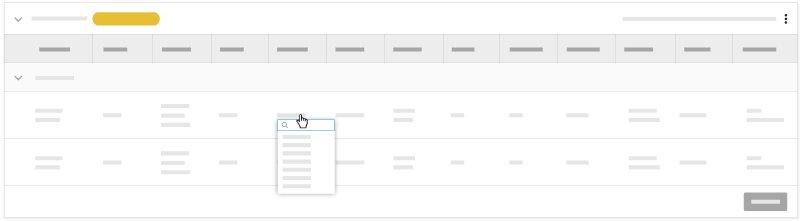
Pour la modifier en ligne, cliquez sur une cellule dans l’entrée de pointage et mettez à jour la valeur pour l’enregistrer automatiquement.
Pour modifier en masse, cliquez sur les points de suspension
 verticaux de la feuille horaire et choisissez Modifier la feuille horaire.
Cochez les cases à cocher des pointages que vous souhaitez modifier.
Repérez la section « Saisie des heures en masse ».
Code de coût : Le code budgétaire associé à la saisie des heures.
Sous-projet : Sélectionnez dans le menu déroulant le sous-projet associé à la saisie des heures.
Lieu : lieu où le travail a été effectué.
Heure
Temps total : Le temps total travaillé pour la journée.
Heure de début : Heure à laquelle la ressource a commencé à fonctionner.
Heure d’arrêt : Heure à laquelle la ressource a cessé de fonctionner.
Note: Vous ne verrez les champs Début et Arrêt que si vous avez configuré vos paramètres pour les afficher. Voir Configurer les paramètres avancés : feuilles horaires au niveau projet.L’heure du déjeuner : Le temps nécessaire pour une pause déjeuner.
Remarques :Le temps sélectionné sera soustrait du temps total.
Ce champ n’est disponible que si Heure de début et Heure de fin sont activés.
Type d’heure : Sélectionnez le type de paie saisi.
Temps régulier
Temps double
Exempter
Vacances
Heures supplémentaires
PTO
Salaire
Vacances
Facturable : Sélectionnez cette option pour indiquer si l’saisie est facturable ou non.
Règles de type d’heure. Cochez la case à cocher pour appliquer automatiquement les règles relatives aux heures supplémentaires.
La description : Commentaires supplémentaires qui apparaîtront dans l’entrée de pointage.
 .
.