Importer un pointage dans un billet T-M
Éléments à prendre en compte
Conditions préalables
Escalier
Importer un pointage dans un billet T-M existant.
Importer un pointage dans un nouveau billet T-M
Importer un pointage dans un billet T-M existant.
Accédez à l’outil Billets T-M du projet.
Cliquez sur Modifier à côté du billet T-M dans lequel vous souhaitez importer un pointage.
Accédez à la section Main-d’œuvre .
Cliquez sur Importer les pointages.
Sélectionnez la date des pointages que vous souhaitez importer.
Sélectionnez les pointages que vous souhaitez importer.
Conseil : Vous pouvez rechercher des pointages par nom d’employé ou filtrer les pointages par code de coût.Cliquez sur Importer les pointages.
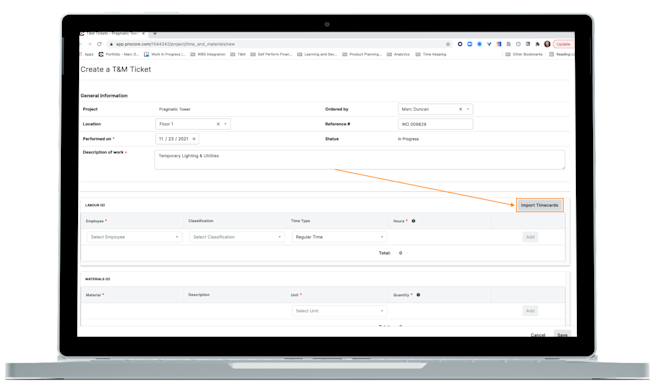
Importer un pointage dans un nouveau billet T-M
Accédez à l’outil Billets T-M du projet.
Cliquez sur Créer.
Remplissez le formulaire Informations générales pour votre billet T-M.
Accédez à la section Main-d’œuvre .
Cliquez sur Importer les pointages.
Sélectionnez la date des pointages que vous souhaitez importer.
Sélectionnez les pointages que vous souhaitez importer.
Conseil : Vous pouvez rechercher des pointages par nom d’employé ou filtrer les pointages par code de coût.Cliquez sur Importer les pointages.
Voir aussi
Chargement des articles connexes...