Send Estimate Drawings to the Drawings Tool
Background
Sending drawings to the Drawings tool allows your field teams to access project plans on their mobile devices. This process ensures that the specific plan sets used for your estimates are available for reference during construction, helping to maintain consistency between the estimated scope and the work performed in the field.
Things to Consider
Required User Permissions:
‘Standard’ or ‘Admin’ level permissions on the project’s Estimating tool.
AND'Admin' permissions on the project’s Drawings tool.
Additional Information:
When using the Estimating tool, sending estimate drawings to the drawings tool is only available for projects that originated in the Bid Board tool. See Add a Bid Board Project to the Portfolio Tool.
Takeoff measurements and markups added in the Estimating tool do not transfer to the Drawings tool. Only the base drawing file is sent.
This action creates a copy of the drawing file in the Drawings tool; it does not remove the drawing from the Estimating tool.
When Drawing Areas are enabled, drawings sent from the Estimating Tool automatically land in the first available area (e.g., Area 01). The system does not allow you to manually select a different destination during the transfer.
If you delete the primary Drawing Area, the system will redirect all future transfers to the next area in the sequence (e.g., Area 02).
Steps
Navigate to the Bid Board or Portfolio Planning tool and select the project.
OR
Navigate to the project's Estimating tool.Click the Documents tab.
Select Drawings on the left.
Depending on your needs, choose one of the following methods to send your drawings:
Send a Folder of Drawings
In the Folders column, locate the drawing folder you want to send.
Click the vertical ellipsis
 icon.
icon.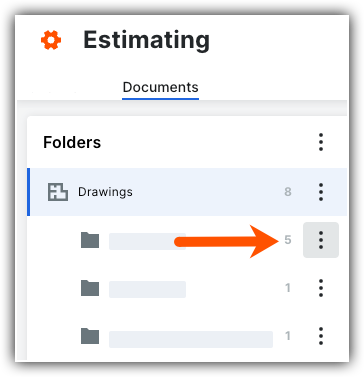
Click Send to Drawings tool.

Send Multiple Selected Drawings
In the Folders column, select the folder containing the drawings.
In the list view, mark the checkboxes next to the drawings you want to send.
Click the Send To button.
Click Send to Drawings tool.
Send a Single Drawing
In the Folders column, select the folder containing the drawing.
In the list view, locate the specific drawing.
Click the vertical ellipsis
icon in that drawing's row.Click Send to Drawings tool.
See Also
Loading related articles...