Delete a Model
Use the Models tool to manage your coordination models and keep your team working from the latest designs. Delete obsolete models or unneeded versions to maintain an organized project workspace.
Things to Consider
Steps
Delete a Version of a Model
Navigate to the project's Procore BIM Plugin tool.
In the dashboard, find the model's tile.
Choose one of these options.
On the model's tile, click the vertical ellipsis
 icon and choose View Version History.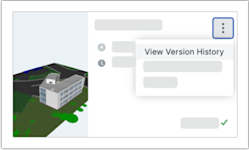
In the Version History window, find the version to delete.
On the version's row, click the vertical ellipsis
and choose Delete Version.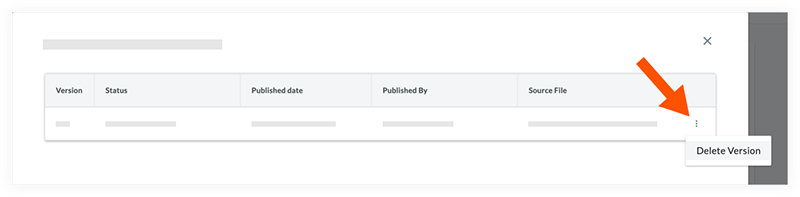
Delete an Entire Model
On the model's tile, click the vertical ellipsis
icon and choose Delete.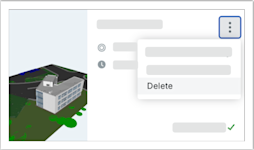
In the Confirm Deletion box, click Yes, Delete Model to permanently remove the model and its version history.
See Also
Loading related articles...