Add a Comment to an Observation (iOS)
Things to Consider
Steps
Navigate to the Observations tool on an iOS mobile device.
Tap the Observations tool.
Tap the observation to which you want to add a comment.
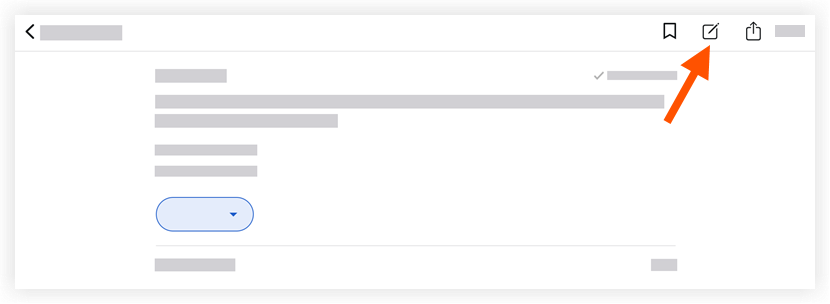
Tap Add a Comment
 .
.
Optional: Attach relevant photos or files by following the steps below:
Add a Photo
Tap Add Photo
 and choose from the following options:
Take Photo: Tap this option to take and add a photo to the observation.
Choose from Library: Tap this option to add an existing photo from your gallery to the observation.
Add Attachments
Tap Add Attachments
 to add a local file from your device to the observation.
Tap Send to save your comment.
Note: Your comment will appear in the observation's 'Activity' feed.
See Also
Loading related articles...