Configure Project-Level Self Serve Workflows
Background
Direct Costs tool enables Company Admins to build, automate, and manage tailored review processes. Implementing reusable templates and automated self-serve workflows across your projects accelerates the direct cost approval process and significantly reduces manual effort.
Things to Consider
Required User Permissions:
To view, create, or edit a custom workflow at the company level:
'Admin' level permissions on the Company level Workflows tool.
OR'Read Only' or 'Standard' level permissions on the Company level Workflows tool with the 'View Custom Workflows' and 'Create and Edit Workflow Templates' granular permission enabled on your permissions template.
'Read Only', 'Standard' or 'Admin' level permissions on the project's Direct Costs tool.
Prerequisites
Steps
Set Up Direct Costs Self-Serve Workflows at the Project Level
Create a Workflow Template. To learn more, see Create a Workflow Template.
Assign Workflow Templates to Projects. To learn more, see Assign Workflow Template to projects.
Navigate to the Company level Direct Cost tool where the workflow is being configured.
Click the Configure Settings icon.
Click the Workflow Settings.
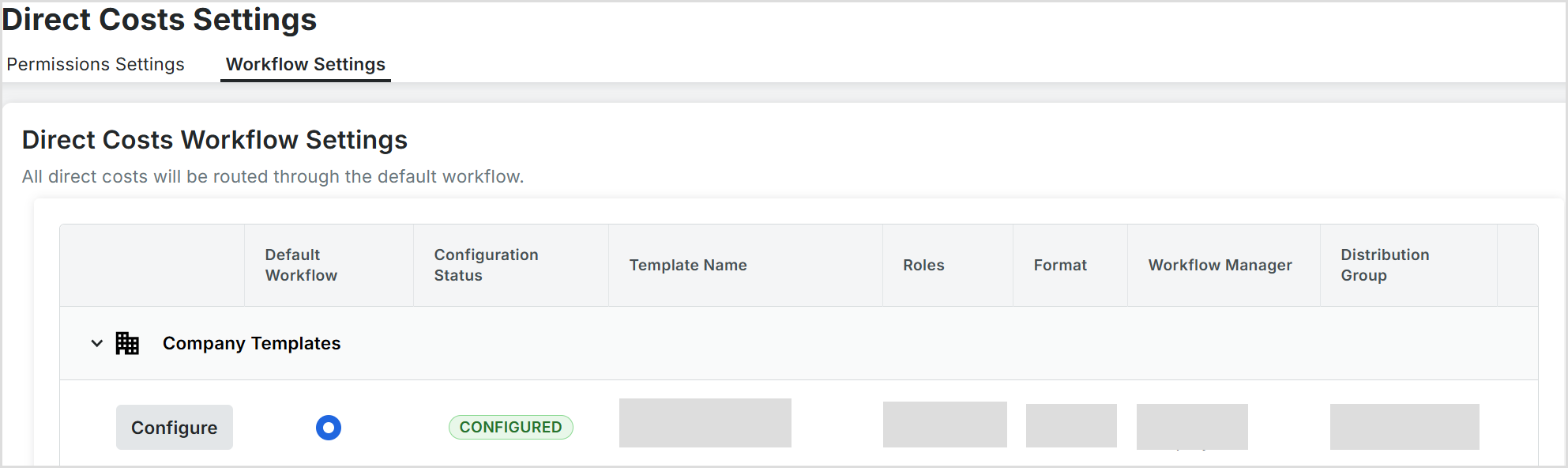
Click Configure next to the workflow being configured to open the workflow viewer.
At the top of the workflow viewer, assign a Workflow Manager by selecting a project user from the drop-down list.
Note: Optional step. Complete based on Workflow requirements. Assign Distribution Group. Select a distribution group from this list. These are the groups of users who will receive notification emails from Procore when certain actions occur in a workflow.Click Save.

Update the Initial Standard Step in the Custom Workflow
In the workflow builder, do one of the following to name your initial workflow step:
Click the pencil icon and then type over the 'Untitled' step title in the right pane. Then press the RETURN key.
Click into the text box and type over the 'Untitled' step in the right pane. Then press the RETURN key.
In the workflow step, update the 'Step Details' section:
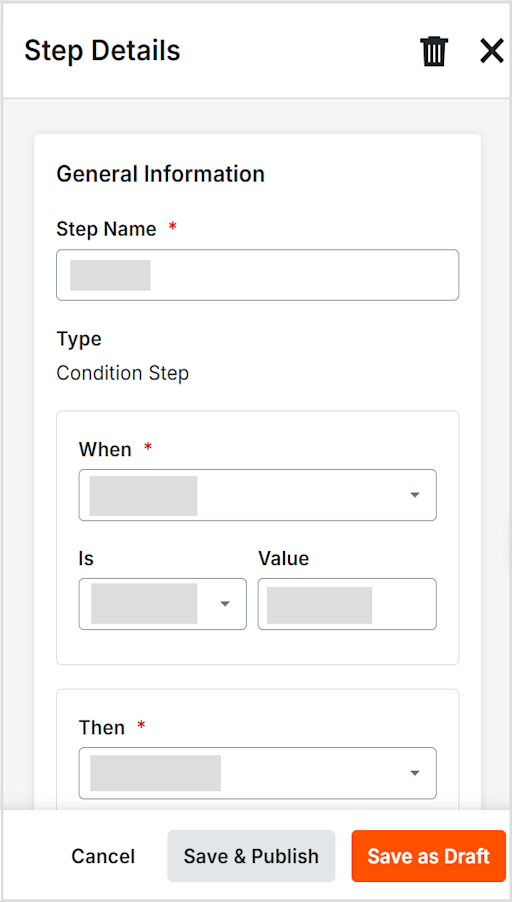

Note: An asterisk (*) indicates a required field.
Step Details & Configuration
Step Name: The designated title defining this particular step in the overall workflow sequence.
Type (Condition step): Defines the operational logic for the step, specifying whether it performs an action, calculates a value, or evaluates a conditional rule.
When: Identifies the main attribute or trigger condition that starts the evaluation. For example: Total Cost, Department, Vendor.
Is: The comparison operator used to test the condition, such as Equal to, Greater than, or Contains.
Value: The target threshold, numerical value, or text criteria checked against the When selection to satisfy the rule.
Then: The designated action or result triggered if the condition is met. For example: Require Manager Approval, Apply Overhead Fee.
Actions
Cancel: Closes setup and discards unsaved changes.
Save & Publish: Verifies, saves, and immediately deploys the rule to the active direct cost environment.
Save as Draft: Saves your work as an inactive draft so you can edit it later.
Respond to a workflow
Navigate to the project's Direct Costs tool.
Assigned reviewers will receive tasks in their My Open Items dashboard.
Click Edit to open the pending item to view the direct cost details.
Click Show Workflow.
Click Respond and select Approve or the appropriate action to advance or finalize the workflow.
Click Submit.
See Also
Loading related articles...