Manage Drawing Revisions for Takeoffs
Background
As project plans evolve, you may need to upload updated versions of a drawing. Procore Estimating tracks these as revisions, allowing you to maintain a history of your plans. Managing these revisions effectively ensures that your takeoff measurements remain accurate and aligned with the most current project scope.
Things to Consider
Required User Permissions:
‘Standard’ or ‘Admin’ level permissions on the project’s Estimating tool.
Additional Information:
Existing takeoffs remain associated with the specific drawing version on which they were created.
When a revision is uploaded, it is important to verify if project changes require adjustments to your previous measurements.
Steps
Navigate to the Bid Board or Portfolio Planning tool and select the project.
OR
Navigate to the project's Estimating tool.Click the Takeoff tab.
Click the Drawing Name drop down menu. If new revisions are available, an orange
 icon will appear on the right side of the menu.
An orange
icon shows which drawings have new revisions to review. 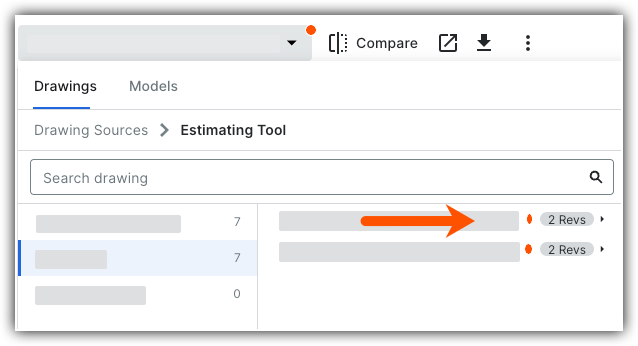
Select a drawing that needs review.
Click the Revision drop down menu.
Select the Newest Revision.
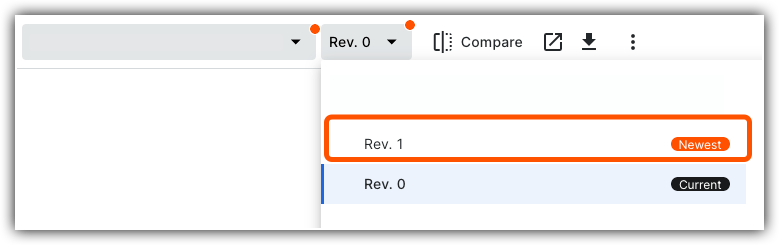
In the 'Compare' window, select one or both of the following:
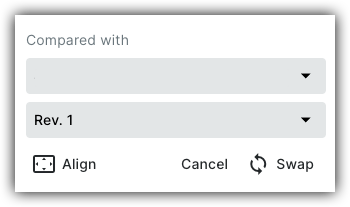
Select Align to adjust drawing alignment.
Left click and drag to move, mouse wheel to zoom.
Click Done when finished.
Select Swap to swap the active drawing with the new revision.
Click Confirm.


See Also
Loading related articles...