Configure and Customize Insights
Background
You can customize your Insights experience by configuring project details to ensure data accuracy and personalizing your view by reordering, showing, or hiding specific insights. To align these metrics with your organization's goals, you can set custom targets, choose industry benchmarks, and update insight banners with your company's own Standard Operating Procedures (SOPs) or specialized tips. These tools allow you to transform standard project data into actionable guidance that follows your unique company standards.
Things to Consider
Steps
Configure Project Details
Navigate to Insights within the side panel of your project.
Click the gear
 icon and select Project Details.
Update the following fields to update the details for the entire project.
Start Date
Completion Date
Project Sector
Type
Total Value
Click Save.
Note: Insights can take up to one hour to reflect changes made to project details.
The Total Value field varies based on the setup of your Procore Financials products. For example:
If you have Procore Financials enabled, the data pulls from Procore Financials with specific calculations based on how you use your financial products. The two options are based on:
The sum of all Prime Contracts and approved PCCOs
The sum of the original budget + approved budget modifications/changes + approved PCCOs
If you do not have Procore Financials enabled, this will pull from the 'Total Value' field in the project Admin settings. This field should be updated as the project value changes to ensure the insights remain accurate, as some benchmarks may rely on the project value to group with similar projects.
 icon to reorder how your insights appear in the side panel.
 icon.
icon.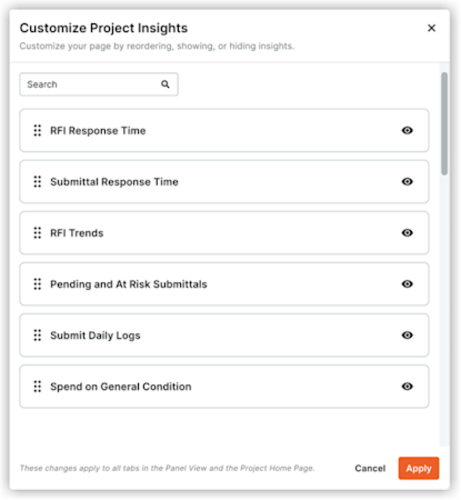
 icon to show or hide your insights on the side panel.
  icon to view Benchmark settings.