Overview
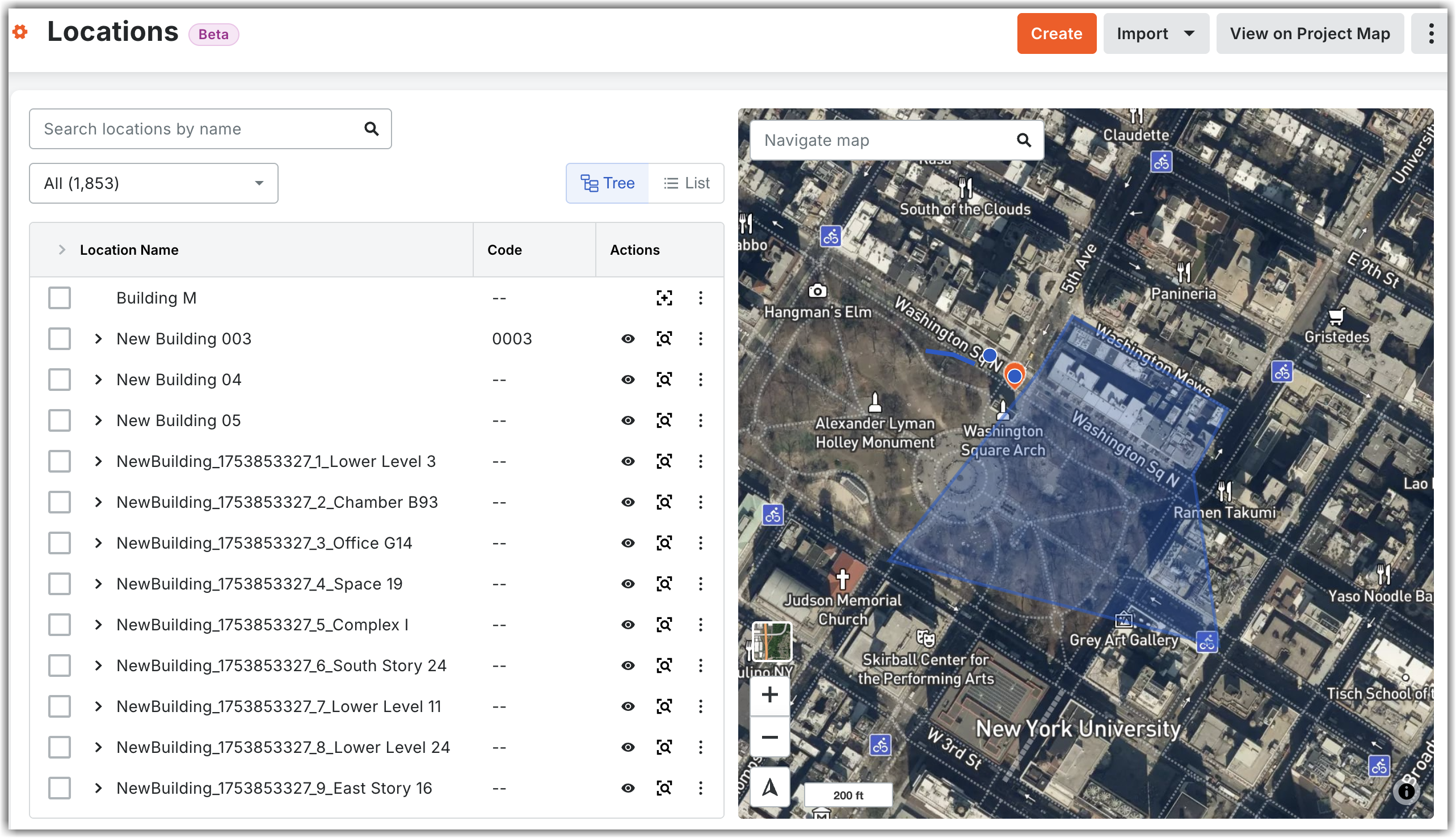
Procore introduces the new Locations (Beta) tool, a web-based solution, with General Availability targeted later this year. This tool will eventually replace the legacy Project Admin > Locations page.
The Locations (Beta) tool is available on Procore Explore. The features and documentation of this tool are subject to change without notice during the course of development.
To access the beta and provide feedback Show/Hide Details
How to access:
Join the web-based Locations Beta program using Procore Explore.
Ensure the new Locations (Beta) tool is active on your project.
Ensure you have the required user permissions. To learn more, see Permissions.
Navigate to your project's Locations tool.
Note: You can switch between the new Locations tool (web) and the legacy Locations page. Click the vertical ellipses icon located at the top right corner of the new Locations tool and select the Manage Locations (Legacy) option. The legacy Locations page appears in a new tab.
How to provide feedback during beta: Click the vertical ellipses
icon located at the top right corner of the new Locations tool and select the Share Feedback option. Use this option to report bugs or suggest improvements. Your feedback is critical to the final development of this tool.Support: To report issues, contact your Procore point of contact, Beta program lead, or submit a ticket to Procore Customer Support.