Search for and Filter Observations (iOS)
Things to Consider
Additional Information:
The Search feature respects any selected filter parameters and will only search for items within the filtered results.
This item can be viewed or edited offline if it was previously viewed and cached on your mobile device. Tasks performed in offline mode sync with Procore once a network connection is reestablished.
Steps
Navigate to the Observations tool using the Procore app on an iOS mobile device.
To Search for Observations
Tap the Search
 icon.
icon.
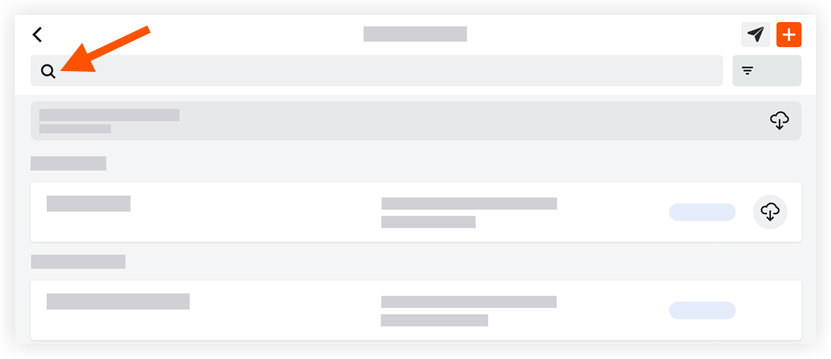
Enter the desired word or phrase. The following fields are searched for the specified keyword terms:
Results matching your search terms will automatically appear.Number
Type
Title
Assignee Company
Assignee Name
Location
Note: If you filter for a top-tier location, it will not show you any sub tiers, but if you search for a top-tier location, it will show you sub locations.
To Filter for Observations
Tap the Filter
 icon.
icon.
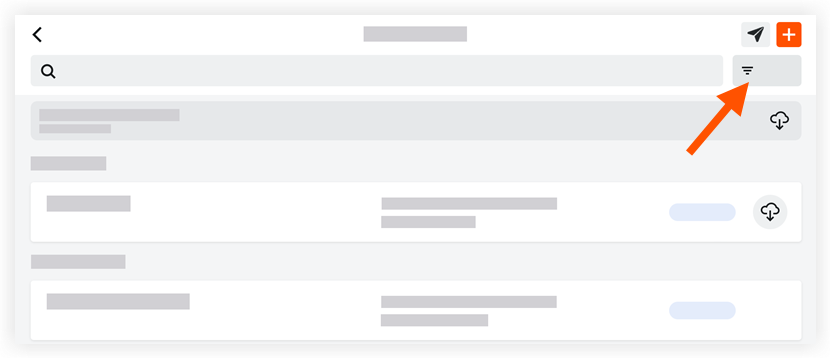
Tap the filter you would like to apply.
Filter by Status
Initiated: This displays all observations marked as 'Initiated'.
Ready for Review: This displays all observations marked as 'Ready for Review'.
Not Accepted: This displays all observations marked as 'Not Accepted'.
Closed: This displays all observations that are marked as 'Closed'.
Filter by Ownership
All: This displays all observations in the project that are marked as open or closed.
Mine: This displays only observations that are assigned to you.
Filter by Creator
This displays only the observations created by your selected user.
Filter by Location
This displays only the observations associated with your selected location.
Filter by Assignee
This displays only the observations assigned to your selected user.
Filter by Assignee's Company
This displays only the observations associated with your selected company.
Filter by Type
This displays only the observations associated with your selected type.
Filter by Origin
This displays only the observations with the origin that you selected.
Tap Apply.
To clear all filters, tap the Filter
icon, tap Reset All Filters, and then tap Apply.
See Also
Loading related articles...