Search for and Filter Photos (iOS)
Things to Consider
Required User Permissions: 'Read Only' level permissions or higher on the Photos tool.
Additional Information:
This item can be viewed or edited offline if it was previously viewed and cached on your mobile device. Tasks performed in offline mode sync with Procore once a network connection is reestablished.
Steps
Search
Filter
Search for Photos
Navigate to the project's Photos tool using the Procore app on an iOS mobile device.
Optional: Tap the ellipsis
 and select the Timeline
  , Albums
 , or Map
  view to change how you view the project's photos.
Tap the Search bar to enter a keyword or phrase.
Note: This search will return information matching the following:From the Timeline View
Filename
Description
From the Album View
Album Names
From the Map View
Filename
Description
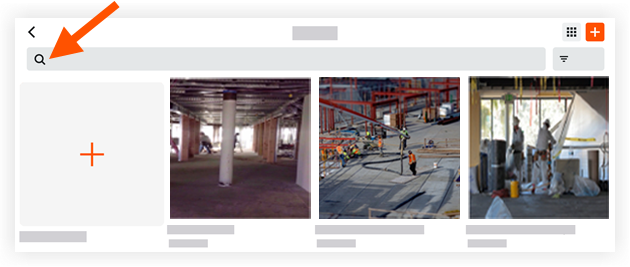
Tap a photo to view its details.
Filter Photos
Navigate to the project's Photos tool using the Procore app on an iOS mobile device.
Tap the options menu
and select the Timeline View or Map .Tap the filter
 icon.
icon.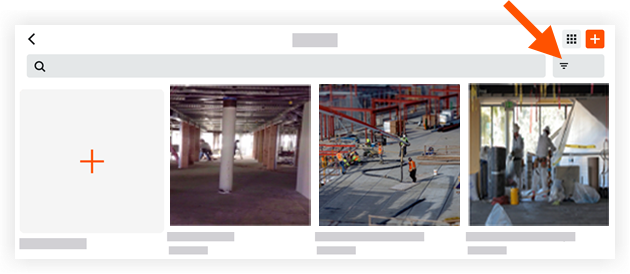
Tap a filter that you want to apply from the following options:
Grouped By: Choose to filter photos by 'Month,' 'Week,' and 'Day.'
Filter By: Choose to filter photos by the following options:
Date Range: Enter a date range to filter photos by the date the photo was captured.
Privacy: Tap this option to filter photos by 'Public,' or 'Private.'
Note: Filtering by privacy status is only available while in 'Timeline View' from the options menu.Location: Tap this option to filter photos by an associated location.
Trade: Tap this option to filter photos by an associated trade.
Tap Apply.
Optional: Tap Reset to clear the applied filter.
See Also
Loading related articles...