Create a Change Order Request for a Prime Contract

Background

A Change Order Request (COR) provides you with the ability to create a package that contains one (1) or more Potential Change Orders (PCOs) to use as a formal request to the project's owner. When creating a COR, it is a common practice to group PCOs that share the same scope of work into a single COR. This helps to organize your change orders into logical groups, which can streamline the review and approval process for the project owner.

 Important

A COR requires that your project's Prime Contracts tool is configured to use the three (3) tier change order setting. 1- and 2- tier change order configurations do NOT support the use of CORs. See What are the different change order tier settings in Project Financials?
Things to Consider

  • Required User Permissions:

    • 'Admin' level permissions on the project's Prime Contracts tool.

Prerequisites

  • The project's prime contract must be in the 'Approved' state.

Steps

  1. Navigate to the project's Prime Contracts tool.

  2. Locate the prime contract to work with. Then click its Number link.

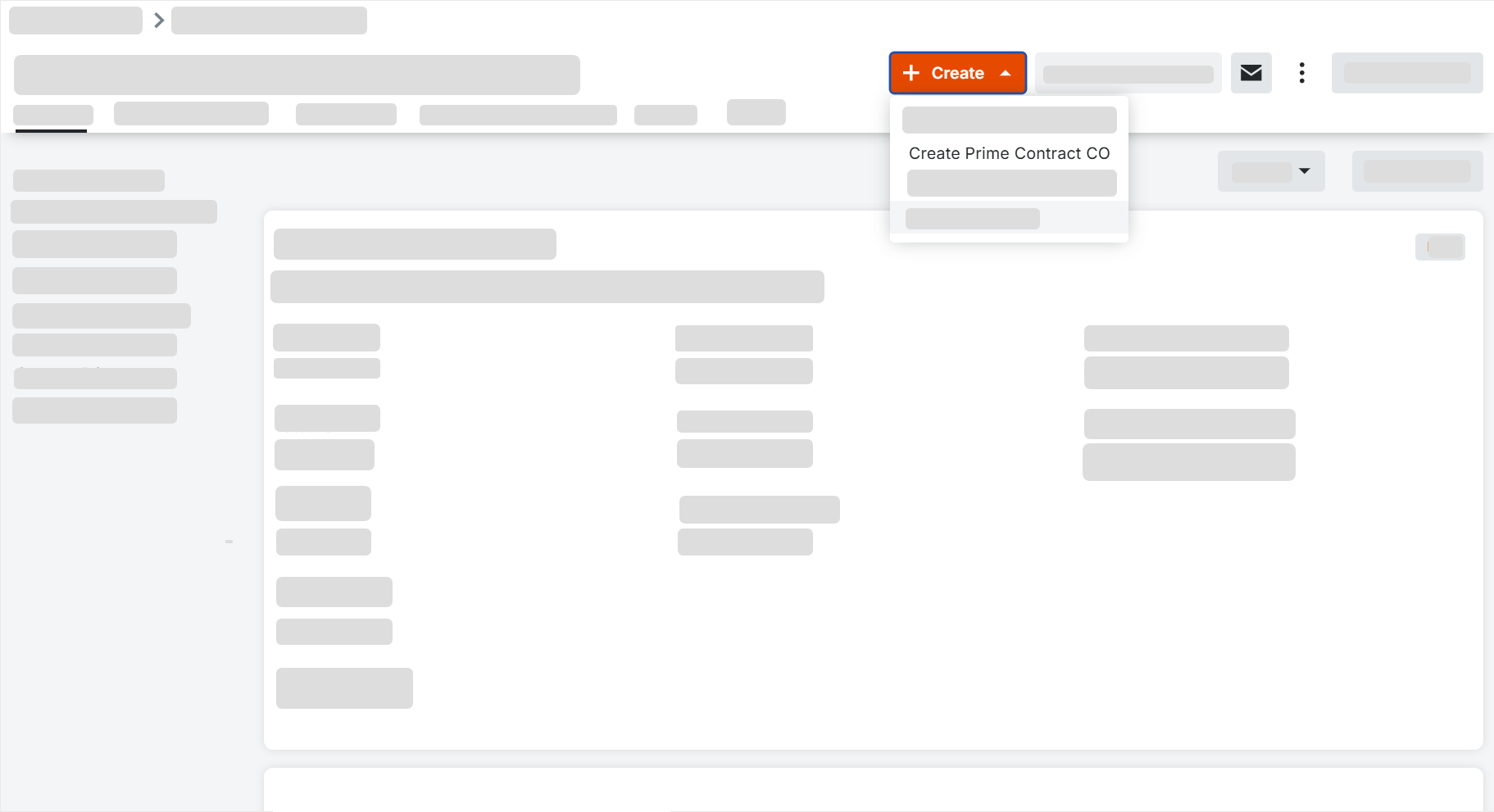
  3. Click Create Prime Contracts CO.
    Note: This button is only available if your project's prime contract is in the 'Approved' status.
    Create Prime Contract Change Order Request

  4. Complete the following:

    • PCCO Number. This field is automatically prefilled based on the number of other CORs that have been created. By default, the number will automatically increment by one. However, you can manually enter a different number, if desired. (Note: If you manually enter a number, the next COR that's created will automatically increment by one, based upon this specified value.)

    • Title. Enter a title that describes the COR.

    • Revision. This field displays the COR's revision number. When a COR is first created, its revision number is zero (0). Depending on the feedback you receive from the reviewer/approver, a COR may have multiple revisions.

    • Status. Select the current state of the COR.

      • Approved. The COR has been approved. Costs are reflected as 'Approved Changes' in the budget.

      • Draft. The COR still needs to be modified before it can be submitted for review. Costs are not reflected in the budget.

      • Pending - In Review. The COR is currently being reviewed by an approver. Costs are reflected as 'Pending Changes' in the budget.

      • Pending - Revised. The COR has been modified since its initial submission. Costs are reflected as 'Pending Changes' in the budget.

      • Pending - Pricing. The COR is pending and is currently out for pricing. Costs are reflected as 'Pending Changes' in the budget.

      • Pending - Not Pricing. The COR is pending and is not actively being priced. Costs are reflected as 'Pending Changes' in the budget.

      • Pending - Proceeding. The COR is still pending and the work is being completed. Costs are reflected as 'Pending Changes' in the budget.

      • Pending - Not Proceeding. The COR is pending and the work is not currently taking place. Costs are reflected as 'Pending Changes' in the budget.

      • Rejected. The COR was rejected. Costs are not reflected in the budget.

      • No Charge. The COR will be performed at no charge. Costs are not reflected in the budget.
        Note: These statuses reflect the budget in the ways listed above for the Procore Standard Budget View. To create or modify views, see Set up a New Budget View.

    • Contract. (For 3-tier change orders only) If desired, you can add the COR to a PCCO. You can either select an existing PCCO from the drop-down menu or create a new PCCO where the COR will automatically be added to it.

    • Contract. The specific main or prime contract that this change order is modifying. This links the change order to the correct overall project budget and scope.

    • Reference: A unique tracking number, cross-reference ID, or internal code (such as a specific RFI, PCO, or drawing number) used to tie this change order back to its originating documentation.

    • Private. Mark this checkbox if you want the COR to be private and only visible to users with 'Admin' permissions on the Prime Contract tab.

    • Executed. Check this box once the change order has been fully approved and legally signed off by all parties.

    • Signed Change Order Received Date. The date the fully executed and signed change order document was officially received back from the client or owner.

    • Designated Reviewer. Select the specific individual or stakeholder assigned to evaluate and make a decision on this Change Order Request (COR).

    • Review Date. The date the designated reviewer completed their official assessment and made their determination.

    • Reviewed By. The name or system identity of the actual person who conducted the review.

    • Due Date. The deadline by which this change order needs to be reviewed, approved, or processed.

    • Invoiced Date. The date this change order's amount was officially billed to the client on a progress invoice.

    • Paid Date. The date the payment for this specific change order was received and processed.

    • Schedule Impact. If known, you can provide an estimate of the number of additional days that would potentially be added to the current project schedule if the COR were approved.

    • Amount. The total financial value (cost or credit) associated with this specific change order.

    • Revised Substantial Completion Date. The new, updated project completion date, factoring in the time impact of this change order.

    • Description. Enter a more detailed description of the COR.

    • Attachments. Select and attach any relevant documents.

    • Potential Change Orders. Select which PCOs to include in the COR.

    • Additional Information

      • Insurance Program. The specific wrap-up or project insurance program (e.g., OCIP/CCIP) applicable to this change order, if any.

      • Additional Coverages Required. Any extra or non-standard insurance policies or endorsements needed specifically for this new scope of work.

      • Bonds. Details regarding any updates, increases, or riders required for performance and payment bonds due to the change in contract value.

      • ATP Date (Authorization to Proceed): The date the formal, written notice was given to begin the work before the official change order was fully executed.

      • Attachments Uploaded. A list or indicator of supporting documents (e.g., PDFs, drawings, emails) attached to this change order record.

      • Contract Form Type. The specific contract template or legal form format being used to execute this change order.

      • Contracted Days. The number of calendar or working days added to (or subtracted from) the original project schedule as a result of this change.

      • Extra Description. A detailed narrative or justification explaining the reason for the change order and the specific scope of work involved.

      • General Liability

    • Date Created. Displays the date and time that the COR was created. You cannot change this value.

    • Created By. Displays the name of the user who created the COR. You cannot change this name.

    • Click Create.

 Note

If you want to email the COR to the project owner or another user for review, click Create & Email. This action opens a new page where you can select the recipients for the email. The recipients can then email a reply to the message to approve the change order.

 Note

If you want to route the change order for official electronic signatures, click Complete with DocuSign. This action opens a new window where you can place signature tags, finalize the routing order, and send the document directly to the recipients. Once all parties sign via DocuSign, the contract status will automatically update to reflect completion.

Next Steps

See Also

Loading related articles...