Manage Agent Automations
Background
Rather than visiting the configuration panel of each agent, you can manage all agent automations from a central location. If your account has the Pro version of the AI product, this is the only way to manage your included triggered agents.
If you need to learn more about agent automations first, see Set Up Agent Automations for an introduction.
Things to Consider
Prerequisites:
An Enterprise subscription is required through Datagrid or Procore's Digital Coworker offerings in order to add and edit automations.
However, accounts with a Pro AI subscription can activate or deactivate the prebuilt automated agents that are included in their package.
Procore customers: A Company Admin must enable the project where the agent you want to automate will live and they must assign you a role.
Visibility for Procore customers: If your account has Procore AI, changes made to an agent's automations in Datagrid are reflected in Procore AI, and vis versa.
Trigger sources: At this time, only Procore events can be set up to trigger agents in Procore AI or Datagrid. Other trigger sources may be added in the future.
Trust but verify: Because AI operations are non-deterministic, AI tasks from configured automations are intended to provide starting recommendations that should always be verified by a user.
Pre-Built Agents with Automations
Procore provides two prebuilt agents with the App Event trigger type built in. These assist with two of the most common event-driven workflows in Procore: RFIs and Submittals, if you choose to activate them.
RFI Triggered Agent - Runs automatically on RFI creation to check the RFI for drafting compliance, duplicates, and answers already in the project documents, returning a validation report with a verdict and recommended next step.
Submittal Triggered Agent - Runs automatically on submittal creation to check the submittal against its governing specification, building a requirements checklist and returning a compliance report with a requirement-by-requirement table and role-assigned action items.
Availability: These two trigger agents are only available to accounts with Pro or Enterprise packages in Procore AI or Datagrid. They are turned off by default. In the next section, learn how both Member and Admin users can activate them.
Manage All Automations
Steps
Learn how to see and manage all agent automations from a central location:
From the chat field in Procore AI or Datagrid, click the mode name (e.g., Ask, Execute) to toggle off
 Auto-Select Agent if it isn't off already.
 Click
 Automations to open the Automations panel.
In the Automations panel, click the status pill next to the agent's name to open its automation details.
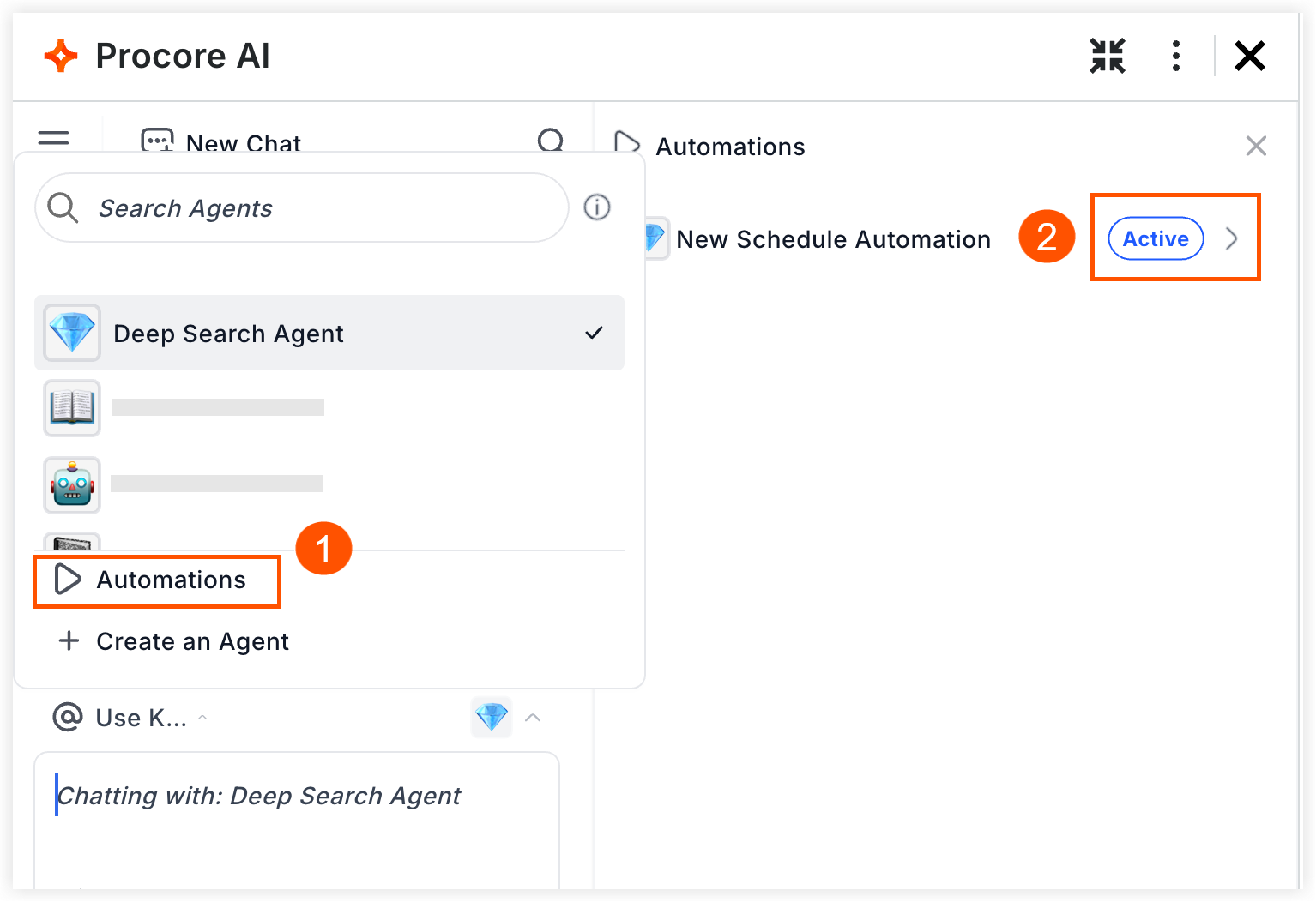
At the bottom of that agent's automation details panel, find the 'Activate Trigger' section and click the toggle
to change the status.
Note: If your account has the Pro AI package, the agent automation details are read-only. You can see the agent's instructions and settings, but the only thing you can edit is whether it is active or not.Agent changes can affect the entire project
When you modify an agent, it can impact the project and other users. Please check with your project or company administrator before making changes.

Optional: If your account has the AI Enterprise package, Member and Admin users can also edit the agent's instructions and settings as needed. Do this with caution since the agent and its automations may affect the workflow of others or the project.
Click Save Changes.