Manage Draft Assignment Alerts for Resource Planning
Background
Resource assignments allow you to manage your resources by assigning them to projects. You can create assignment alerts to notify the assignees and share key information about their assignment. You can draft assignment alerts to be sent a later time. See Send Assignment Alerts for Resource Planning.
This tutorial shows you how to manage draft assignment alerts that have not yet been sent to recipients.
Things to Consider
Messages are limited to 1,200 characters, not including dynamic tokens.
Steps
Manage Draft Assignment Alerts (Beta)
View Draft Assignment Alerts
Send Draft Assignment Alerts Now
Edit Draft Assignment Alerts
View Draft Assignment Alerts
Navigate to the Company level Resource Planning tool.
Click Communications (Beta).
Select Alerts from the drop-down menu.
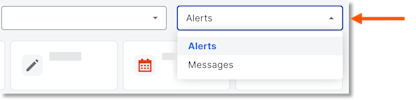
Select Drafts.
In the 'Date/Time Sent' column, select the envelope
icon for the alert you want to view.
Send Draft Assignment Alerts Now
Navigate to the Company level Resource Planning tool.
Click Communications (Beta).
Select Alerts from the drop-down menu.

Select Drafts.
In the 'Date/Time Sent' column, select the envelope
icon for the alert.Click Send.
Edit Draft Assignment Alerts
Navigate to the Company level Resource Planning tool.
Click Communications (Beta).
Select Alerts from the drop-down menu.

Select Drafts.
In the 'Date/Time Sent' column, select the envelope
icon for the alert.Edit the assignment alert.
Recipients. Select who will receive the assignment alert.
Select a recipient from the drop-down menu to add them to the alert.
Click remove next to a recipient to remove them.
Schedule Delivery. Select whether the message is scheduled for delivery.
Move the 'Schedule Delivery' toggle
ON to schedule the assignment alert. Then enter the date and time for the scheduled assignment alert to be sent.Leave the 'Schedule Delivery' toggle
OFF to keep the assignment alert as a draft.
Subject. Enter the subject of the assignment alert.
Alert Content. Enter the information to be sent in the assignment alert.
Click Save Draft.
Manage Draft Assignment Alerts (Legacy)
View Draft Assignment Alerts
Send Draft Assignment Alerts Now
Edit Draft Assignment Alerts
Delete Draft Assignment Alerts
View Draft Assignment Alerts
Navigate to the Company level Resource Planning tool.
Click Communications and select Alerts.
Select Drafts from the drop-down menu.

Optional: Enter the person's name who is receiving the alert in the Search Recipients box. Then click the magnifying glass icon or press the ENTER/RETURN key on your keyboard to initiate your search.
Optional: Click the filter
icon. Select your filters, then click Apply.Optional: Click Sort By and select Created - Newest or Created - Oldest.
This shows you an overview of all your draft assignment alerts:
Assignee's Name. The assignee's first and last name.
Project Name. The project's name.
Assignment Start Date. The assignment's start date.
Assignment End Date. The assignment's end date.
Creator. The person who created the assignment alert.
Send Draft Assignment Alerts Now
Navigate to the Company level Resource Planning tool.
Click Communications and select Alerts.
Select Drafts from the drop-down menu.

Optional: Enter the person's name who is receiving the alert in the Search Recipients box. Then click the magnifying glass icon or press the ENTER/RETURN key on your keyboard to initiate your search.
Optional: Click the filter
icon. Select your filters, then click Apply.Locate the assignment alert that you want to send now. Then click, Send Now.
Edit Draft Assignment Alerts
Navigate to the Company level Resource Planning tool.
Click Communications and select Alerts.
Select Drafts from the drop-down menu.

Optional: Enter the person's name who is receiving the alert in the Search Recipients box. Then click the magnifying glass icon or press the enter/return key on your keyboard to initiate your search.
Optional: Click the filter
icon. Select your filters, then click Apply.Locate the assignment alert that you want to edit. Then click, Edit.
Edit the assignment alert.
Subject. Enter the subject of the assignment alert.
Alert Content. Enter the information to be sent in the assignment alert.
Note: You cannot add dynamic tokens when editing a draft assignment alert.Schedule Delivery. Select whether the message is scheduled for delivery.
Move the toggle for 'Schedule Delivery' to the ON position to schedule the assignment alert. Then enter the date and time for the scheduled assignment alert to be sent.
ORLeave the toggle for 'Schedule Delivery' in the OFF position keep the assignment alert as a draft.
Recipients. Select who will receive the assignment alert.
Click the remove
icon to remove a recipient.Click Add Recipients to add recipients, then select a recipient.
Click Save.
Delete Draft Assignment Alerts
Navigate to the Company level Resource Planning tool.
Click Communications and select Alerts.
Select Drafts from the drop-down menu.

Optional: Enter the person's name who is receiving the alert in the Search Recipients box. Then click the magnifying glass icon or press the ENTER/RETURN key on your keyboard to initiate your search.
Optional: Click the filter
icon. Select your filters, then click Apply.Locate the draft that you want to delete. Then click, Delete.
See Also
Loading related articles...