View Specifications (iOS)
Tip
A new two and three-column layout is now available for iPads, making it easier to navigate different tools. Tap the menu  icon to show and hide the tools menu.
A new two and three-column layout is now available for iPads, making it easier to navigate different tools. Tap the menu icon to show and hide the tools menu.
Required User Permissions:
'Standard' or 'Admin' level permissions on the project's Specifications tool.
Additional Information:
The new view and workflow now applies to both Purchase Orders and Subcontracts.
Details like descriptions, inclusions, and exclusions can be expanded or collapsed to keep the view clean.
Schedule of Values and Change Orders are now organized into independent subtabs, reducing the need for excessive scrolling.
Attachments are displayed at the top of the commitment for quick access.
This item can be viewed or edited offline if it was previously viewed and cached on your mobile device. Tasks performed in offline mode sync with Procore once a network connection is reestablished.
Navigate to the project's Specifications tool using the Procore app on an iOS mobile device.
Tap the division you want to view specifications for.
Tap the specification section you want to view.
Swipe through the specification section by swiping up on your iOS device, or view the information explained below.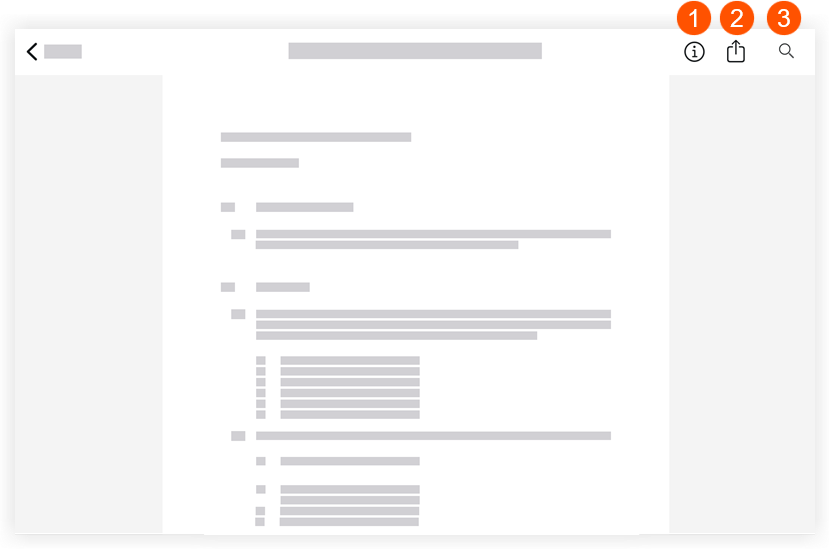
Tap information to display information about the spec section you're viewing. Tap it again to hide the information. This information includes the following:
Revision number: This number denotes the most recent to oldest revision issues for a particular spec section. Spec sections are usually ordered numerically and/or alphabetically.
Issued Date: This is the date the spec section was issued to the GC.
Received Date: This is the date the GC received the spec section.
Set: This is the set into which the spec section displayed was uploaded.
Tap the Share to email the spec section to another member of the project's Directory. See Email Specifications (iOS).
Tap Search to search the current specification section for key words. See Search Contextually within Specifications (iOS).
Loading related articles...