Add Tools from Your Toolkit
Many users will have their own unique toolkit, but the process of adding tools to your map site is the same. Whether you want to add lines, points, or polygons, you will navigate and use the same steps. Depending on your project, your toolkit will have individual tool groups and tools that correspond with the work you are doing. Each tool has a corresponding Form with tool-specific fields.
Here's how to add tools to your site:
Click on the plus icon on the left side.
Your toolkit will open and you will see each tool group with the related items.
Click on which item you want to add to your map. You will then be instructed to draw or place the tool on the map.
For line properties:
Click on the desired tool.
Then click on where you want the line to start, you can add as many points as you'd like. Once you are finished, click the last point twice.
When you're finished the property's field form will appear. Fill in any information and then click "Done."
For point properties:
Click on the tool you want to add.
Click on where you want the point tool on your map.
Fill out any fields and then click "Done."
For polygon tools:
Click on the property you want to draw on your site.
Start the first point by clicking where you want to start drawing, then use as many points as you'd like to complete the shape. When you are done, click the first point again to finish the polygon.
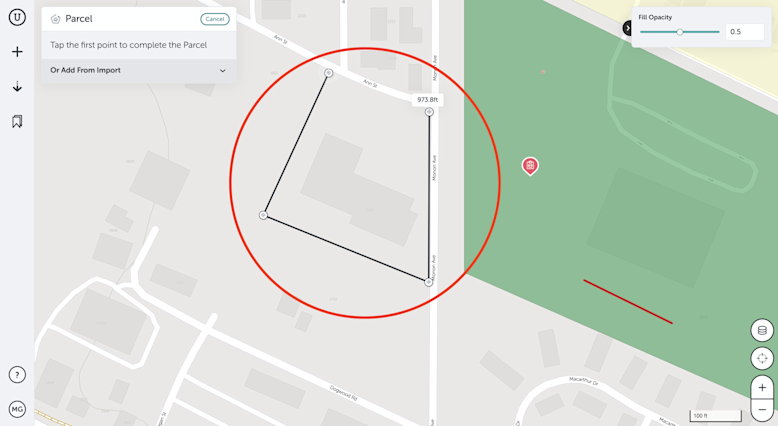
Add any information in the form and then click "Done."
Tools Forms:
After you add properties to your map, a tool form field will open. You can use this field to track and communicate more details about the tool.
If you've already created the property, you can locate the form by clicking on the tool in Table View or on the map. The tool's form will immediately appear.
On the form, enter any information in the available fields, and then click "Done" in the lower right of the Form to save. Everything you record in the Form will be there the next time you open it up - or the next time someone on your team does.
If you run into any issues or have any questions, please reach out to us at unearthsupport@procore.com.
See Also
Loading related articles...