How do I add the 'Timesheet Hours' column to a budget view?
Answer
Company 'Admin' users can set a default A Cost Type is a set of costs identified by a unique abbreviation or label. Cost types are typically used in job costing (tracking costs for certain job activities and projects). In Procore's Work Breakdown Structure, 'Cost Type' is a flat segment with these default options: (E) Equipment, (L) Labor, (M) Materials, (O) Other, (OC) Owner Cost, (S) Commitments, and (SVC) Professional Services.
Step 1: Assign Default Cost Types
Assign a 'Default Cost Type' for your labor and equipment timecard entries. See Configure General Company Timesheets Settings.
Step 2: Include 'Timesheet Hours' in Budget View. Which Procore budget views include the 'Timesheet Hours' column?
If your company is using Procore's Resource Tracking and Project Financials tools, the 'Timesheet Hours' column is used in these budget views:
Real-Time Labor Productivity budget view.
Procore Labor Productivity Cost budget view.
Add the 'Timesheet Hours' Column to a Blank Budget View
Navigate to the Company level Admin tool.
Under Tool Settings, click Budget.
Click Set Up New Budget View.
Under Standard Views, click on Blank Budget View.
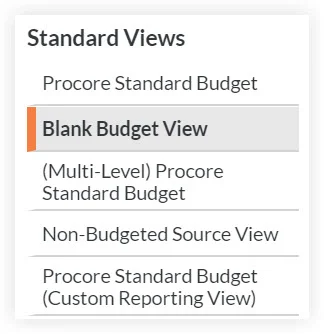
Click Create.
Enter a View Name and View Description for your view.
Click Configure Columns.
Click Create Calculated Column.
Under New Calculated Column, do the following:
Column Name. Enter the name: % Hours Used
Format. Select Percent.
Select these calculation settings as shown in the drop-down lists:
Timesheet Hours
Division (/) sign
Revised Units
Click Create.
If you collect timecard entries using third-party software, instead of Procore's Resource Tracking tools, you can develop a custom integration that allows you to add the 'Timesheet Hours' column to a budget view.