What is App Management?
Background
Procore's App Management feature allows Procore company administrators to install and manage third-party applications, or Apps, on the Procore platform making them available for use in projects.
Types of Apps
The Procore platform supports different App types. Apps running on the Procore platform fall into three main categories:
Embedded Apps are launched from and display directly within the Procore web user interface. By eliminating the need to switch between Procore and external services and sites, embedded Apps provide a seamless experience for users and help improve efficiency and streamline workflows. Custom third-party Apps developed by Procore customers well as Marketplace Apps developed by Procore technology partners can take advantage of the embedded experience.
Data Connection Apps address the need to import, export, or sync data between Procore and external applications or services. Custom third-party Apps developed by Procore customers well as Marketplace Apps developed by Procore technology partners can be implemented and deployed as data connectors.
Agentic / AI-Enabled Apps incorporates artificial intelligence capabilities into Procore using AI Agents and Model Context Protocol (MCP) servers. These agents and MCP servers allow Procore AI to perform cross-system reasoning and actions while strictly respecting user permission boundaries. Data within external systems remains in its host system, while Procore data stays securely inside Procore, allowing agents to securely query live project information without copying or moving underlying data.
App Management in Procore
All app types are managed in Procore using the App Management feature within the Procore Company Admin tool. Once an App is installed in a company account, administrators and authorized users can manage its setup, scoping, and updates:
Data Connection Apps: Company administrators can update, uninstall, and reinstall Apps, as well as view daily API request usage graphs.
Embedded Apps: Company administrators and project users can install embedded Apps directly from the Procore Marketplace or custom app links, create App configurations at the company or project level, and launch them inside Procore.
Agentic / AI-Enabled Apps: Company administrators can identify agentic components associated with an app, configure which Projects those agents have access to, and manage governance permissions. Uninstalling an agentic app automatically and cleanly purges all associated AI components and connections from Procore without leaving behind orphaned configurations.
Company Level: App Management at the company level is accessed through the Company Admin tool.
Portfolio/Procore Home > Core Tools > Admin > App Management
Project Level: App Management at the project level is accessed using the 'Select an App' menu on the top navigation header.
Select an App > Explore > App Management.
App Installation and Configuration
Understanding how Apps are installed, configured, and governed across your organization is essential before deploying them:
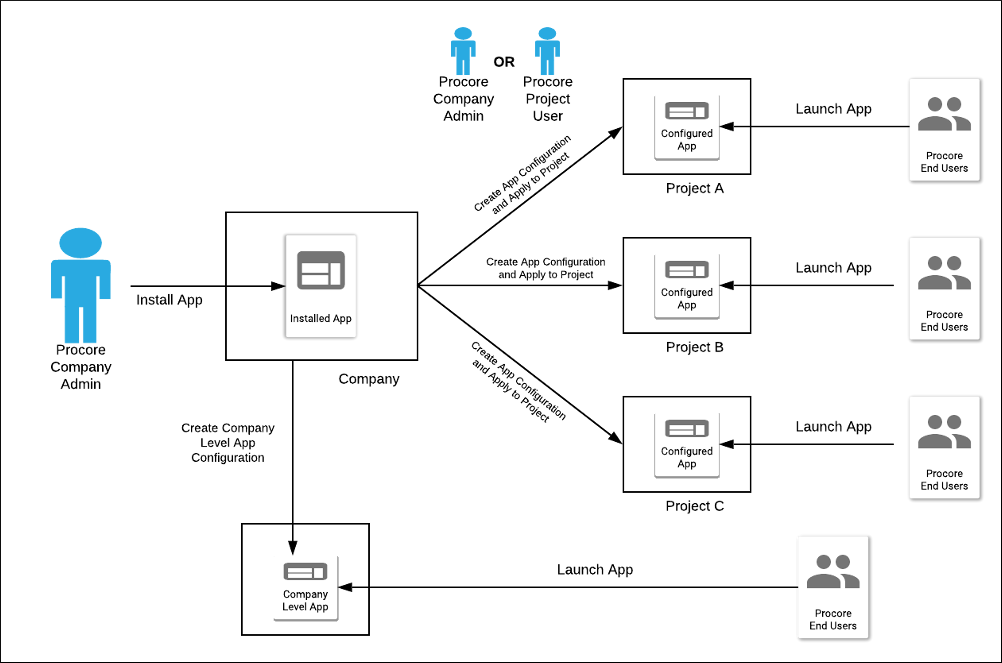
Installation: A Procore company administrator discovers and installs an App from the Procore Marketplace or installs a custom App directly into their company account. You can filter Marketplace searches by specific capabilities.
Configuration & Scoping:
Embedded Apps can be configured at the company level for all users or scoped to individual projects with project-specific settings.
Agentic / AI-Enabled Apps are configured by choosing the specific Projects where the AI Agent and MCP server connections are permitted to operate.
Governance & Permissions: Agentic apps execute actions only with user approval and operate strictly within the bounds of the active user's existing Procore tool permissions.
App Launch & Use: End users access embedded Apps directly within the Procore interface or interact with enabled AI Agents via Procore AI.
Application Versioning and Update Notification
The applications and integrations you install in your Procore company account follow a semantic version numbering scheme. Semantic versioning involves a set of rules that guide how version numbers are assigned and incremented by the application developer. Semantic versioning is beneficial as it provides meaning about the underlying application code and what has been modified from one version of the application to the next.
A semantic version number takes the form X.Y.Z where X is the major version, Y is the minor version, and Z is the patch version (major.minor.patch). As you update applications in your company account, version number elements are incremented depending on the type of change:
major - incremented when incompatible breaking changes are made to the application.
minor - incremented when new features to the application are released in a backward-compatible manner.
patch - incremented the when bug fixes or other changes not directly affecting the functionality of the application are released.
To learn more about semantic versioning concepts, visit https://semver.org/.
When a new application version is released by a developer, the App Management listing for the application will have an 'Update Available' notification.

Update notifications for Marketplace applications appear once the new application version is reviewed by Procore and published to the Marketplace. Update notifications for custom-installed applications appear when the developer promotes a new application version to the production environment. In this scenario, the developer must provide you with an updated App Version ID in order to complete the update.
See Update an Installed App for steps to update an application in App Management.
As you update previously installed applications, it is important to note that any app configurations, company or project permissions, and permitted project settings you have set up will need to be reconfigured for an updated application.