Set Bidder Information for a Company in the Company Directory
Things to Consider
Additional Information:
Bidder information is linked between the Project level and Company level Directory tools.
Bidder information for a
is also set by the connected company. See Refresh Bid Contacts for Connected Companies in the Company DirectoryA connected company is a business or organization that is listed on the Procore Construction Network and added as a company in your Company level Directory tool. While you can edit and maintain some of the business’s information in your Company level Directory, the business also has a public profile with information that they maintain.
Cost Codes selected on the Bidders Tab will automatically appear on bid sheets if they exist on the project.
You can bulk update the cost codes and trades associated with companies by 'Updating the Existing Vendors' template. See Update Contacts in your Company Directory Tool (Procore Imports) for more information.
The 'Leave a Comment' section is designed to assist you in your decision making when searching for bidders. See Invite Bidders.
Steps
Navigate to the Company level Directory tool.
Click the Companies tab.
Click Edit next to the company.
Click the Bidder Info tab.
Authorized Bidder: Mark this checkbox to designate an Authorized Bidder. This is for reporting purposes only and does not affect Procore emails.
Choose from these options:
U.S. Government Jobs: If updating a company record for a U.S. government project, mark all applicable checkboxes to disclose the required company information.
Jurisdictional Restrictions: If data collection is not required or is legally prohibited in your jurisdiction, disregard the checkboxes and proceed to the next step.
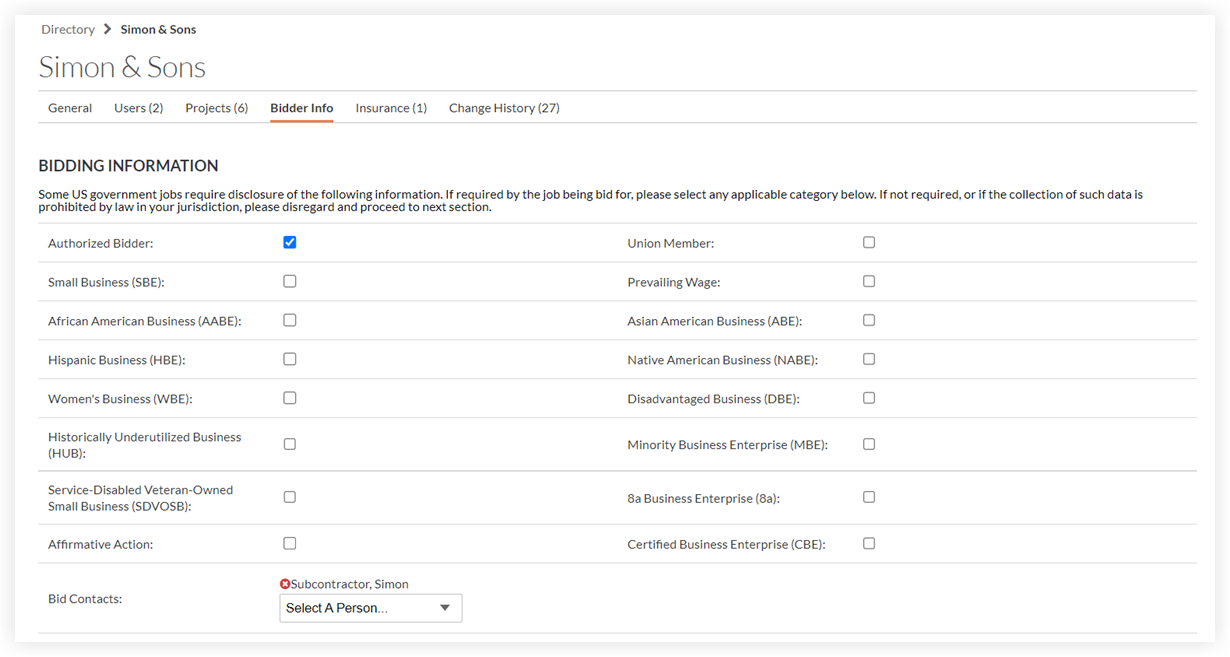
Add users to the Bid Contacts field to ensure they receive bid invitations. Once added, they will automatically populate the Bid Recipient field on new bids.
Prequalifications: If the Prequalifications tool is enabled, company qualification data will be listed. See the Prequalifications tool for more information.
Set trades and cost codes so that the company will appear when searching by trade or cost code in the Bidding tool.

Trade: A classification for the company's work type (e.g., Electrical, Mechanical, HVAC). If your trades are not set up, see Add a Custom Trade.
Cost Code: Select which cost codes apply to this company.
Click Save
Recent bids are listed at the bottom of the page under 'Most Recent Bids'. Clicking a link redirects you to the relevant project or bid package.
Note: You must have permissions to view these projects/bids for them to show here.In the 'Leave a Comment' section, complete the following:
Enter a comment.
Attach any relevant files for your records.
Rate their work with a 1-5 star system.
Click Post Comment.
Existing comments, files, and ratings display in the 'Comments' section.


See Also
Loading related articles...