Manage Starred Messages for Resource Planning
Things to Consider
Permissões de usuário necessárias Planejamento de Recursos - Permissões
Messages sent in Resource Planning will NOT appear in Emails in Procore.
Messages that are only visible to you have a lock
 icon.
icon.Archived messages are removed from the Starred folder.
Deleted messages are permanently removed from Resource Planning and cannot be recovered.
Prerequisites
Steps
Un-star a Message
Navigate to the Company level Resource Planning tool.
Click Communications (Beta).
Select Messages from the drop-down menu.
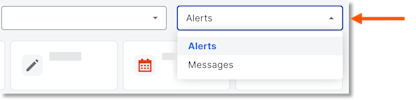
Click Starred.
Click the star
 icon for message to remove the star.
View a Starred Message
Navigate to the Company level Resource Planning tool.
Click Communications (Beta).
Select Messages from the drop-down menu.
Click Starred.
In the 'Date/Time Sent' column, select the envelope
 icon for the message you want to view.
See Also
Loading related articles...