Company Insights
Company RFI Response Time: Show/Hide Insights Features
Tracks how long it takes for RFIs to be responded to across all projects. Key metrics include company-wide RFI response time, industry benchmark comparisons, and projects with the longest response times. Users can filter by All Projects, Active, or Inactive projects. The Quick Insight area lets you see the performance of your company against the industry's average response time.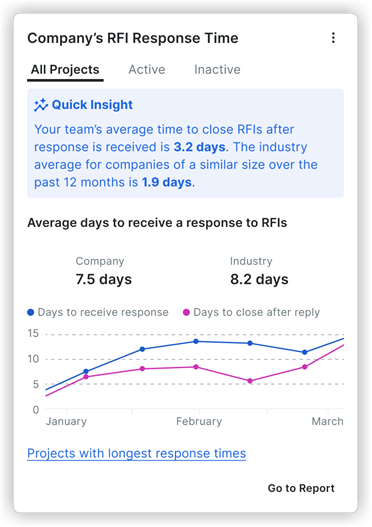
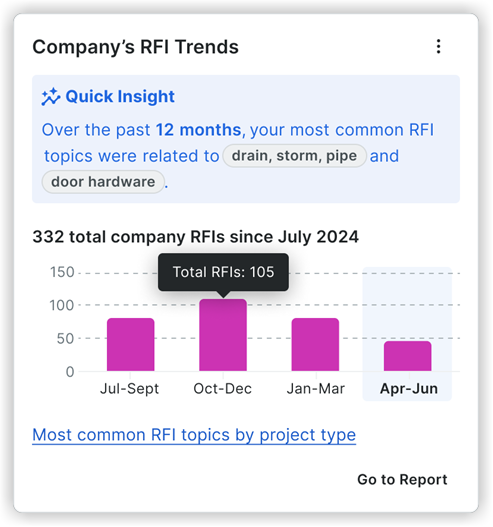
Company RFI Trends: Show/Hide Insights Features
Provides visibility into the quantity and types of RFIs across your project portfolio over the past 12 months. Includes the following key metrics:
Quick Insight: Displays the two most common RFI topics across your projects in the past 12 months.
Chart View: Visualizes RFI counts, broken down into project completion stages (25% increments). Hover over each stage to view the following:
Completed Stage (25%): Shows the actual two most common RFI topics for the project.
Current Stage (25%): Displays both actual and industry-wide common RFI topics for similar project types.
Upcoming Stages (25% each): Reveals the most common RFI topics across the industry for similar project types.
Most Common RFI Topics: Provides a link to your most common RFI topics by project type (sector). Click Show More to see all RFI topics and their associated metrics for deeper insights.
Company Submittal Response Time: Show/Hide Insights Features
Measures how long it takes to respond to submittals across all projects. Key metrics include company-wide submittal response time, industry benchmarks, and projects with the longest response times. Users can filter by All Projects, Active, or Inactive projects. The Quick Insight area lets you see the performance of your company against the industry's average response time.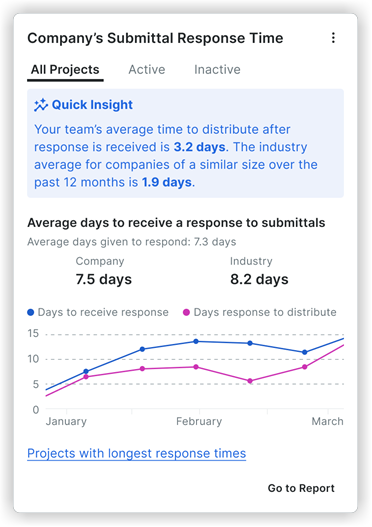
Company Daily Log Completions: Show/Hide Insights Features
Tracks the consistency of Daily Log completion across active projects. Key metrics include average days to complete Daily Logs company-wide, industry benchmarks, and Daily Log completion trends over time. The Quick Insight area lets you see the performance of your company against the industry's average response time.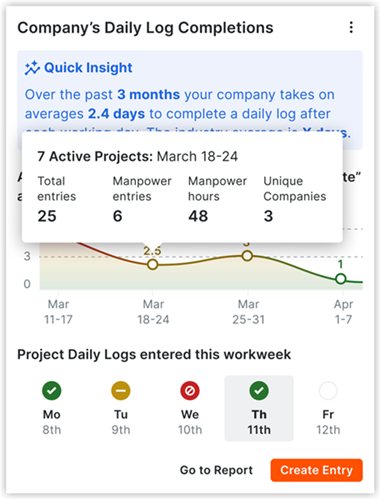
Company Pending and At Risk Submittals: Show/Hide Insights Features
Highlights submittals that are at risk of causing project delays. Key metrics include a breakdown of pending submittals across all active projects, submittal due date status (On Track, At Risk, Overdue), and industry comparisons.
'This Project's Submittals by Stage' enables users to understand where each submittal currently stands in its lifecycle and helps identify any potential bottlenecks. This section includes five stages:
Draft - Submittals that have not yet begun the review workflow.
Pending Submission - Submittals that have entered the review workflow and are awaiting action from the 'Submitter.'
External Review - Submittals under review by an external approver, such as an architect or engineer.
Internal Review - Submittals under review by an internal team member, such as a project manager.
Closed - Submittals that have completed the entire workflow and are marked as 'Closed.'
'Number of Submittals by Due Date' categorizes submittals based on their due date status, allowing yours to manage time-sensitive tasks effectively. Section details include the following:
On track - 'The Last Step Due Date' is on or before the 'Final Due Date', indicating the submittal is progressing as planned.
Paused - The submittal was rejected by an approver and requires attention from the submittal manager to proceed.
Overdue -The submittal has exceeded its final due date and remains unclosed.
From this insight, you can view a pre-populated report template that shows details on current submittals, their stages, and the responsible party. You can also go directly to the submittals tool within Procore to take action on pending items or make updates to move submittals to the next stage. 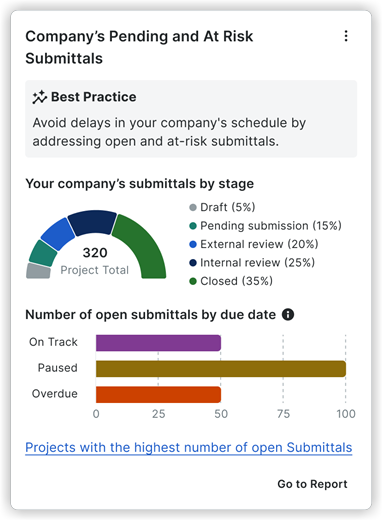
Company Spend on General Conditions: Show/Hide Insights Features
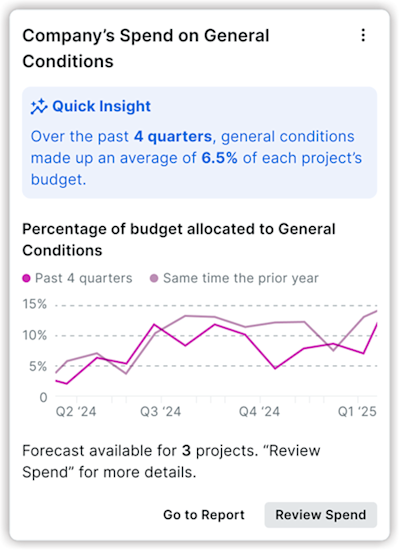
This insight provides a real-time view of a specific project's spending on general conditions against its allocated budget.
Quick Insight: Provides critical benchmark information such as, "General Conditions account for approximately 6.5% of the total budget."
General Conditions Budget: Displays the Budget, Spent, and Remaining core financial figures.
Burn Rate Chart: Visually represents the project's spending trend over time, showing Project spend, Forecasted spend, and Past performance benchmarks. Hovering over the chart displays detailed metrics for specific periods.
Actions:
Review Spend: Directs you to a tear sheet with a detailed breakdown of spending.
Review Budget: Links to the project's budget tool.
Company Time to Complete Observations: Show/Hide Insights Features
The Company Time to Complete Observations insight shows your team's average time to close an Observation item. This helps you identify potential bottlenecks in the observation resolution process and see how your team's performance compares to the industry average.
Quick Insight: This section highlights your team's average time to complete Observations for the current month, and compares it to the previous month and the industry average.
Average days to complete Observations: This section shows your company's average time to close an Observation and compares it to the industry average, with a line graph showing the trend over the last six months.
Median days to notify and review: This section breaks down the average time it takes for Observations to be notified and the average time they spend in the "Ready for review" status.
Projects with the most Observations: A table that lists the projects with the highest volume of closed Observations, showing metrics such as the number closed in under 10 minutes, days open to close, and time spent in review.
From this insight, you can navigate to a more detailed report by clicking Go to Report, or go directly to the Observations tool by clicking Review Observations.

Company Equipment Utilization - Last 7 Days: Show/Hide Insights Features
The Company Equipment insight shows you which of your company's equipment has been sitting idle for the past 7 days. Equipment is considered idle if it has had no engine activity, movement, or mention in Daily Logs, Timesheets, or Inspections across active projects. This insight helps you see which equipment is being underutilized so you can make better decisions about your resource allocation and budget.
Quick Insight: This section provides a summary of the total number of idle equipment over the past 7 days.
Idle vs. Utilized Gauge: A visual representation of the percentage of idle versus utilized equipment across your company.
Idle Equipment List: A table that lists each piece of idle equipment and includes the following information:
Equipment ID
Onsite Project
Last Activity
Last Activity Date
Recommended Actions:
Investigate why the equipment is not being used.
Move idle equipment to projects where it is needed.

Company Days Without an Incident: Show/Hide Insights Features
The Company Days Without an Incident insight helps you track and promote safety by displaying the consecutive number of days your company has gone without an incident. It helps you monitor your company's safety performance in real-time and recognize teams for maintaining a safe working environment.
Best Practice: This section provides a recommendation to recognize crews for hitting safety streak milestones (e.g., 30, 60, or 90 days) to reinforce safe behaviors.
Days since last recordable incident: Shows the total number of days since the last major, recordable incident was logged. This metric tracks your current streak.
Monthly milestone: A progress bar that tracks the number of incident-free days within the current month.
Days since last any incident: Displays the number of days since any type of incident (including minor ones) was logged.
Projects with the most incidents: This table (not shown on the main card) displays a list of active projects that have the highest count of incidents, allowing you to identify which projects may need additional safety focus.

Company-Level Timesheets: Show/Hide Insights Features
Provides visibility into the employee time submission coverage across the entire organization. This insight is available in the company-level Timesheets tool.
Note: To access Timesheets Insights, users require 'View Company Timesheet Insights' granular permission enabled on the Insights tool.
The company-level Timesheets insight:
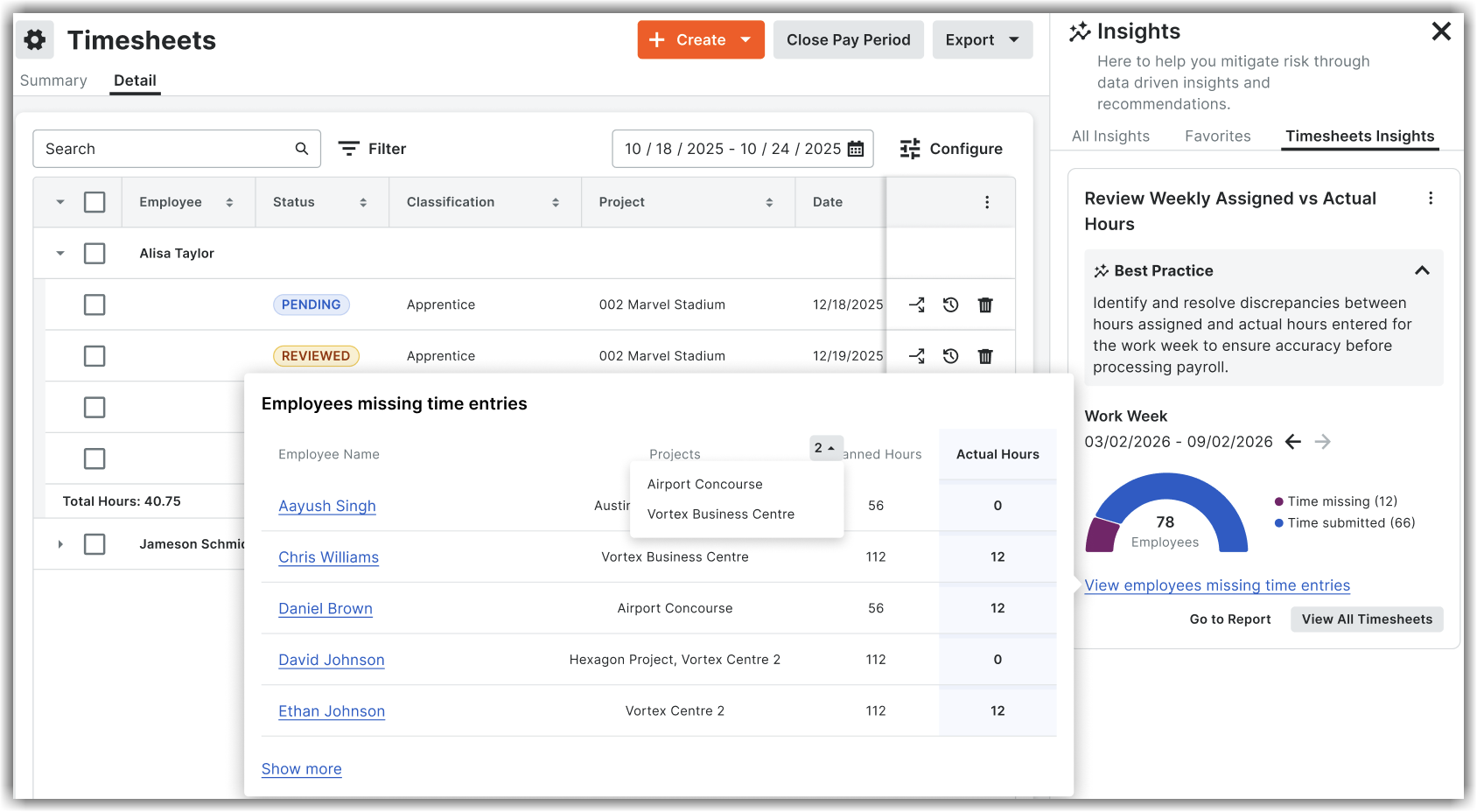
Compares Weekly Assigned versus Actual Hours across your organization to highlight employees with missing time (Planned > Actual) or excessive hours (Actual > Planned) for an active project. Assigned (planned) hours reflect Resource Planning assignment, while actual hours are derived from timesheets. Payroll administrators and project stakeholders can quickly spot discrepancies between assigned and actual hours for the current or previous work week to ensure accuracy before processing payroll.
Provides a single, company-wide view of submitted and missing time entries. Payroll administrators and project stakeholders no longer need to check projects one by one to find incomplete or inaccurate time entries.
Helps to monitor labor risks early, ensuring accurate, on-time payroll and labor forecasting.
The Review Weekly Assigned vs Actual Hours section in the insight contains the following components:
Work Week: Allows to select the current week or previous week for which you want to view the timesheet data.
Visual gauge: Displays the count of submitted time and missing time entries for the selected week. On hovering over Time submitted or Time missing, the percentage breakdown for the time submitted or missing is shown.
View employees missing time entries: Allows to view a list of employees and their missing time entries in a separate screen in detail. For example, employee name, project name, planned hours, and actual hours. Clicking on Show More shows data for all employees. Users can drill-down to view each employee's data by clicking on their name.
View All Timesheets: Navigates to the company-level Timesheets tool, listing all the employees and their data in detail. Users can filter and view the required employees' data.
Go to Report: Allows to view a pre-populated report template that shows a filtered report of all time entries for the selected work week.
Company User Engagement – Last 6 Weeks: Show/Hide Insights Features
Provides a view of user logins and activity across all your projects for a rolling six-week period. Designed for company-level administrators, executives, and operations leaders using Procore, it helps you quickly identify low engagement among specific users, roles, or projects.
The Company User Engagement - Last 6 Weeks insight allows you to:
Compare active versus inactive users across all projects, including internal staff and external collaborators.
Identify your most and least active projects, including their recent activity levels.
Track specific actions (create, view, update, delete) on platform (Desktop, Mobile, or both) using filters.
Surfaces summary metrics, such as total projects, total users, logged-in users, and internal versus external breakdown.
By using this insight data, company administrators and leaders can target training and change management to where it’s needed most. They can use this insight data in internal Procore adoption or digital health reviews to drive better ROI. It helps to monitor rollout and adoption of Procore and key tools over time.
To view a full user activity report, click Go To Report. To see a complete list of all project users and their activity levels, including the tools they use, click View All Users. 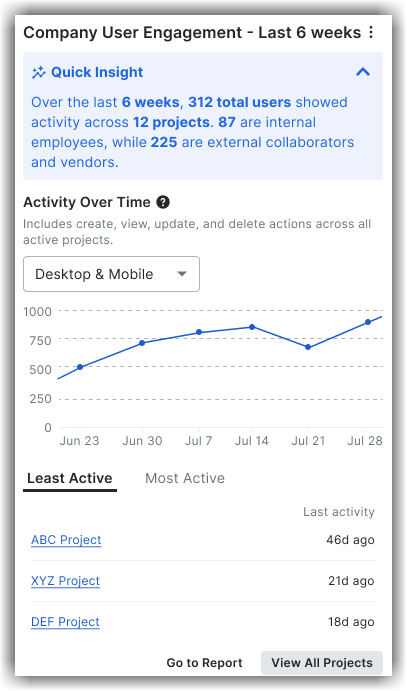
Company's Unfunded Commitment Change Orders (COOs): Show/Hide Insights Features
Provides a visibility into Unfunded Commitment Change Orders (COOs) that have NOT been linked to owner funding (Prime Contract Change Orders(PCCO)). The insight you spot and reduce financial risk from COOs that lack a funding source. It aggregates this risk across the entire organization, providing executives and financial controllers a view of total unfunded exposure across all active projects.
Availability and Access: To maintain data security and for proper product entitlement, the following access logic are applicable:
Available to users with Procore Analytics and Insights (Cost Management) enabled.
Requires the 'View Change Order Insights' granular permission enabled on the Company's Insights tool.
Available to Company Administrators, Insights Administrators, or users with the 'View Change Order Insights' granular permission enabled.
The Company's Unfunded Commitment Change Orders insight:
Shows a visual aging breakdown (0–30, 31–60, and 60+ days) and a granular table highlighting the highest-value outstanding CCOs and the missing PCCO.
Aggregate unfunded exposure across all active projects and show it as a % of total contract value.
Allows you to track aging and See exactly how long unfunded orders have been outstanding.
Bridges the gap by automatically linking commitments to prime contracts.
Allows you to drill into individual unfunded CCOs to see amounts, aging, and creation dates. Use the Highest Percentage Unfunded CCOs section to prioritize follow‑up.
Provides a view of all projects with unfunded CCOs, including their impact on each project. Click View all projects with unfunded CCOs to view additional information of all projects.
Helps to prevent unreimbursed work and revenue leakage when CCOs aren’t backed by owner funding.
Gives both project teams and executives the visibility needed to protect margins and ensure subcontractors are paid.
To navigate to a more detailed report, click Go to Report, or go directly to the Commitments tool to link CCOs to PCCO and clean up exposure. 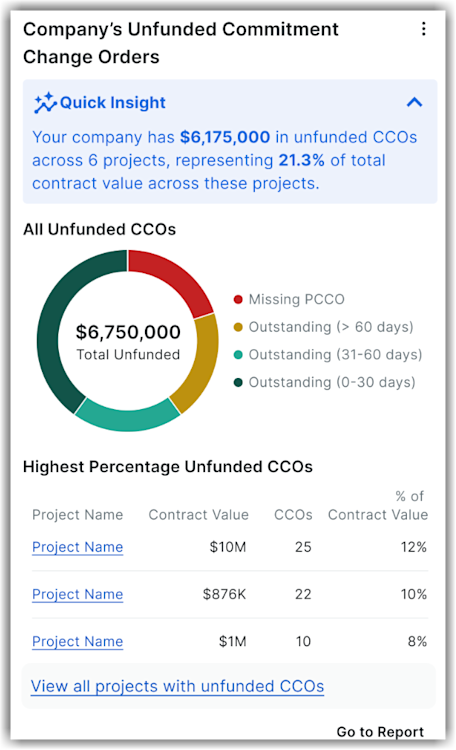
Company Inspection Item Pass Rate - Last 6 Months: Show/Hide Insights Features
Shows the percentage of inspection items that pass on the first inspection for a rolling last six months period. This insight helps you track and improve inspection quality and safety across projects.
A high first-time pass rate means fewer delays, lower costs, and less rework. By comparing performance with industry standards, you can quickly spot patterns, address recurring problems, and improve project quality—saving time, reducing rework, and keeping your projects on track.
Note: To access the company-level Inspection Item Pass Rate insight, users require 'View Company Inspection Insights' granular permission enabled on the company-level Inspection tool.
The company-level Inspection Item Pass Rate insight:
Shows the average percentage of inspection item pass rate on the first inspection across projects for the company with industry as a benchmark. By comparing performance with industry standards, teams can identify areas for improvement and adopt best practices, ultimately improving project quality and reducing inspection delays.
Displays a snapshot with Quality or Safety in the insight's heading section based on your quality or safety tool breakdown. For example, Quality: Company Inspection Item Pass Rate - Last 6 Months or Safety: Company Inspection Item Pass Rate - Last 6 Months.
Provides a rolling last six months view to highlight trends in Conforming versus Deficient items across projects.
Allows to hover over the line charts to see detailed monthly statistics (total line items, conforming, deficient, N/A). For example, number of inspections items not responded to or unresponsive.
Highlights the effectiveness of inspection processes by revealing how often inspections meet requirements on the first attempt.
Allows to drill into projects with deficient inspections. Click View projects with the highest count of deficient inspections to identify projects or templates that frequently fail so you can target training or process changes.
To navigate directly to reports, click Go to Reports, or go directly to the company-level Inspections tool for deeper analysis and follow‑up. 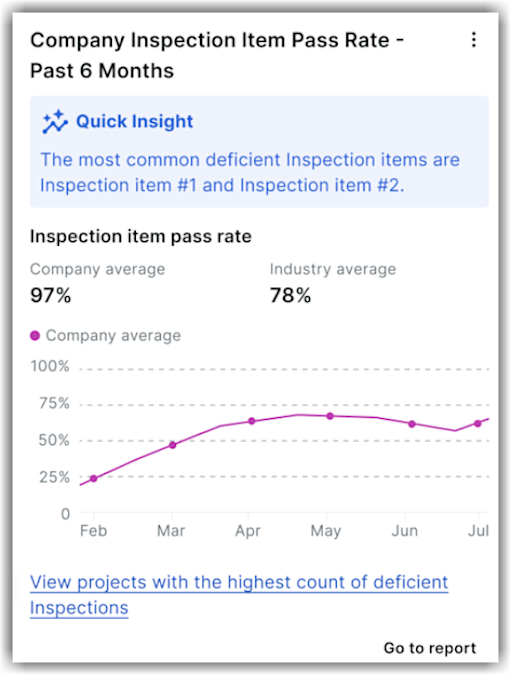
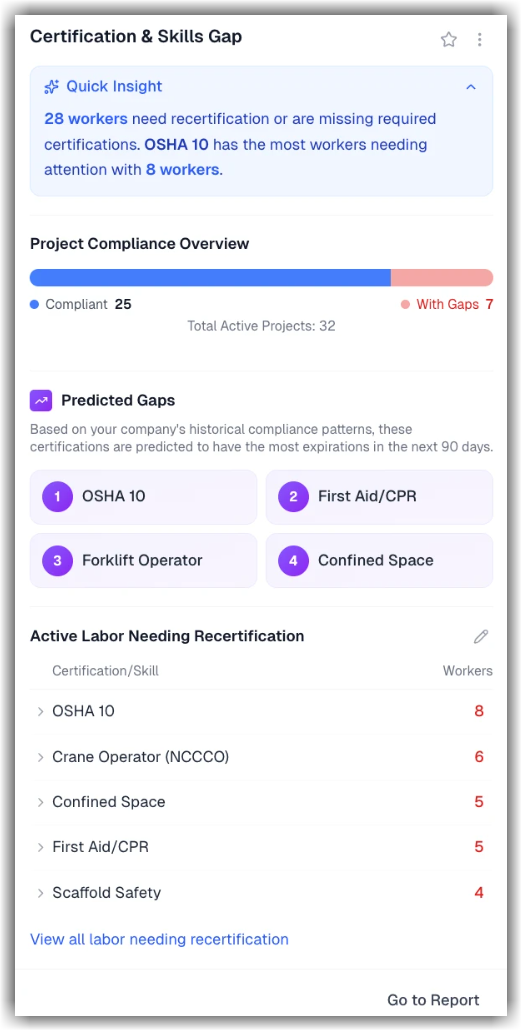
Company Certification & Skills Gap: Show/Hide Insights Features
Shows a clear, real-time view of workforce certification gaps, helping users proactively manage compliance, reduce safety risk, and avoid project delays. This new company-level insight highlights the number of projects that are compliant, total number of active projects, and the predicted gaps.
The Certification & Skills Gap Insights tool compares required certifications (for example, OSHA 10, NCCCO) against assigned workers to surface missing or expired certifications and skill gaps across your projects and workforce. Gaps are visible at both portfolio and project levels so teams can quickly understand:
Which certifications are missing,
Where gaps are concentrated , and
Which projects are most at risk.
This insight helps prevent last-minute scrambles, safety risks, and potential compliance violations. The Insight displays all active certifications and skills, as well as the number of workers requiring recertification—including those with expired or expiring certifications. To view all outstanding certifications and skills by user type, click View all labor needing recertification. You can use the icon to edit the relevant certifications details that you want to be displayed in the insight.