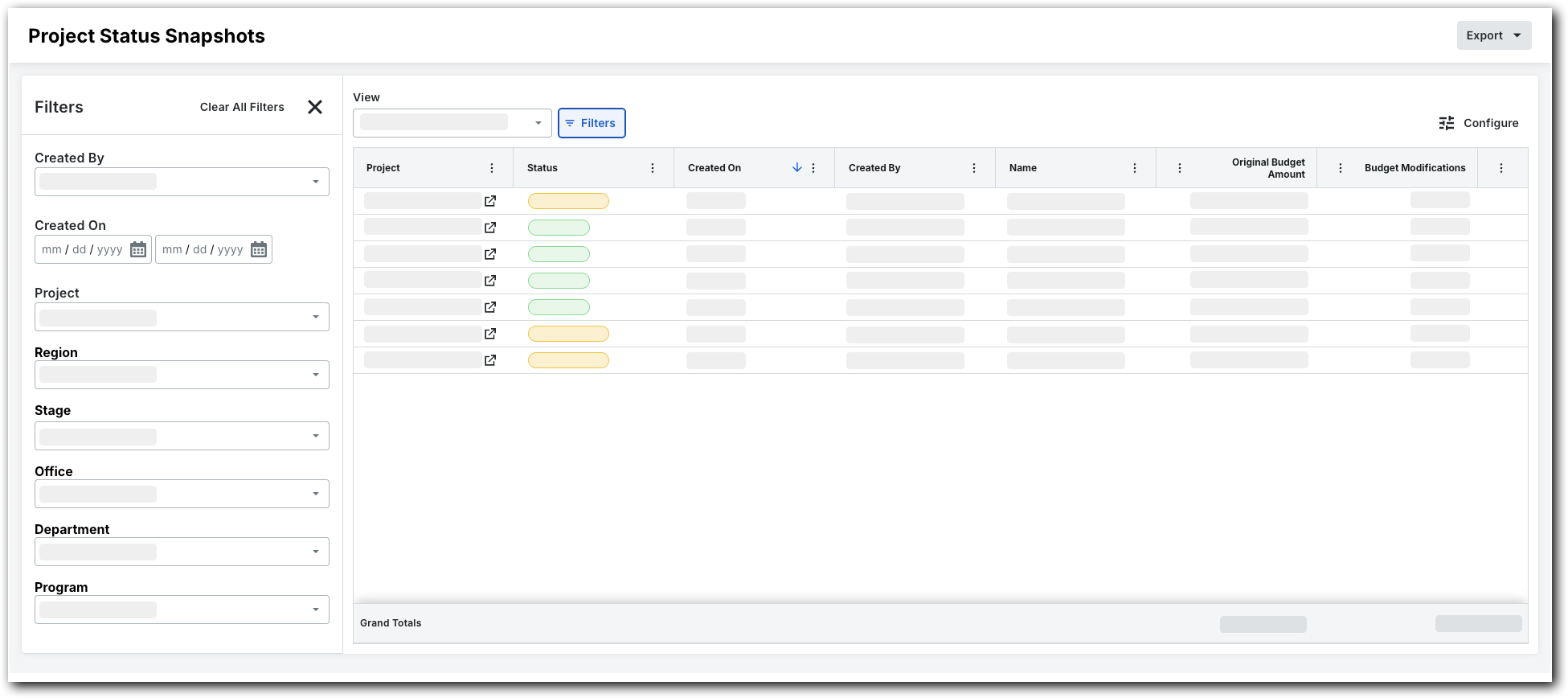
View and Filter Snapshots
Steps
Navigate to the Company level Project Status Snapshots tool.
Locate a snapshot in the list.
Note: If you want to view the snapshot, click the Open icon in the Project column. Important
To see project status snapshots in specific Procore projects and their own ad hoc snapshots, grant users access to the Budget tools within those projects.
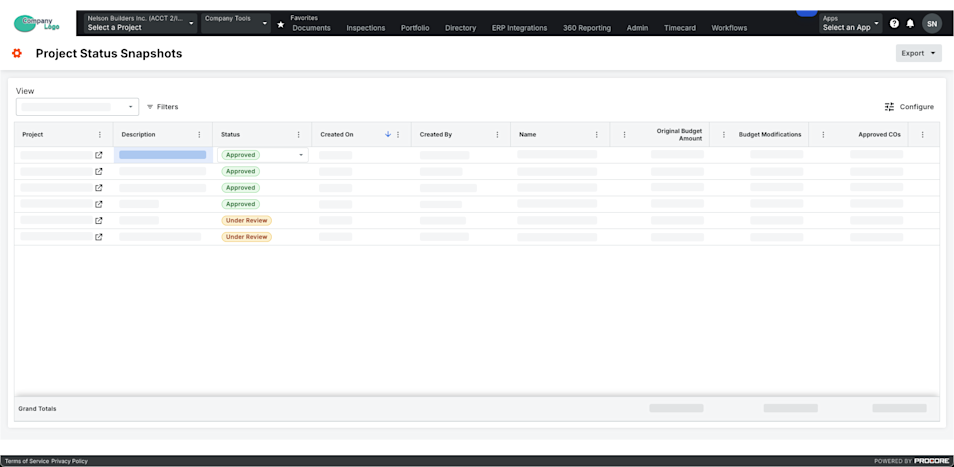
 (Optional) Filter by period or comparison period:
Period. Select one or more periods from this drop-down list.
NoteYou can choose from options such as Current, Last Period, None, or specific financial periods.
By default, the Current period is selected until changed.