Create Contract Documents & Statuses
Navigate to the project's Commitments tool.
In the Contracts tab, locate the commitment to work with.
Click the Number link to open it.
In the commitment, click the Compliance tab.
Scroll to the Contract Compliance Documents card.
Click Create New.
注意新建按钮仅对在项目合约工具上被授予发票 管理员权限的用户可见和可用。
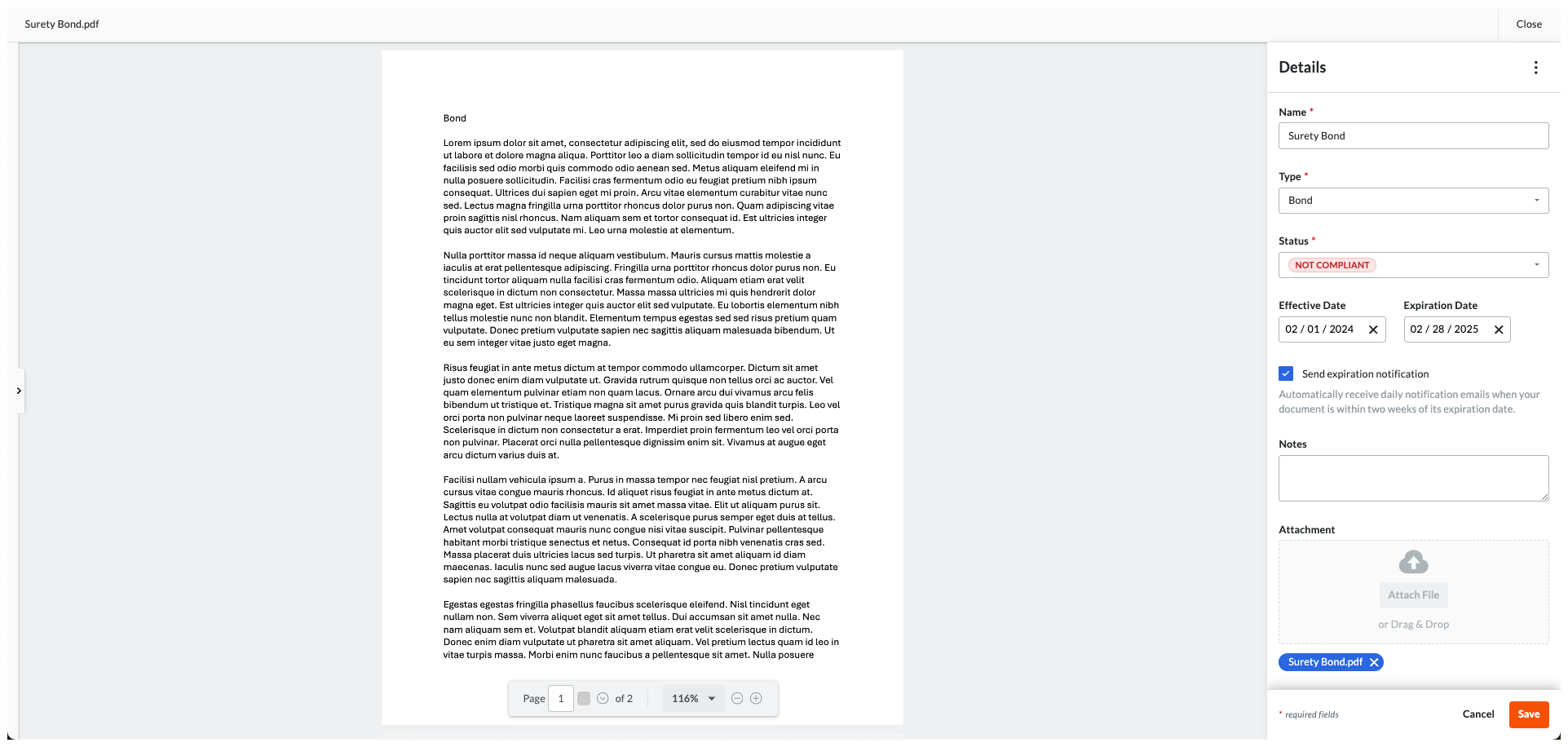
In the Details pane, enter:
Name. Type the name of the compliance requirement. For example, type: Surety Bond
Type. Select a requirement type from the drop-down list. The choices are Bond, License, Master Agreement, Permit, Safety, W-9, or Other.
Status. Choose a status for the requirement: Compliant or Not Compliant.
Effective Date. Select an effective date for the compliance requirement.
Expiration Date. Select an expiration date for the compliance requirement.
Send Expiration Notification. Mark this checkbox to send a daily email notification to the commitment's invoice contacts when the compliance requirement is within fourteen (14) days of the set 'Expiration Date'.
注意要停止电子邮件通知,请更改或删除到期日期。Procore 在到期日期过后六十(60)天后停止发送通知。
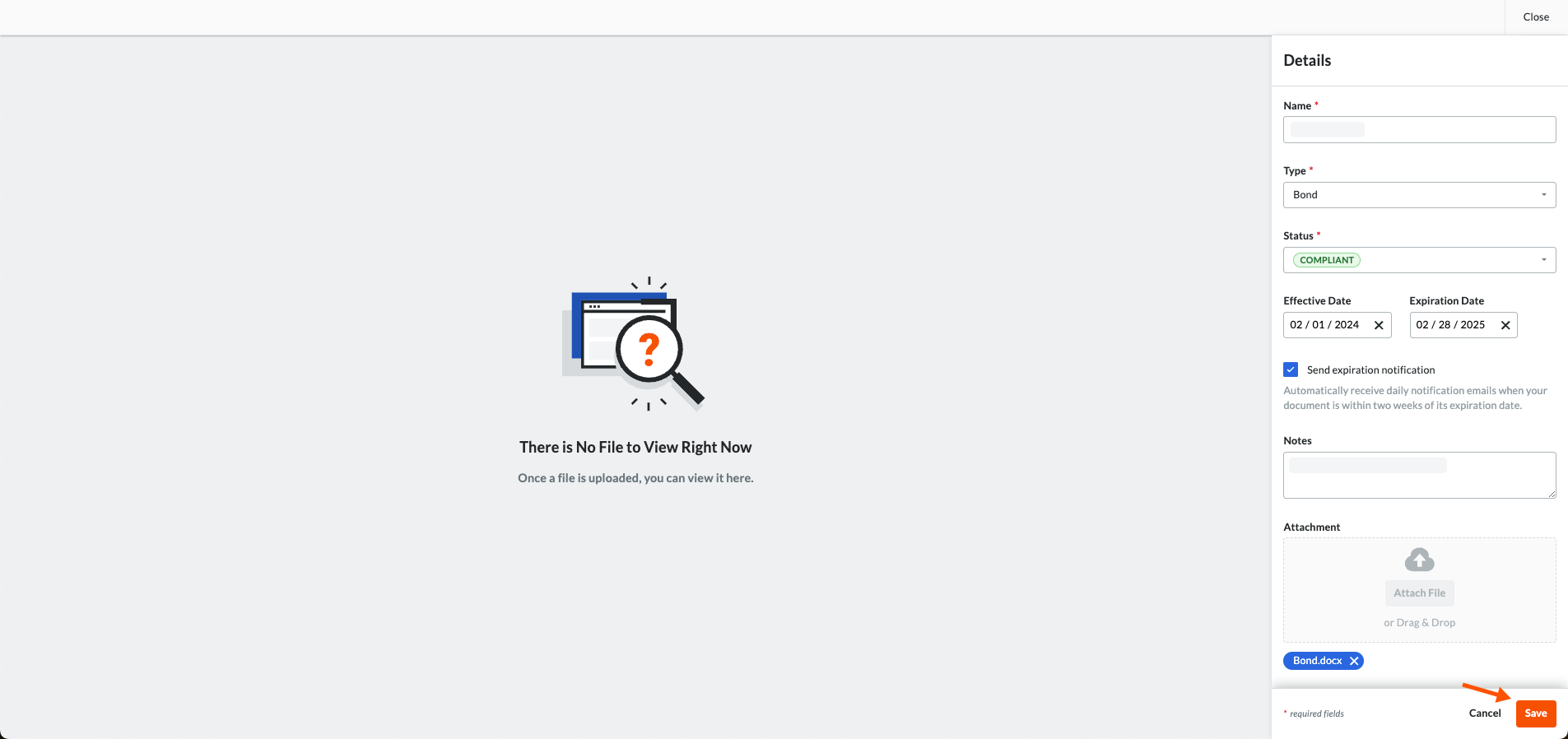 A GREEN success banner confirms that the contract compliance document has been added to the table. The add action is also noted in the Change History tab of the commitment.