Create a Bid Template

Background

Creating bid templates helps your organization maintain consistency across project procurement cycles. Instead of configuring bid packages, submission rules, and boilerplate instructions from scratch for every new project, you can establish a standard template framework at the Company level. This saves administrative setup time and ensures all project teams gather information uniformly.

Things to Consider

  • Required User Permissions on the Company Admin tool.

  • Additional Information:

    • Bid templates can only be created with Base Bid and Alternates scope.

    • Bid Templates can only utilize cost codes from the Company level of Procore. Project specific cost codes need to be added at the project level.

Prerequisites

Steps

  1. Navigate to the Company's Admin tool.

  2. Under 'Tool Settings', click Bidding.

  3. Select the Templates tab.

  4. Click the name of Template Collection where the Template will be created. See Create a Bid Template Collection.

Create a New Template

  1. Click Create.

  2. Click New.

  3. Enter a Name for the Bid Template.

  4. Add Sections (Optional) Show/Hide Fields

    1. Click Add Section.

    2. Enter a name for the section.

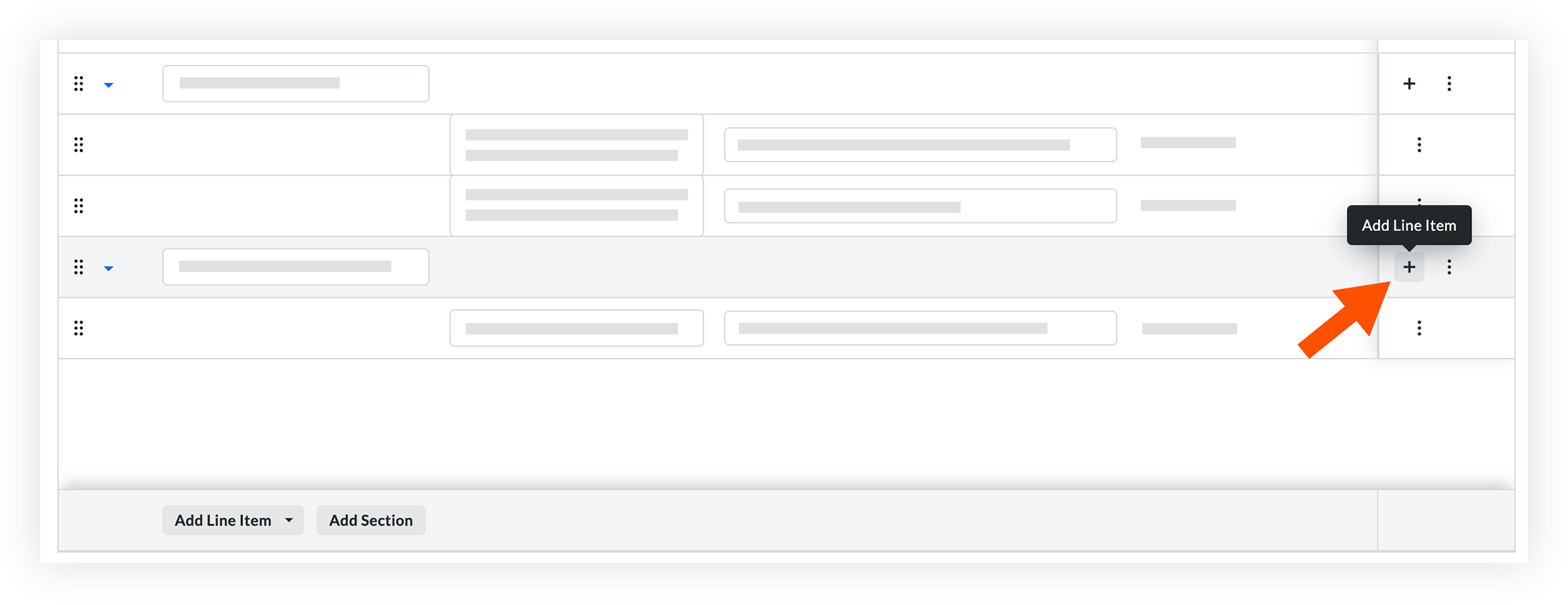
    3. To add a line item for the section, click the Add Line Item menu.
      OR
      Click the plus Icon Plus 2 icon on the same row as the bid form.

      A UI table with rows and sections. An orange arrow points to the Add Line Item tooltip button in the top-right area.

    4. Continue adding sections and line items as necessary.

    5. Optional: To reorder sections or line items, click and drag over the grip Icon Reorder Grip icon and drop it in a new area.

    6. Optional: If you need to delete a section, click the vertical ellipsis Icon Ellipsis Vertical icon and select Delete. This will delete the section and all of its line items.

  5. Add Line Items (Optional) Show/Hide Fields

    1. In the Base Bid section, click the Add Line Item drop-down menu.

    2. Select one of the following line item types:

      • Cost Code: Select if you want to add a line item with a cost code.

      • Plain Text: Select if you want to add a general line item without a cost code.

    3. Fill out fields for the line item:

      • Cost Code:

        • Click the Select Cost Code drop-down menu.

        • Select a cost code.

      • Plain Text:

        • Click into the field and enter a name for the item.

      • Cost Code and Plain Text:

        • Description: Enter a description for the line item, if necessary.

        • Response Field Type: Choose a response type for each line item. This field defaults to your last selection but can be edited.

          • Amount: Select if an amount should be entered.

          • Unit/Quantity: Select if a unit and quantity should be entered.

          • Include/Exclude: Mark line items as inclusions or exclusions.
            Note: Only available in the Base Bid section. Alternates require Amount or Unit & Quantity.

            Tip!

            For lump-sum bidding, set the Response Field Type to Include/Exclude for all line items. This hides itemized costs and adds a Total field to the end of the bid. See Submit a Bid on Behalf of a Bidder or Submit a Bid.

    4. To add additional line items, click Add Line Item and repeat the same process.

    5. If you want to allow bidders to provide alternative options or substitutions, scroll to the Alternates section and add line items as necessary.

  6. To narrow the list of companies, use the following search and filter tools: Show/Hide Details

    • Search: Search by email address, vendor name, address, or company details.

      • If you are searching for a specific user, they must be designated as a Bid Contact to show in the search results.

    • Filter:

      1. Click the All Filters Icon Filter2 icon.

      2. Select one or more filters to apply:

        • Show Selected Only: Move the toggle ON Icon Toggle On to show your selected bidders.

        • Cost Codes: Select one or more cost codes to filter for bidders associated with specific types of work.

        • Trades: Select all trades that apply.

        • Country: Select a country.

        • Minimum Average Rating: Select a star rating to filter for bidders who meet your company's minimum performance standards.

        • Union Member: Move the toggle ON Icon Toggle On to filter for vendors who are members of a labor union.

        • Authorized Bidders Only: Move the toggle ON Icon Toggle On to to display only those vendors officially authorized to bid by your organization.

        • Qualification Status: Select a qualification status.

        • Business Classifications: Select all Business Classifications that apply.

      3. To remove filters:

        • Click the x on an individual filter to clear it.

        • Click Clear All Filters to clear all filters.

  7. Click Create.

Create From a Bid Package

  1. Click Create.

  2. Click From Bid Package.

  3. Select a project from the 'Bid Packages' dropdown menu.

    • Note: Projects without bid packages cannot be used to create a bid package template.

  4. Select a bid package from the project.

  5. Under Add Content to Bid Templates, all three options are selected by default. Clear any checkbox to exclude that data from the bid template:

    • Bid Form Items and Bidders: Copies both the list of cost items and the invited companies from the original bid forms.

    • Only Bid Form Items: Copies only the list of cost items. Use this if you want to invite different companies to bid on the same scope of work.

    • Only Bidders: Copies only the list of invited companies. Use this if you are inviting the same group of companies to bid on a different scope of work.

  6. Under 'Bid Forms', mark the checkboxes for the bid forms you want to copy.

  7. Click Create.

Create From a CSV File

  1. Click Create.

  2. Click From CSV.

  3. Select Download CSV Template.

    • Select Blank Template.
      OR

    • Select Template with Cost Codes.

  4. Once downloaded, open the file in Microsoft Excel.

  5. Enter the bid template information into the predefined columns. Show/Hide Details

    • Bid Template Name: Enter the name of the bid template.

    • Item Type: Base Bid or Alternates: Select Base Bid or Alternates to define the line item scope type.

    • Section: Enter an optional section heading to group related line items.

    • Cost Code: Enter a valid cost code from the template collection cost code set.
      Note: If you selected Template with Cost Codes, the cost codes are already entered.

    • Subject: Enter a subject for the scope item if a cost code is not used.

    • Description: Enter optional scope details or instructions.

    • Respose Type: Amount, Include/Exclude or Unit & Quantity: Select Amount, Include/Exclude, or Unit & Quantity to define how bidders should respond.

    • Quantity: Enter a numerical quantity if required by the selected response type.

    • Unit of Measure: Enter a valid unit from the company's Unit of Measure Master List.

  6. Save your changes in the Excel file.

  7. In Procore, select the CSV Delimiter:

    • Comma

    • Semicolon

  8. Click Upload File.

  9. Select the file and click Open.

  10. Click Create.

Next Steps

See Also

Loading related articles...