Install an App from the Procore Marketplace

Background

As a company administrator, you have the ability to install an App from the Procore Marketplace to your company in Procore. You can install an App while you are in Procore, or install one directly from the Marketplace. There are two types of apps that can be installed:

  • Data Connection (DMSA) app. This type of app will require the configuration of a permission template for the DMSA "user" in the Company Level Directory to allow the app to function as intended on all projects.

  • Embedded (Auth code) app. No additional permission configurations are required for this type of app.

You can see whether you've installed a data connection or embedded app when viewing your company's list of installed apps in the App Management tool.

 Note

Some apps may have both Data Connection and Embedded listed as the app type in the App Management tool. In this case, you need to follow configuration steps for a Data Connection app.
Things to Consider

  • Required User Permissions:

    • 'Admin' level permissions on the Company level Directory tool.

Installing Directly from the Procore Marketplace

If you are already browsing the marketplace or want to install an application directly from the external site, follow these steps:

  1. Navigate to the Procore Marketplace.

  2. Click Log In, enter your Procore credentials, and click Log In again.
    Note: If you are a Company Admin for more than one company, you will be prompted to select the specific company you want to log in to and install the app in. Click Continue.

  3. Locate the application (Data Connection or Embedded App) you want to install and click its tile.

  4. Click Install App.

  5. Review the installation details on the 'Install App' modal:

    • For Data Connection Apps, this modal shows the target company and the specific tool permissions you are granting to the app.

  6. Click Install to confirm your selection and proceed.

Installing from Within Procore

If you are already logged into the Procore platform, you can initiate the installation process directly from your administrative settings:

  1. Navigate to the company level Admin tool.

  2. Under 'Administrative Settings', click App Management.

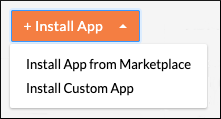
  3. Click the + Install App button and choose Install App from Marketplace. Your browser will automatically redirect you to the Procore Marketplace.
    Install App Button

  4. Navigate to and click the tile for the app you want to install.

  5. Click Install App (or Log in to Install). You will be guided through the remaining installation prompts.

For Embedded Apps: Project Configuration

  1. Immediately after clicking Install, a Create Configuration modal will appear.

  2. You can use this modal to create an initial App Configuration now, or click Skip to create a configuration and apply it to projects at a later time.

See Also

Loading related articles...