Import Commitment SOV Line Items from a CSV File
Background
To save time from manually adding line items to a commitment's SOV, you can download a CSV file from your project, add your line items to that file, and then import it into Procore.
Things to Consider
Required User Permissions:
'Admin' level permissions on the project's Commitments tool.
OR'Read Only' or 'Standard' level permissions on the project's Commitments tool with the 'Update Purchase Order Contract' and ''Update Work Order Contract' granular permissions enabled on your permission template.
Prerequisites
Before importing, it's important to know how the Enable Always Editable Schedule of Values setting works:
When this setting is OFF (Default). The commitment must be in Draft status to import.
When this setting is ON. The commitment can be in any status to import. However, you cannot replace line items if they have been invoiced.
To learn more about imports, see What are the requirements for importing SOV Line items from CSV?
对于使用的公司
 ERP集成工具:可能适用的先决条件、要求、限制和注意事项,具体取决于 Procore 账户集成的ERP系统。有关详细信息,请访问关于ERP集成的须知。
Steps
Download a CSV Template
Choose to delimit your CSV template with a comma or a semicolon before downloading it. You also have the option to download a blank CSV template or one with the selected commitment's existing line item data.
Navigate to the Commitments tool.
On the Contracts tab, click a Number link to open a commitment.
Under the General tab, click Schedule of Values.
In the Schedule of Values card, click Edit.
This places the SOV into edit mode.Below the table, click Import SOV from CSV.
This opens the Import Schedule of Values from CSV window.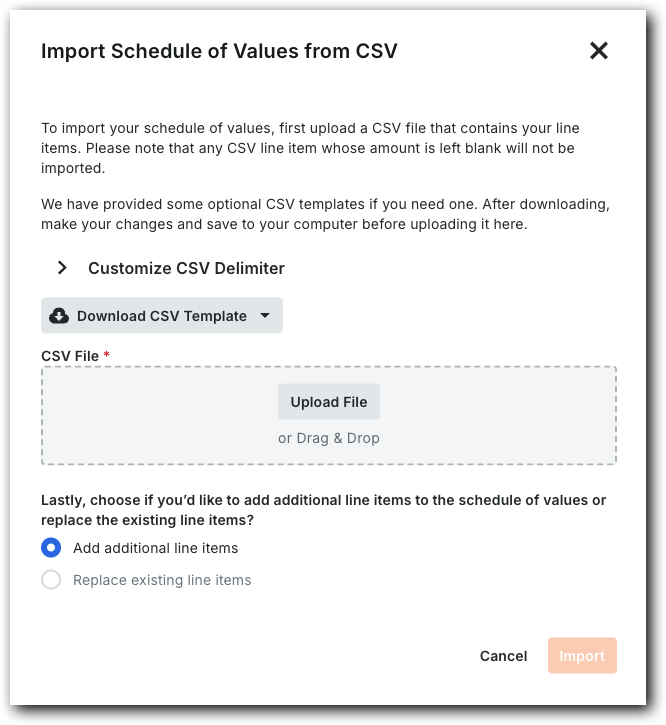
Expand Customize CSV Delimiter.
Choose a delimiter for the template file: Comma or Semicolon.
The system's default option is Comma.Click Download CSV Template and choose: Blank Template or Template with Existing Line Items.
The downloads the selected template to your web browser's configured location.
Add Line Items to a CSV Template
Open the downloaded template in a spreadsheet editor.
Enter the line item data using the appropriate accounting method for the commitment. See How do I set the accounting method for a contract or funding?
How to enter data for amount-based accounting: Show/Hide
To import a subcontract using the amount-based accounting method, enter data as follows:
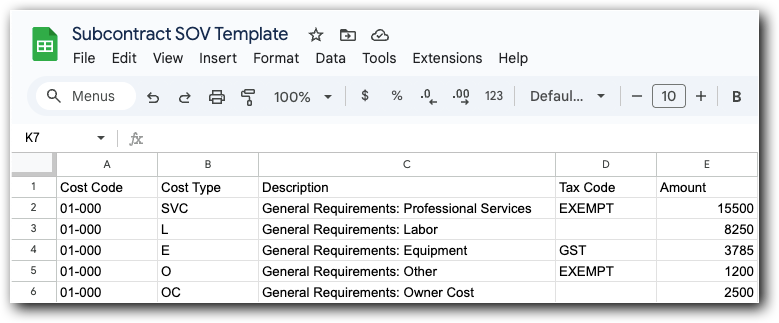
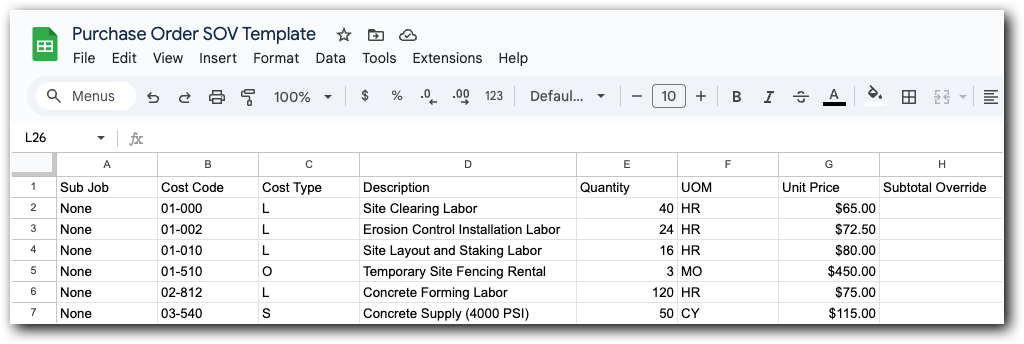
Sub Job. Enter a sub-job code for the line item. This only appears when sub-jobs are enabled. See Enable Sub Jobs for WBS and Which integrated ERP systems support the sub job concept?
Cost Code. Enter a cost code for the line item. To learn more, see What are Procore's default cost codes?
Cost Type. Enter a cost type for the line item. See What are Procore's default cost types?
有关成本类型的重要信息如果将此单元格留空,Procore 会将其归类为"其他" 。
如果你的集成ERP系统与 Procore 同步数据,则需要数据输入。请参阅哪些集成ERP系统支持"成本类型"概念?
Description. Enter a statement to describe the line item.
Tax Code. Enter the tax code for the line item.
Amount. Enter a numeric amount without commas or the dollar sign (e.g., 15000); enter '0.00' if there is no dollar amount, as blank cells are not accepted.