在对话工具中将项添加到消息
Things to Consider
Required User Permissions:
You must exist in a project's Directory.
Note: You can only add items from the project that you have access to.
Additional Information:
You can add up to 10 attachments to a message.
The maximum file size for an attachment is 100MB.
You will only see items that already exist in the project and that you have permission to view.
To see which files can be previewed in Procore's viewer, see Preview a File in the Project Level Documents Tool.
If you want to remove a file or item that you've added before sending the message, click the x next to the item's name.
步骤
导航到对话工具(点击对话 Procore 标题中的图标)。
开启新消息或打开现有对话。请参阅在对话工具中发送消息。
点击加号
 图标并选择以下选项之一:注意:点击下面的链接可查看其他步骤。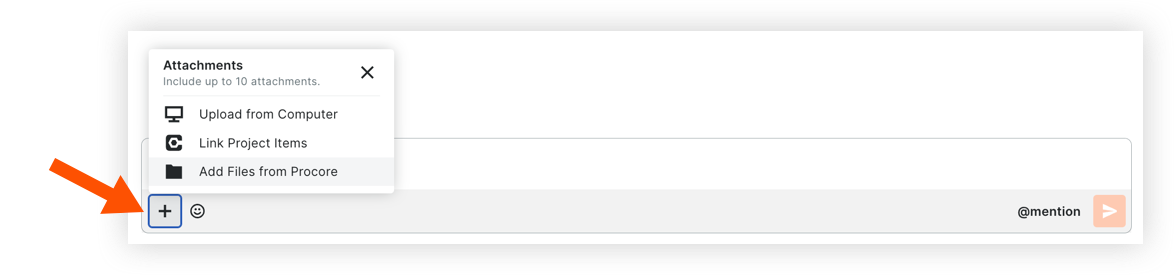
从你的计算机上传文件:允许你从计算机上传文件。
链接项目项:可以链接到项目中的其他项。
从 Procore 添加文件:允许你从项目的文档、图纸或表单工具添加文件。
当你准备好发送消息时,请按键盘上的 ENTER 或 RETURN 键,或者点击发送
 图标。
图标。

从计算机上传文件
在消息中,点击加号
图标,然后选择从计算机上传。从计算机中选择一个或多个要上传的文件。提示!你还可以拖放文件。
点击打开以将文件附加到消息中。
链接项目项
在消息中,点击加号
图标,并选择链接项目项。在搜索栏中,输入关键词或工具名称以查找要添加到消息中的项。注意:你将只能看到项目中已存在且你有权查看的项。
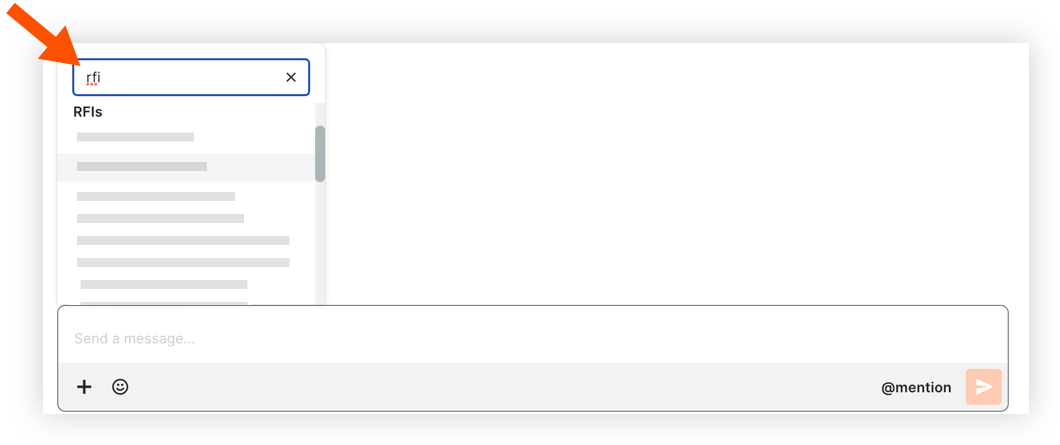
点击该项以将其添加到消息中。

从 Procore 添加文件
在消息中,点击加号
图标并选择从 Procore 添加文件。点击要从中附加文件的工具。注意:目前,可以从项目的文档、图纸和表单工具添加文件。
找到要附加的文件。注意:你将只能看到工具中已存在且你有权查看的项。
点击一个或多个要附加的文件。
点击附加以添加文件。
See Also
Loading related articles...