在对话工具中管理组
背景
在对话工具中创建组时,你正在创建群聊,并允许同时向指定的团队成员发送消息。请参阅在对话工具中创建组。团队成员可以在对话工具的组部分中按项目组织查看和回复这些组消息。
需要考虑的事项
所需的用户权限:
具有"创建和管理组"权限的 Procore 用户。请参阅配置对话工具的访问权限和设置。此权限可以设置为"管理员"、"内部员工"或"所有人":
如果选择"管理员" ,则需要对项目或公司级别目录工具具有"管理员"级别的权限。
如果选择"内部员工" ,则必须将你标记为内部员工。请参阅 如何将某人添加为公司的员工?
如果选择"每个人" ,则必须是公司目录的成员。
其他信息:
如果对话工具配置为仅允许管理员创建和管理组,我们建议在组中保留至少一名管理员,以便进行管理。在用户选择列表中,管理员用户的姓名后显示有
(管理员)。对话工具中的每个组最多可以支持 2,000 名成员。
Steps
Navigate to the Conversations tool (click the conversations
 icon in the top menu of Procore).
In the 'Groups' section, click the group that you want to manage.
Click Manage Group.
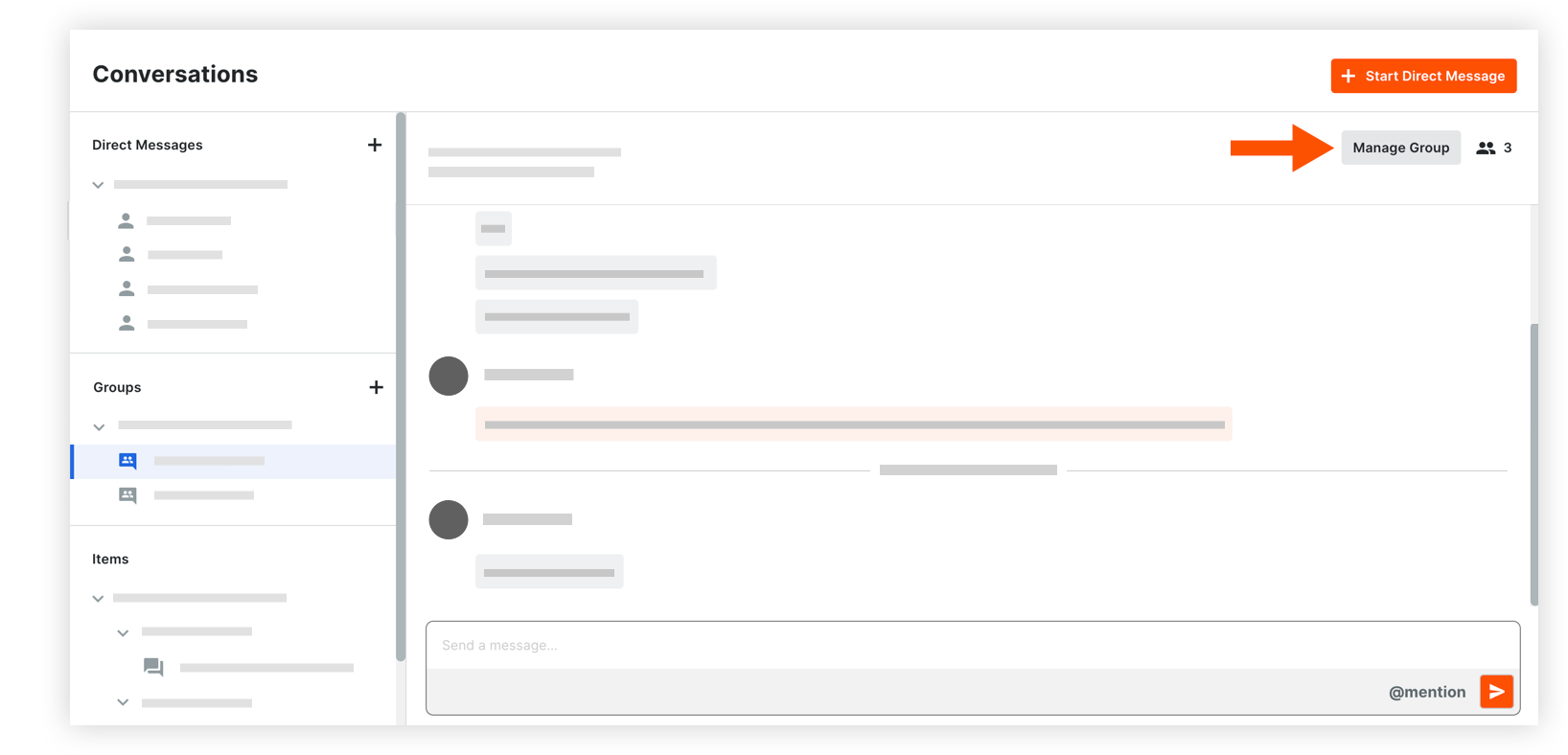
The following information can be modified:
Group Name: Edit the name for the group if necessary.
Team Members: Manage the list of team members as necessary, choosing between manual selection and using the project's Directory:* Selected users:* To add users: Click into the menu to see the list of project users. Select any users you want to add to the group.
Note: If your project has distribution groups, you can select one to add those members to the conversation group. See Add a Distribution Group to the Project Directory.* To remove users: Click the x icon on the user's name.* Everyone in this project's Directory: This includes automatic updates to the team members when any user is added or removed from the project Directory in the future.
Note: Company Admins who are not yet in the project's Directory are prompted to add themselves before proceeding with this option.
Click Save Changes.
See Also
Loading related articles...