Create a Record for a Payment Received
Using Owner or Specialty Contractor Terminology?
Procore can be configured to use terminology specific to General Contractors, Owners, or Specialty Contractors. Learn how to apply the dictionary options.
Procore can be configured to use terminology specific to General Contractors, Owners, or Specialty Contractors. Learn how to apply the dictionary options.
An owner invoice is an itemized record of a financial transaction between a project owner and a company responsible for completing work. Typically, it is issued by a general contractor and submitted to a project owner to signal that payment is due for completed work. When you receive a payment from an owner, you can create a record of that payment in Procore's Invoicing tool using the steps below.
The project's prime contract must be in the 'Approved' or 'Complete' status. See Approve a Prime Contract.
Create the invoice that you sent to the owner. See Create Owner Invoices.
Navigate to the project's Invoicing tool.
Click the Owner tab.
Locate the owner invoice in the list. The click to open it.
Click Create Payment.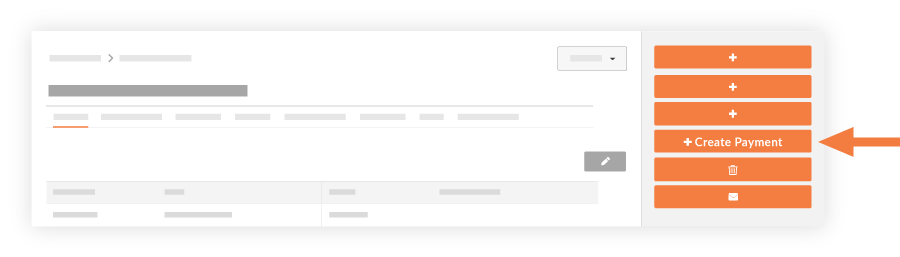
Complete the following fields:
Invoice. Select the associated invoice from the drop-down list.
Date. Select a date that the payment was received.
Payment #. Enter the payment number.
Invoice #. Enter the invoice number for the payment, if applicable.
Check #: Enter the check number for the payment.
Notes. Include any additional notes to provide details about the payment.
Amount. Enter the amount of the payment received.
Attachments. Include any attachments related to the payment. For example, you might want to attach the check image or the invoice file.
Click Add. The payment is listed under the 'Contract Summary Report' section in the 'Payments Received' column. 
Click Save.
You will see a list of all payments received, which you can then export to a PDF by choosing Export > PDF.
All payments received on the project are tracked in the Contract Summary Report in the Prime Contract tool's General tab (see illustration below).
Loading related articles...