Send an 'Invite to Bill' to an Invoice Contact

Using Owner or Specialty Contractor Terminology?

Procore can be configured to use terminology specific to General Contractors, Owners, or Specialty Contractors. Learn how to apply the dictionary options.
  • To learn the differences: Show/Hide

    • This table shows the differences in tool names (bold) and terms across the point-of-view dictionaries for Project Financials.

      总承包商英语(美国)- 默认

      业主英语(业主术语第 2 版)

      专业承包商英语(专业承包商术语)

      开发票

      开发票

      进度账单

      业主

      资金

      业主

      业主/客户

      业主/客户

      总承包商/客户

      主合同变更通知单

      资金变更通知单

      客户合同变更通知单

      主合同

      资金

      客户合同

      营收

      资金

      营收

      分包合同

      合约

      分包合同

      分包商

      承包商

      分包商

      分包商分项价格表(SSOV)

      承包商分项价格表(CSOV)

      分包商分项价格表(SSOV)

      About These Dictionaries
      • Default Setting: The 'General Contractor' dictionary is enabled by default for all accounts.

      • Availability: These alternate dictionaries in italics are available in US English only.

      How to Switch Your Dictionary

      To change your company's terminology to the Owner or Specialty Contractor dictionary, contact your company's . They will work with your Procore Point of Contact to make the change.

Background

Before Procore Invoice Management users can create subcontractor invoices, an invoice administrator must create a billing period in the Invoicing tool. Once created, invoice administrators can send an invoice contact an 'Invite to Bill' for the open billing period.

Example

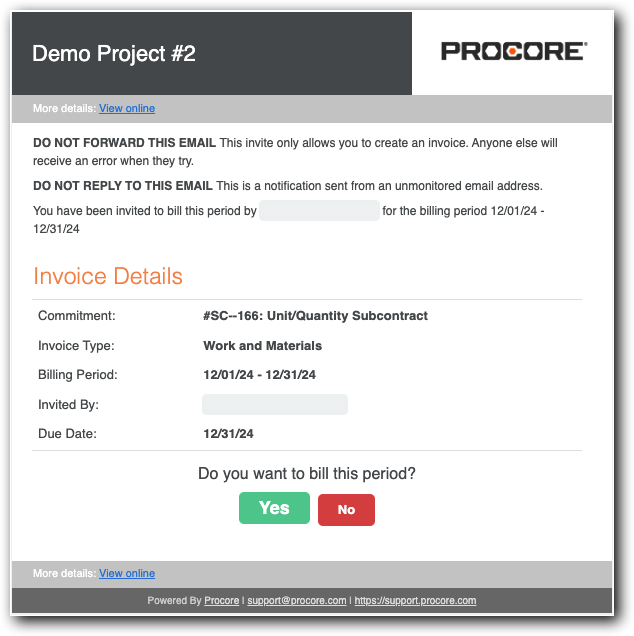
This is an example of the 'Invite to Bill' sent to the commitment's invoice contact.

Invite To Bill

Things to Consider

Prerequisites

Steps

  1. Navigate to the project's Invoicing tool.

  2. Click the Subcontractor tab to view a list of subcontractor invoices.

     Tip

    Looking for invoices not sent an 'Invite to Bill'? Click Add Filter, choose Invoice Status, and check Not Invited

  3. Select the invoices to send invites for:

    • To select individual invoices, mark the checkboxes in the corresponding rows.

    • To select all invoices, mark the checkbox at the top of the table.

       Tips

      Is the 'Send Invites' button grayed out? Possible reasons for an inactive 'Send Invites' button include:

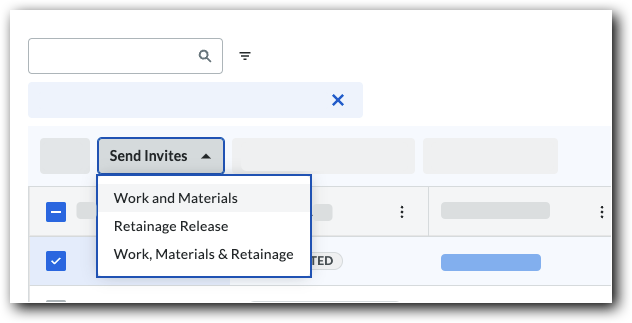
  4. Click Send Invites and choose an option from the drop-down menu:

    • Work and Materials. Allows subcontractors to bill for work and materials only.

    • Retainage Release. Allows subcontractors to bill for retainage release only.

    • Work, Materials, and Retainage. Allows subcontractors to bill for work, materials, and retainage release.

      Send Invite Options

  5. After sending the invites, the following occurs:
    Success Invited Banner

    • A success banner appears to confirm the invitation was sent.

    • The contract is removed from the 'Not Invited' count to the 'Invited' count.

Next Step

See Also

Loading related articles...
