Company Administrators can switch between the new Procore Home and legacy Company Portfolio by following the below steps:
Open the Procore Home or Company Portfolio tool.
Locate the Introducing Hubs banner.
Select Manage Settings on the banner.
Toggle Procore HomeON or OFFto switch between the new view and the legacy view.
However, later this year Company Portfolio will be sunset and will no longer be available.
Background
Use project templates to set up new projects quickly. By copying preferences and file structures from previous projects, templates ensure every new project starts with your preferred default settings.
To create a project template, contact Procore Support or your Procore point of contact to have a team member mark the project as a template for you.
You may create an unlimited number of project templates.
You can modify existing templates. However, modifications only apply to new projects.
For companies using theERP Integrations tool: If you will be importing a job from an integrated ERP system to add to Procore as a new project, you will need to select the project template to apply to your new Procore project. For details, visit Things to Know About Your ERP Integration.
Steps
Request to Enable a Project as a Template in Procore
Confirm that Your Project Template is Active
1. Request to Enable a Project as a Template in Procore
Send a request to your Procore point of contact or contact Support asking them to convert a project to a template. You can use an existing project in your company's account, or you can create a new one. Include the following details in your request:
Project Name and Number
Navigate to the Procore Home tool.
Locate the desired project in the Projects list.
Project ID
Open the project in Procore.
In your browser's URL, the Project ID is the number before /project/. Note: For some tools, the Project ID is the number after '/projects/' in your browser's URL.
Example: In the examples below, the bolded numbers indicate the project ID.
Submittal Emails* Default Distribution
Tasks
配置设置
默认将新任务设置为私密
未完成任务项的天数
任务
任务项
配置设置
默认分发
Timesheets
Configure Settings
Time Entry Settings
All settings
Lunch Tracking
All settings
Overtime Settings
All settings
Employee Location Tracking
Project Address (Populated from Project Admin Tool)
Enable Employee Location Tracking Note: Project address information, including street, city, and state, MUST be entered in the template's Admin tool for this setting to carry over.
T&M Tickets
配置设置
工时和材料设置
项目设置
工时和材料电子邮件
所有设置 =
全局设置(继承自公司级别)
工时和材料单部分
所有选择
更改事件导出选项
汇总人工明细项
组工时总计
设备明细项汇总
组设备总计
Transmittals
配置设置
默认将传输记录设为私密
配置设置
通讯组
Workflows (Company level)
Assigned projects
All templates assigned to the project template will also be assigned to new projects created from that template.
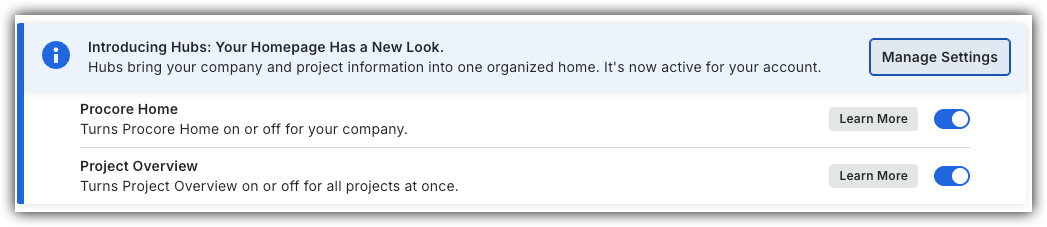
 or OFF
 to switch between the new view and the legacy view.
 ERP Integrations tool: If you will be importing a job from an integrated ERP system to add to Procore as a new project, you will need to select the project template to apply to your new Procore project. For details, visit