Export a List of Projects from Procore Home

New Version Available

Procore Home has replaced the legacy Company Portfolio page and is enabled by default. Learn more about the difference between the legacy Company Portfolio page and the new Procore Home.

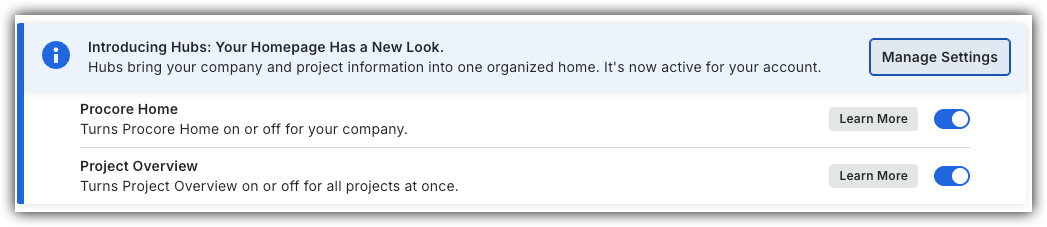
To return to the legacy Company Portfolio, Company Administrators can navigate to the Company Portfolio / Procore Home tool, click Manage Settings and toggle Procore HomeIcon Toggle OffOFF.

Procore Hubs announcement banner with Manage Settings button and toggles for Procore Home and Project Overview features.


However, later this year it will be sunset and will no longer be available. If your company reverted to the legacy Company Portfolio experience, Company Administrators can re-enable the Procore Home experience in Procore Explore. (US 2 | UK)

Background

Export your list of active or inactive projects directly from the Portfolio tool. To focus on specific data, apply filters to narrow your results before you export. Your access to projects determines which projects appear in the list.
Things to Consider

  • Required User Permissions to the company's Procore Home tool.

  • Additional Information:

    • The file is downloaded to your device's default download location.

    • You must be added to the project.

Steps

  1. Navigate to your company's Portfolio or Home tool.

  2. Filter the Portfolio Views.

    Tip!

    Use filters to include inactive projects if needed.

  3. In the Projects List card, click the ellipsis Icon Ellipsis Vertical icon.

  4. Click Export and select PDF or CSV to download your file.

Company Portfolio (Legacy)
  1. Navigate to your company's Portfolio tool.

  2. Filter the Portfolio Views.

    • Tip: Use filters to include inactive projects if needed.

  3. Click Export and select PDF or CSV to download your file.

See Also

Loading related articles...