查看总计仪表板
背景
总计仪表板可帮助你查看当前和未来的资源合约,从而帮助你了解人员配置和成本。查看团队中的活跃人员总数,以及为每个项目或职位分配或请求的人员数量。你可以按人员、工作日、工时或成本查看总计。
需要考虑的事项
步骤
配置总计仪表板
读取总计仪表板
术语定义
了解增量
配置总计仪表板
导航到公司级别资源计划工具。
点击仪表板并选择总计。
选择要查看的日期和周数。注意:选择 1-8 周将按天显示数据,选择 16 周将按周显示数据,6 个月或更长时间将按月显示数据。
点击 配置。
选择按以下方式查看总计:
职位名称。列出的职位名称的显示顺序与设置中职位名称的层次结构相同。请参阅配置资源计划的职位名称。
项目。
可选:选中复选框以显示作业编号。
可选:选中复选框以显示类别。
可选: >选中显示子类别复选框。
选择"项目排序方式":名称、项目编号、最早开始日期或最早结束日期。
选择如何查看"单位总计":
人们。你正在查看的组中每个活动的可分配人员的数量。
Tip
When viewing Total Cell Units by people, you can see a 'delta'. The delta is the difference between the number of people requested and assigned, and the total number of active assignable resources. This tells you whether you have enough manpower to meet current and forecasted needs, or if you may need more resources to meet demand.
工作日。所有分配和请求的总小时数除以每个班次的带薪工时。
小时。所有资源分配和请求工时的总和。
成本。基于每个资源分配和请求的小时工资的总成本。
点击应用。
读取总计仪表板
术语定义
人员
活动资源:可用于所选组和人员筛选器的可分配资源总数。
已分配:在指定时间段内为唯一人员进行的唯一分配的计数。如果一个人在指定时间段内有两个唯一分配,则它们将视为一个分配。
休假:在指定时间段内提出的唯一休假请求的计数。(仅适用于最多 8 周的视图。)
已请求:在指定时间段内提出的唯一请求计数。
总计:指定时间段内的唯一请求和分配的总和。休假显示在括号中。
增量:指定时间段内活动资源与总数之间的差额。
工作日
活动资源:可用于所选组和人员筛选器的可分配资源总数。
已分配:指定时间段内的唯一分配计数乘以总工时,再除以每个班次编号的带薪工时。注意:默认带薪工时数为 8,可以在成本设置中进行调整。请参阅在资源计划中配置成本。
休假:唯一休假记录的计数乘以总小时数,再除以指定时间段内每个班次编号的带薪工时。注意:仅适用于 8 周视图。
已请求:指定时间段内的唯一请求计数乘以总工时,再除以每个班次编号的带薪工时。
总计:指定时间段内的唯一请求和分配的总和。休假显示在括号中。
工时注意:工时的计算可能不同。如果分配工时超过每个班次编号的带薪工时,并且未在分配中选择加班。
活动资源:可用于所选组和人员筛选器的可分配资源总数。
已分配:在指定时间段内进行的分配的工时数。
休假:在指定时间段内休假记录的工作小时数。注意:仅适用于 8 周视图。
已请求:指定时间段内请求的工作小时数计数。
总计:指定时间段内请求和分配的小时数总和。休假显示在括号中。
了解增量
按人员查看单位总计时,你可以看到增量。增量是请求和分配的人员数量与活动可分配资源总数之间的差额。这告诉你是否有足够的人力来满足当前和预测的需求,或者你是否需要更多资源来满足需求。
Example
In this simple Totals Dashboard example, there are the following number assignments, requests, and of people that can be assigned:
Active Assignable Resources: Two people marked as 'Assignable'.
Assignments: One of the two people is assigned for the entire month, represented in orange.
Requests: There are three separate requests in a month, represented with blue, purple, and yellow.
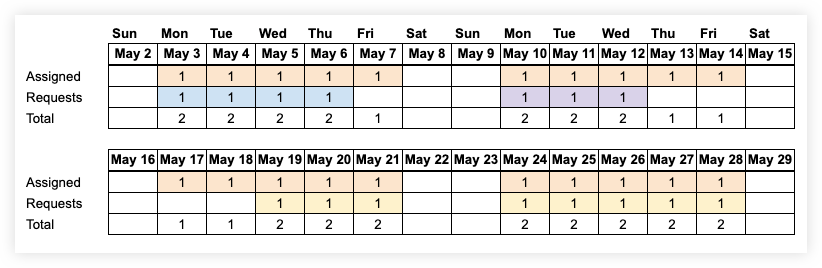
When you select to view data from 1-8 weeks, you will see the daily delta. For days when there is one person requested and one person assigned, the delta is 0. One of the people is assigned, and the other person could fulfill the request, leaving 0 people available that day. For days when there there is one person assigned and no requests, there is a delta of 1, meaning there is 1 person available that day.
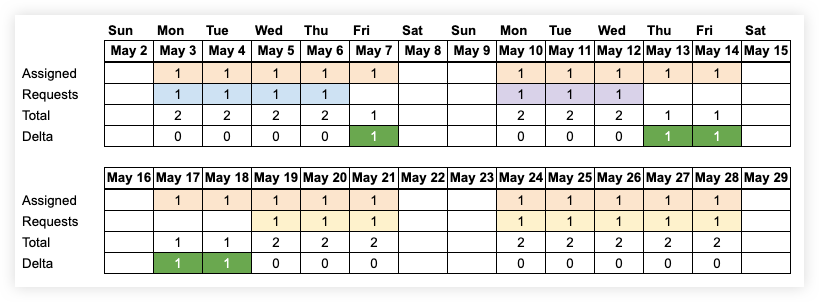
When you select to view data for 13 weeks, you will see the weekly delta. For all weeks, there was one person assigned, and one person requested that the other person could fulfill. This makes the delta 0 for the week.

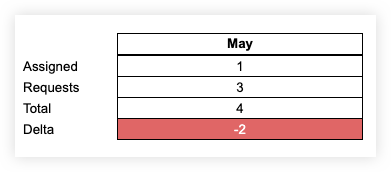
When you select to view data for 6 months or more, you will see the monthly delta. In this case, there is one person assigned, and three separate requests for people. Because there are four people requested or assigned for the month and there are only two assignable people, the delta is -2 for the month. As you can see with the daily and weekly deltas, having a negative delta in the month view does not necessarily mean that there are not enough resources. It depends on the dates of the requests and assignments, and the skill set of your workforce.