Add a Condition Step
Configure a 'Condition Step' in the Workflow Builder by naming it, defining conditions with tool-specific statements, and setting the next workflow steps based on whether conditions are met.
Steps
Add a Condition Step
Navigate to the Workflow Builder. Use these steps when configuring a workflow step in a new or existing workflow.
Under General Information in the Type list, choose: Condition Step
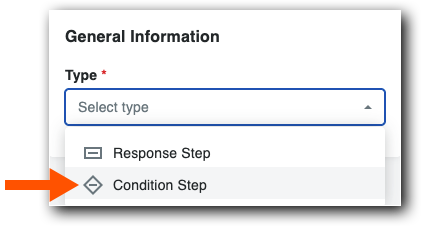

Add General Information
Name your workflow in Step Name.
Confirm that Condition Step is set in the Type list.
From the When list, select a tool-specific statement.
提示缺少一个字段?自定义字段类型单选和多选需要在自定义字段集中设置为必填且可见才能在条件中使用。
Choose an available operator from the Is box. Each condition statement has different options. To learn more, see Tool-Specific Statements and Conditions.

In the Then list, choose the next step or create a new step for the workflow template.
In the Otherwise list, choose the next step or create a new step for the workflow template.
当不满足条件或项目为空时,工作流步骤始终转到你定义的其他步骤。